What is CryptoLocker ransomware and how can you protect yourself?


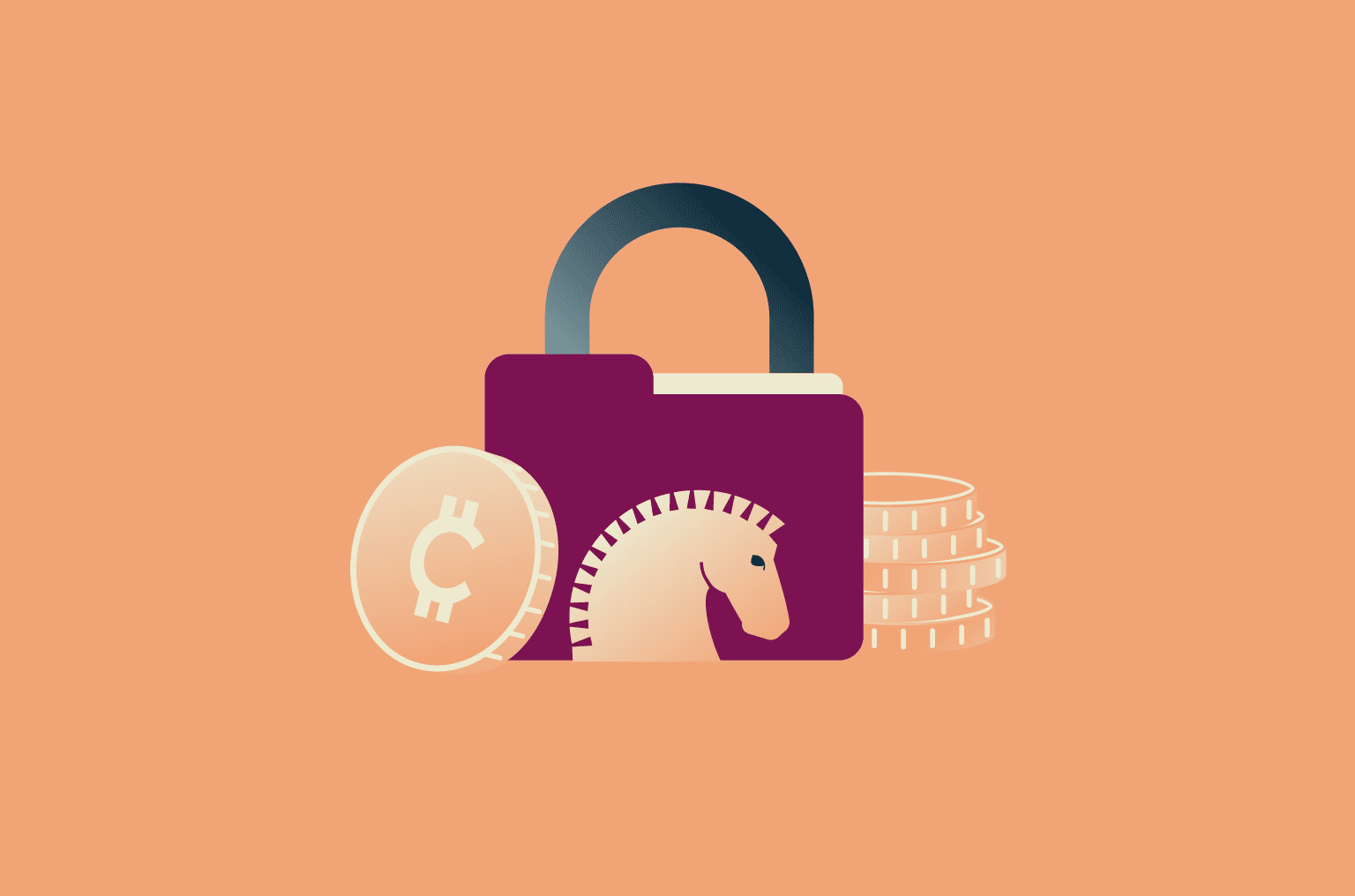
CryptoLocker is the name given to a ransomware campaign that targeted Windows computers in 2013. The original operation behind it is no longer active, but the incident shows how a ransomware attack can affect systems and the data stored on them.
This guide explains what CryptoLocker was, how it worked, and whether it still poses any risk. It also covers how similar ransomware infections are identified, how to respond when access to data is lost, and what you can do to reduce the likelihood of future incidents.
What is CryptoLocker ransomware?
CryptoLocker was a type of ransomware: malware that infects a device, encrypts its files, and demands payment in exchange for restoring access.
As well as files stored on the infected computer, CryptoLocker was able to lock files on storage that the computer could access. This included USB drives, external hard drives, and shared folders on a network.
Because the files were encrypted, users couldn’t open or restore them without the attacker’s decryption key, unless they already had clean backups.
Is CryptoLocker still a threat today?
No. The original CryptoLocker operation was disrupted in 2014 during an international law-enforcement effort generally referred to as Operation Tovar. The takedown shut down the main systems used to distribute the malware and control its encryption process, which effectively ended the campaign.
Since then, CryptoLocker hasn’t been treated as an active or ongoing ransomware threat. That said, ransomware that encrypts files and demands payment for recovery is still common.
How CryptoLocker worked
CryptoLocker was initially delivered through phishing emails. Attackers sent fake emails designed to look like legitimate messages from businesses or shipping companies. Many of these emails used fake FedEx or UPS tracking notices and included file attachments. When a user opened the attachment, CryptoLocker was installed on the computer.
At scale, however, CryptoLocker was primarily distributed via the GameOver Zeus (GOZ) botnet. Systems already infected with GOZ were used to push CryptoLocker as a secondary payload, allowing attackers to deploy it widely without relying solely on new phishing attempts.
After it was installed, CryptoLocker ran automatically in the background. It didn’t need any further action from the user to continue.
To stop victims from undoing the damage themselves, CryptoLocker didn’t store the decryption key on the infected computer. Instead, it contacted command-and-control (C2) servers controlled by the attackers, which generated and stored the decryption key needed to restore access to the files. This kept the key out of the victim’s control.
Once that process was complete, CryptoLocker displayed a ransom message. The message explained that access to the files had been blocked and instructed the victim to make a payment within a limited time window to receive the decryption key. It also warned that failing to pay could result in permanent loss of access.
Because the decryption key wasn’t stored on the affected system, removing the malware alone didn’t restore access to the encrypted files.
What’s changed since CryptoLocker?
Since 2013, ransomware has evolved beyond “encrypt files and demand payment” being the whole story.
One major change is that many incidents now involve data theft alongside encryption. Attackers may copy sensitive files first, then use the threat of leaking them as extra pressure to pay. That pattern is widely described as double extortion.
Another change is how some operations are structured. Instead of a single tightly run campaign, many modern ransomware groups operate more like an ecosystem. A small core team may build and maintain the malware and payment infrastructure, while other actors carry out intrusions using it.
This makes takedowns less clean-cut because disrupting one piece doesn’t always stop the broader activity. The result is that ransomware now covers a wider range of playbooks than it did in the CryptoLocker era.
How to detect ransomware like CryptoLocker
Most attacks still follow the same basic patterns, so the warning signs seen in earlier CryptoLocker cases are still relevant.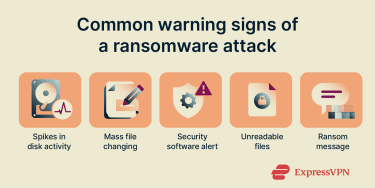
Early indicators
One of the earliest warning signs of a ransomware attack is a sudden wave of file changes across many folders in a short amount of time. During an attack, files are modified in bulk so they become unreadable. Security software generally flags this kind of rapid, large-scale file activity because it doesn’t match normal computer use.
Signs of active infection
Once ransomware has encrypted files, it usually makes itself known to the device user in a few ways:
- A ransom message appears: This may show up as a pop-up window, a changed desktop background, or text files placed in folders with payment instructions.
- Files won’t open: Documents, photos, or spreadsheets that worked earlier may suddenly return error messages or fail to load.
- File names or extensions change: Some ransomware may alter file names or add unfamiliar extensions.
Tools and techniques for detection
- Antivirus and anti-malware software: These tools can detect known ransomware variants, malicious email attachments, and related installers before or during execution.
- Endpoint monitoring tools: In organizational environments, endpoint security software can flag unusual file activity and help teams piece together what happened and when. This is often part of a broader security setup that organizations use to monitor devices and respond to incidents across their network.
- System activity signals: Sudden spikes in disk or processor usage combined with unexpected file changes can trigger alerts in security tools. On their own, these signals aren’t proof, but they’re often used to raise suspicion.
- User reports: In many real incidents, the first warning comes from a user noticing files behaving unexpectedly and reporting it quickly. While this isn’t a technical tool, it’s often the earliest detection point.
How to remove ransomware like CryptoLocker
Before getting into steps, it’s important to understand what malware removal can and can’t do. Once ransomware has encrypted files, removing the malware doesn’t decrypt them. Cleanup generally just stops the attack from continuing and reduces the risk of reinfection. But file recovery depends on backups or, in rare cases, a legitimate decryption key.
Step-by-step removal actions
If you suspect ransomware is active or has just finished running, the goal is to limit further damage first, then clean the system safely.
However, if you’re not an IT or security professional, it’s important to contact your organization’s IT team or a trusted security expert before taking action. Improper handling can make recovery harder or cause further damage.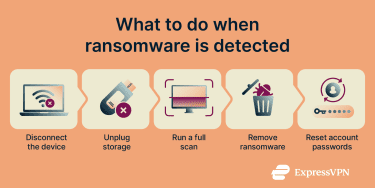
- Disconnect the device from all networks: Turn off Wi-Fi and unplug any wired connections. Ransomware often targets files that the computer can access over a network. Cutting connectivity helps prevent additional files or other systems from being affected.
- Disconnect external and shared storage: Unplug USB drives and external hard drives and disconnect from shared folders or network storage. If the system can write to it, ransomware may be able to encrypt it.
- Use trusted security software to remove the malware: After isolating the system, run a full scan with reputable antivirus or anti-malware tools and follow the indicated removal steps. If removal isn’t possible, you can also try wiping the device and restoring a clean backup.
- Secure important accounts: After removal, change system passwords in case of credential theft. Then reset passwords for other crucial accounts, starting with email. Email access is often used to reset other accounts, so this step helps prevent follow-on abuse.
Recovering encrypted files without paying
Whether files can be recovered depends on what’s available after the infection has been contained.
The most reliable option is restoring data from clean backups that weren’t accessible to the ransomware at the time of the attack. This can include offline backups or cloud backups that keep earlier versions of files. Before restoring anything, it’s important to confirm the malware has been fully removed so recovered files aren’t immediately re-encrypted.
Tools and services for recovery and verification
If you don’t have usable backups, the next step is to check whether a legitimate decryptor exists for the ransomware involved.
In rare cases, legitimate decryption tools have become available after law enforcement action or security research. This happened during the disruption of the original CryptoLocker operation in 2014, when seized attacker infrastructure allowed some victims to recover files. Situations like this aren’t common and depend entirely on the exact ransomware involved.
No More Ransom (an initiative by the National High Tech Crime Unit of the Netherlands’ police, Europol’s European Cybercrime Centre, and other law enforcement and IT Security partners) maintains a public list of verified decryptors when they’re available. If a working decryptor exists for a specific ransomware strain, it’s usually listed there.
Be cautious of third parties that claim they can recover encrypted files for a fee. Some act as intermediaries who pay the ransom on the victim’s behalf, while others make guarantees they can’t keep. Any service that promises recovery without first identifying the ransomware should be treated with skepticism.
How to prevent future infections
Best security practices
Ransomware prevention comes down to reducing how malware gets in and limiting what it can reach if it does. These cybersecurity practices apply whether you’re using a personal device or managing systems for others.
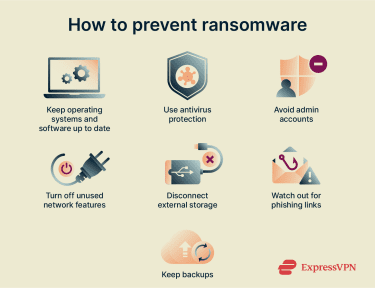
- Keep operating systems and software up to date: Install security updates for your OS, browser, and commonly used applications. Many ransomware infections rely on vulnerabilities that already have patches available.
- Use security software: Antivirus and anti-malware tools can help block known ransomware and detect suspicious behavior.
- Avoid using administrator accounts for daily tasks: Use a regular user account for everyday activities like browsing, email, and documents. Only switch to an administrator account when you need to install software or change system settings. If malware runs with admin access, it can make broader system changes and cause more damage.
- Limit unnecessary network features: Only keep remote access, file sharing, or similar network features enabled if you actually use them. Services that are turned on but rarely needed can increase the ways an attacker might reach a system.
- Be cautious with removable and external storage: Only connect USB drives and external disks when you actually need them, and disconnect them afterward. Storage that’s always connected becomes part of the system ransomware can reach.
User awareness and safe handling habits
Ransomware often relies on getting a file or a link to run. You don’t always need to tell malicious files apart to reduce risk; a few simple defaults are often enough.
- Don’t open files or links directly from email: If an email asks you to open an attachment or click a link, don’t use the email to do it whenever possible. Go to the service directly through its official website or app instead. This avoids treating email as a trusted delivery channel, even when the message looks legitimate.
- Be cautious of prompts that ask you to lower protections: Some malicious files rely on user approval to run. Requests to enable macros, allow editing, or bypass security warnings are asking for extra permission. If a document won’t open unless you change security settings, that’s a strong signal to stop.
Reliable backup and recovery strategies
Backups are the most dependable defense against data loss from ransomware. That said, they only help if they’re set up in a way ransomware can’t easily reach.
- Maintain multiple copies of important data: Keep more than one backup so a single failure or compromise doesn’t wipe everything.
- Keep at least one backup offline or isolated: Offline backups are kept out of reach of ransomware
- Test restores periodically: Practice restoring files so you know the backups work and understand the recovery process before an incident happens.
- Protect access to backup accounts: Secure the email address and login credentials used for backup services. If an attacker gains access to those accounts, they may be able to delete or alter backups without touching your device.
Learn more in our guide on how to back up files and encrypt them.
Can a VPN reduce ransomware risk?
A virtual private network (VPN) isn’t designed to stop ransomware and should never be relied on as a primary defense against malware infections. However, a VPN can provide some limited protection at the network level.
Unsecured networks, like public Wi-Fi hotspots, can sometimes allow attackers to interfere with connected devices. This can include redirecting users to fake websites, tampering with downloads, or injecting malicious content into unencrypted traffic.
In some cases, a user may think they’re visiting a legitimate site or downloading a normal file when the connection has been altered in transit.
When a VPN is in use, it encrypts the connection between your device and the internet. This encryption can prevent attackers on the same network from seeing, modifying, or redirecting your traffic, making certain network-level attacks harder.
Some VPNs also include optional protection features. For example, ExpressVPN’s Threat Manager blocks your device from connecting to domains known to be linked to malware or trackers while the VPN is active. This reduces the chance of reaching harmful sites, even if you accidentally click on a phishing link.
But crucially: a VPN does not detect, block, or remove ransomware itself. Protecting your device from ransomware requires layered security measures including up-to-date antivirus software, careful handling of email attachments, regular backups, and security awareness.
Related: VPN vs. antivirus: Key differences and which one you need
FAQ: Common questions about CryptoLocker ransomware
How can I prevent CryptoLocker infections?
The original CryptoLocker malware is no longer active. Preventing ransomware today focuses on modern ransomware that spreads in similar ways. Keeping your system updated, using reputable security software, avoiding opening files directly from emails, and maintaining offline or isolated backups are the most reliable defenses.
What are the most dangerous ransomware strains?
There isn’t one ransomware strain that’s always the most dangerous. The real risk depends on how a group operates and who it targets. In recent years, families like LockBit, ALPHV BlackCat, and Clop have caused widespread damage by combining file encryption with data theft and pressure tactics.
Can I recover files without paying the ransom?
Sometimes. Clean backups that weren’t reachable by the ransomware are the most dependable option. In rare cases, legitimate decryptors exist due to law enforcement action or security research. If neither backups nor a verified decryptor are available, recovery may not be possible. Paying the ransom still doesn’t guarantee access to your files.
What are the signs of a ransomware infection?
Files may suddenly stop opening or return error messages. File names or extensions may change. A ransom note may appear as a pop-up, a background image, or text files placed in folders. These signs usually mean encryption has already started or finished.
How do professionals handle ransomware attacks?
The first priority is containment. Affected systems are isolated to stop the spread. While the malware is removed, key evidence is kept where possible. That evidence helps teams understand how the attack started, what systems were touched, and whether anything was missed. Only after that do they focus on recovery, restoring from backups, and closing the gaps that allowed the intrusion in the first place.
What should I do if my files are encrypted?
Disconnect the device from the internet and any external storage right away. Stop using the system. Then remove the malware using trusted security software. After that, check recovery options such as backups or verified decryptors. If this involves work systems or shared data, it’s best to escalate it to the organization’s IT team instead of trying to fix it alone.
Take the first step to protect yourself online. Try ExpressVPN risk-free.
Get ExpressVPN