What is a computer worm, and how does it work?


Computer worms have been around since the late 1980s, and they’re still causing real damage.
We can define a computer worm by one core trait: it spreads automatically, without you clicking anything or opening a file. This capability of worms has caused some of the most damaging cybersecurity incidents in history.
This guide explains what computer worms are, how they’ve evolved, how they differ from viruses and Trojans, and how to protect your devices from worm-like infections.
What is a computer worm?
A computer worm is a type of malware that copies itself and jumps from device to device over networks, exploiting security holes, all without any help from you.
Unlike a virus, a worm doesn’t need to hitch a ride on a legitimate file or program. It just runs on its own and actively hunts for other machines to infect. That’s why worms can explode across hundreds or thousands of devices in minutes after they get going.
How computer worms differ from viruses and Trojans
The difference between worms, viruses, and Trojans isn’t just terminology. Each spreads in a different way, which affects how quickly it can move and how you can defend against it.
| Feature | Computer worm | Computer virus | Trojan horse |
| Self-replication | Yes (autonomous) | Yes (requires host) | No |
| User action required | None | Yes (open/run an infected file) | Yes (tricked into installing) |
| Main way it spreads | Network vulnerabilities | Shared files, email attachments | Social engineering, fake apps |
| Analogy | Wildfire jumping from tree to tree | Cold virus passed through a handshake | Gift box with a hidden trap |
In short, viruses latch onto files and wait for you, Trojans trick you into letting them in, and worms just move on their own.
How do computer worms work?
Worms are designed to move continuously. Once they start running, they look for new systems, copy themselves, and repeat the process. This constant scanning and replication is what allows worms to spread so quickly.
How worms spread between systems
Worms move by exploiting how devices are connected and configured. Here are some common ways they spread.
- Direct network exposure: Worms scan networks for visible devices. If basic protections, like firewalls, security patches, or access controls, are missing, the worm can connect through network protocols like Server Message Block (SMB) or Remote Desktop Protocol (RDP).
- Vulnerable software: Many worms exploit known software flaws, such as buffer overflows. Sending specially crafted data allows the worm to execute its own code on the target system. Microsoft’s MS08-067 vulnerability, used by Conficker, worked this way.
- Weak passwords: Some worms use brute-force attacks, trying common passwords (like “admin” or “password123”) in quick succession until they gain access. This is especially effective against systems using default credentials.
- Removable media: Worms can copy themselves onto USB drives and other external storage. When users plug the drive into another device, the worm can run automatically, especially on older operating systems with autorun enabled.
- Email and messaging: Some types of worms can send themselves through email or messaging apps by accessing your contact list and sending messages automatically, without you touching your keyboard.
A typical worm lifecycle
A worm’s primary goal is propagation. While individual worms differ, most follow a predictable pattern. This cycle repeats on every infected device, which creates exponential growth.
- Scanning: The worm looks for other devices it can break into. It scans the network (your home Wi-Fi, company local area network or LAN, or even random internet addresses) looking for easy targets. It looks for open ports, unpatched software, or devices running vulnerable software.
- Exploitation: When it finds a target, the worm attacks the weak spot to sneak in. This could be exploiting a known bug like the EternalBlue flaw that WannaCry used in 2017, trying weak or default passwords, or abusing misconfigured settings, such as open file shares.
- Execution: Once inside, the worm activates and begins running in the system’s memory, using the host’s resources to generate multiple copies of itself.
- Propagation: The freshly infected device becomes the new host, which then begins scanning for and exploiting other devices, allowing the worm to spread exponentially.
Types of computer worms
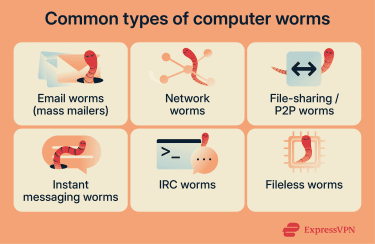
Worms come in different varieties based on how they spread and what they target:
- Email worms (mass mailers): Send copies of themselves as attachments or links in emails, often using enticing subject lines.
- Network worms: Exploit security flaws in operating systems to spread between connected devices on a local network or the internet.
- File-sharing / peer-to-peer (P2P) worms: Disguise themselves as legitimate media or software files on P2P networks, infecting users who download them.
- Instant messaging worms: Propagate through messaging apps using fake links or files sent from seemingly trusted contacts.
- USB worms: Spread via infected USB drives, often appearing as executable files on removable media.
- Internet Relay Chat (IRC) worms: Spread through vulnerabilities in IRC clients and forums.
- Fileless worms: Operate in a computer’s memory rather than writing malicious files to the hard drive.
Famous examples of computer worms
Looking at major worm outbreaks shows how these threats have evolved into tools designed to cause billions of dollars' worth of damage.
ILOVEYOU (2000)
This worm is one of the biggest cyberattacks in history. It spread through email with the subject line “ILOVEYOU” and an attachment named “LOVE-LETTER-FOR-YOU.txt.vbs.” When opened, it sent copies to everyone in the victim’s Outlook address book. It also overwrote files and modified system settings.
Within hours, ILOVEYOU reached millions of computers across 150 countries, causing an estimated $3–$15 billion in damages globally. The speed came from a combination of automation and social engineering. People trust messages from contacts, and the worm exploited that trust at scale.
Code Red (2001)
Code Red was different. It didn’t spread through email or users. It scanned the internet for Microsoft Internet Information Services (IIS) web servers running Windows NT and 2000, then exploited a buffer overflow vulnerability to inject itself.
The worm operated completely in the device’s memory. It never wrote files to disk, making it harder to detect with traditional antivirus software.
Code Red infected approximately 359,000 servers in less than 14 hours. A patch was already available, but many systems had not been updated.
Conficker (2008)
Conficker appeared in late 2008 and exploited a Windows vulnerability (MS08-067). By January 2009, it had infected millions of computers around the globe.
What made Conficker remarkable was its sophistication:
- It spread through multiple methods: network exploitation, USB drives, and brute-force attacks on shared folders.
- It contacted 250 randomly generated domain names every day to receive instructions, making it nearly impossible to shut down its control infrastructure.
- It disabled security software, blocked access to antivirus websites, and deleted system restore points.
- Later variants established P2P communication, so infected machines could coordinate without centralized servers.
The global cleanup cost millions. Conficker remained active for years, with infections still being detected years after its appearance.
Are computer worms still a threat today?
You don’t often hear the word “worm” in headlines anymore, but the core behavior hasn’t disappeared. Today, automatic spreading is usually built into larger, multi-purpose malware.
Automatic spreading allows attackers to scale quickly. One infected device can become hundreds or thousands without any effort, making worm-like behavior extremely effective for ransomware, cryptomining, espionage, and denial-of-service (DoS) attacks.
Ransomware with automated spread
Some ransomware combines file encryption with the ability to spread automatically across networks. This means these strains don’t rely on people opening files or clicking links to continue spreading.
WannaCry (2017) is a well-known example of this approach. After infecting one computer, it spread to tens of thousands of devices across 150 countries, causing tens of billions of dollars in losses. It used the EternalBlue exploit to spread through networks via an SMB vulnerability.
NotPetya (2017) appeared a month later and was even more destructive. It also used EternalBlue but added a tool that extracts passwords from Windows memory. This allowed NotPetya to spread to even patched systems using stolen admin passwords.
What made NotPetya especially damaging was that it was actually a wiper disguised as ransomware. The encryption was designed to be irreversible. Even if victims paid the ransom, they couldn’t recover their data.
Botnet-building malware
Some modern malware, such as Mirai (2016), infects routers and other Internet of Things (IoT) devices, building massive botnets used for large-scale attacks, such as overwhelming websites and online services with traffic. Because these devices are always online and generally unsecured, infections often go unnoticed.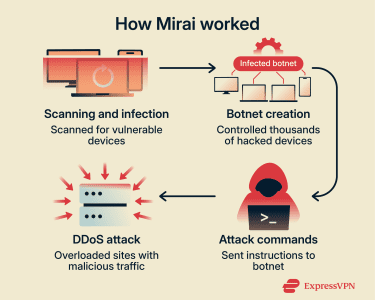
The creators released Mirai’s source code publicly in 2016, spawning dozens of variants that still operate today, for example, Satori and Masuta. These variants added new exploits and capabilities, keeping the threat active.
Signs a device may be infected with a worm
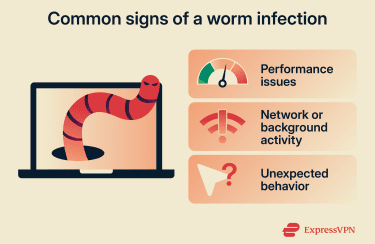
A worm infection doesn’t always announce itself with obvious warnings. The signs often appear gradually. Here are some red flags to look out for:
- Inexplicable network slowdown: Your internet feels sluggish, even when you aren’t streaming or downloading.
- Firewall alerts: Your security software reports multiple blocked connection attempts from internal IP addresses.
- Missing storage space: Some worms create multiple copies of themselves on disk, which can consume storage space, although many modern worms operate primarily in memory.
- Automated communication: Friends receive emails or messages from you that you never sent.
- Unexplained file or folder activity: Worms can create malicious files as they move through your system, so you might see new files with strange, random names. You might also notice vanishing data, as some worms overwrite or delete existing documents to reduce “noise” on a system or to clear space for their own replication.
How to prevent computer worm infections
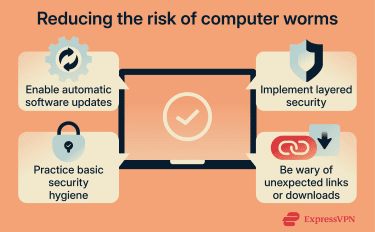
Worms spread by exploiting vulnerabilities, so prevention comes down to closing those gaps.
Keep everything updated
- Enable automatic updates: Turn on auto-updates for your operating system and installed apps so security fixes are applied as soon as they’re released. WannaCry and NotPetya both spread mainly through unpatched systems. Microsoft had released fixes before both attacks, but millions of systems hadn’t installed them.
- Keep routers and smart home devices up to date: Install firmware updates when they become available. Check your router’s admin panel regularly. For IoT devices, check the manufacturer’s support site for updates.
- Replace unsupported or end-of-life systems: Retire end-of-life operating systems like Windows 7 or anything else that no longer receives security patches. These systems remain vulnerable even if other protections are in place.
Use layered security
- Enable a firewall: Control which network connections are allowed and block unexpected incoming traffic. Both hardware (router-based) and software (on your device) firewalls act as gatekeepers.
- Use antivirus and anti-malware software: Choose software that monitors behavior, such as unusual network scanning or attempts to modify system files. Modern security software does more than scan files; it watches for suspicious patterns.
- Apply network segmentation: Place IoT devices on a separate or guest network, isolated from computers that store sensitive data. This keeps them in a “sandbox,” so a worm can’t jump from your smart camera to your work laptop.
- Disable unnecessary services: Turn off file sharing or remote desktop access, if you can. Each open service increases your attack surface. Turn off SMB if you don’t use file sharing, and disable RDP unless you actually need remote access.
Practice safe habits
- Be wary of unexpected links or attachments: If a message seems unusual, verify it through another channel before opening anything. Worms often impersonate your contacts.
- Use strong, unique passwords: Default passwords like “admin” and “password” are the first things worms try. Create strong passwords for every device and service. Use a password manager to help you remember them.
- Secure your network: Change your router’s default admin password. Enable Wi-Fi Protected Access 3 (WPA3) encryption (or at least WPA2) on your Wi-Fi.
- Be cautious with USB drives: Although autorun functions on removable media are nowadays disabled, making USB worms less dangerous than they once were, it's still advisable to remain vigilant. Don’t plug in anything from unknown sources. Even drives from a trusted source can carry infections if their systems are compromised.
How to remove a computer worm
If you think a worm has infected your device, act quickly to prevent it from spreading to other devices.
- Isolate the infected device: Unplug the Ethernet cable or turn off the Wi-Fi immediately to prevent the worm from spreading to other devices while cleanup is underway.
- Temporarily disable system restore: On Windows devices, disable System Restore before cleaning. This prevents the worm from infecting system backups. If possible, note the name of the detected threat so you can confirm it has been fully removed before re-enabling this feature later.
- Run a full system scan: Use reputable security or antivirus software to run a full system scan. Follow up with a second opinion scanner, such as Microsoft’s Malicious Software Removal Tool, to catch what the first scanner might have missed.
- Check other devices on the same network: Scan other computers, phones, or tablets that were connected to the same network. Worms often spread laterally, so one infected device may mean others are also affected.
- Quarantine or delete: When the scan identifies the worm, use the software to quarantine or permanently delete the malicious files.
- Clear temporary files: Delete temporary files and folders, as worms often hide there.
- Disable and re-enable System Restore: Worms can hide inside system restore points. Turn off System Restore, run the scan, then turn it back on to create a clean restore point (so the worm can’t reinfect you later).
- Reset network credentials: Change passwords for Wi-Fi networks, email accounts, and other services used on the infected device. This helps prevent further access if credentials were exposed.
- Update software: Update your operating system and applications to patch the security vulnerabilities the worm may have exploited.
If you can’t clear the infection, you should get professional help. This is especially important if you use the infected device for work or if it contains sensitive information.
FAQ: Common questions about computer worms
Do computer worms still exist?
Yes. While standalone worms are less common, the self-spreading behavior is built into modern malware like ransomware or botnets. This allows attacks to scale extremely quickly.
How does a computer worm spread?
Worms spread automatically through networks and connected systems without needing the user to do anything. They typically exploit security vulnerabilities (like unpatched software) or use brute-force attacks. Once active on the device, they immediately look for and infect other reachable systems.
What’s the difference between a virus and a worm?
A virus needs user action to spread, such as opening an infected file or running a program, before it can spread. A worm doesn’t. It moves on its own between devices as soon as it’s active, using network connections and security flaws to reach new targets automatically.
What kind of damage can worms cause?
Worms can slow down devices and networks by consuming processing power and bandwidth. They often disable security software and modify system settings. Many worms deliver additional malware like ransomware or spyware. In severe cases, worms have caused billions of dollars in damages globally, disrupting businesses, hospitals, and critical infrastructure.
Can worms be completely removed?
Yes, but removal must be thorough. You need to remove all components of the worm and close the security gaps it exploited. Use reputable security software to scan and remove the infection, then immediately install all available system updates. In complex infections or business networks, you may need professional IT help.
What should I do after removing a worm?
Install all pending updates, change passwords for accounts you use to communicate with others, and keep an eye on basic performance and network activity. If files were lost or restored, only use backups created before the infection.
Take the first step to protect yourself online. Try ExpressVPN risk-free.
Get ExpressVPN