How to spot Facebook email scams and stay safe


With billions of users worldwide, Facebook is a prime target for scammers looking to trick people through fake emails. Knowing how to recognize these scams can help you protect your personal information and avoid falling victim to fraud.
In this article, we’ll guide you through common signs of Facebook email scams and share tips to stay safe online.
What are Facebook email scams?
Facebook email scams are fraudulent messages that impersonate Facebook, often phishing attempts designed to steal account credentials or other sensitive information.
These emails typically claim there is an issue with the account, such as suspicious login activity, a security problem, or a policy violation requiring urgent attention. Some warn that the account will be restricted or deleted if no action is taken. Others offer fake rewards, upgrades, or restored access to lure recipients.
Despite wording differences, the goal is to prompt interaction with messages not originating from Facebook.
How scammers impersonate Facebook
Scammers imitate legitimate Facebook communications by copying logos, branding, formatting, and sender names resembling official Facebook or Meta addresses. In some cases, attackers manipulate email headers so messages appear to come from a trusted source, a technique known as email spoofing.
Why these emails are effective
Facebook accounts often contain personal data such as messages, photos, contacts, and sometimes payment information. Account compromises can lead to identity theft and unauthorized transactions, especially if linked services or payment methods are affected.
Scammers exploit common behaviors, such as checking email on mobile devices, where links may be clicked before verifying legitimacy. Most harm occurs when login information is entered on fraudulent sites.
How to identify fake Facebook emails
Understanding what to look for makes it easier to assess whether a message is legitimate before interacting with it. Recognizing common phishing indicators and knowing where to verify official Facebook communications allows for a more confident evaluation.
No technical expertise is needed; just reviewing a few key details carefully before clicking links or sharing information can help.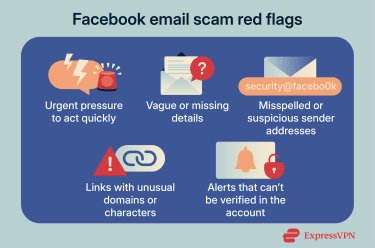
Signs of a fake Facebook email
Fake Facebook emails often share consistent characteristics, even when the wording or design changes:
- Unusual urgency or pressure to act: Scam emails often create a sense of urgency or panic, demanding immediate action. They may warn of account suspension or security risks to push for quick decisions, leaving no time to verify the message’s legitimacy. Genuine Facebook emails allow time to check the issue through account settings before taking action.
- Lack of specific, verifiable details: Phishing messages usually lack concrete, verifiable information. They use broad terms like “violation,” “security issue,” or “login attempt” without specifying which post, device, location, or action is involved. Authentic Facebook notifications provide clear details that can be confirmed within the user’s account.
- Issues not confirmed in account settings: Fraudulent alerts describe problems not visible in the Facebook app or website. Genuine alerts correspond with actual notifications, security activity, or recent emails.
- Messages claiming active support cases: Some phishing emails masquerade as ongoing customer support conversations, referencing case numbers or reviews. Facebook doesn’t initiate support cases through unsolicited emails nor ask for issue resolution via replies or external links.
Red flags in subject lines, links, and sender addresses
Examining the subject line, links, and sender details can reveal whether an email claiming to be from Facebook is legitimate. These elements are often where phishing attempts are easiest to detect.
Subject lines often contain alarming language, such as “urgent,” “action required,” or warnings that accounts will be disabled or deleted soon. Sometimes, they include users’ Facebook Page names to appear personalized, but this doesn’t confirm legitimacy.
Links in phishing emails usually lead to fraudulent websites designed to collect login credentials. On desktops, hovering over links reveals the destination; on mobile devices, pressing and holding can preview or copy the URL.
Sender addresses may be misleading. Scammers often use names like “Facebook Security” or “Meta Support” but send messages from unrelated or suspicious domains. Verifying sender authenticity by checking the full email address is one of the most reliable methods to detect impersonation. Most email apps allow viewing full sender addresses by tapping or expanding message details.
Official emails from Facebook or Meta come only from these domains or their subdomains:
- fb.com
- facebook.com
- facebookmail.com
- instagram.com
- meta.com
- metamail.com
Misspelled versions of these domains are often attempts to impersonate Facebook or Meta.
Checking the logo
For users of Gmail, Yahoo Mail, or Apple Mail, the presence of the Facebook logo next to the sender’s email address can be trusted as a sign of authenticity.
Real vs. fake Facebook emails: Key differences
Facebook uses consistent security practices when communicating by email. Official messages don't request passwords, two-factor authentication (2FA) codes, recovery codes, or login confirmation through email links.
Facebook maintains a list of recent account-related emails it has sent. This feature allows users to confirm whether an email claiming to be from Facebook is genuine.
Here’s how to verify a Facebook email, step by step:
- Open Facebook using the official app or by typing “facebook.com” into your browser.
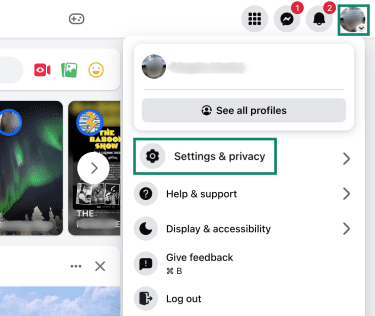
- Click on your profile picture and choose Settings & privacy.
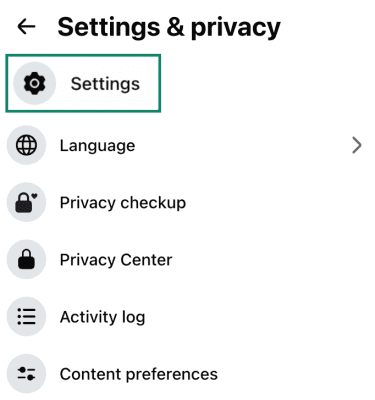
- Go to Settings.
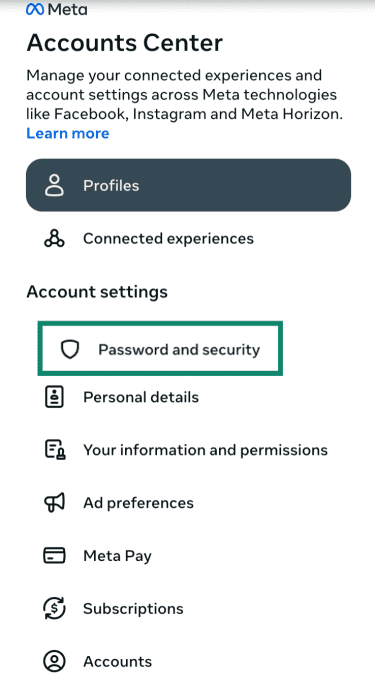
- Open Accounts Center.

- Select Password and security.
- Open Recent emails. If you have more than one Meta account, choose Facebook.
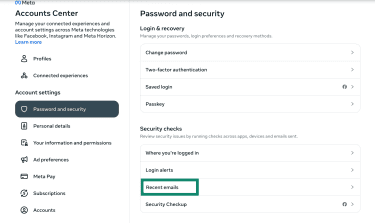
- Check whether the email appears in the list.
If the email doesn't appear in this list, or the issue can't be confirmed within your account, it's likely a phishing attempt.
If you’re a business, visit Business Support Home to check for any issues with your business accounts.
Common types of Facebook phishing scams
Facebook phishing scams generally fall into a small number of recurring categories:
Fake login pages imitating Facebook
One of the most common phishing techniques involves directing users to fake login pages that closely resemble Facebook’s official site. These pages are usually accessed through links in emails or messages claiming there is an account issue requiring immediate attention.
Once a user enters their email address and password, the information is collected by the attacker. The page may then display an error or redirect elsewhere, but the credentials have already been captured. These pages are used for credential harvesting attempts and are a frequent cause of account takeovers.
Learn more: Find out how to spot cloned Facebook accounts.
Phishing messages via Facebook Messenger
Phishing attempts don't occur only by email. Scammers also use Facebook Messenger to send fraudulent messages.
These messages may appear to come from Facebook support, a Meta-branded account, or a compromised account belonging to someone the recipient knows. They often include links to fake login pages or warnings about account violations. In some cases, the sender asks for a one-time code or 2FA code.
Facebook doesn't request login credentials or security codes through Messenger, and any such request should be treated as a scam.
Email offers or rewards that are too good to be true
Another common tactic involves emails that promise rewards, account upgrades, advertising credits, verification badges, or other benefits. These messages may target business owners or creators and claim that action is required to receive the offer.
Facebook doesn't distribute rewards or account benefits through unsolicited emails. Messages of this type often lead to fake account recovery pages, requests for payment details, or attempts to collect personal information. Some also prompt users to download files, which can be used to deliver malware.
Learn more: See our guide on how to avoid scams on Facebook Marketplace.
What to do if you clicked a phishing link
Clicking a suspicious link doesn’t automatically compromise your account. What matters is what you do next. If you entered login details or other sensitive information, take action immediately to reduce the risk of account takeover.
Resetting passwords
If you entered your Facebook login details on a suspicious page, change your password right away:
- Log into Facebook using the official app or website.
- Click your profile picture and open Settings & privacy, then Settings.
- Open Accounts Center and select Password and security.
- Select Change password.
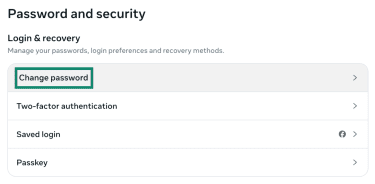
- Choose your Facebook account, then create and save a new password.
Attackers often attempt to access email accounts to reset passwords. Changing the password for the email linked to a Facebook account, especially if it’s been reused elsewhere, reduces this risk. Because it’s commonly used for account recovery, making an email more secure plays a key role in protecting Facebook accounts.
Learn more: Read our guide on how to recover a hacked Facebook account.
Enabling two-factor authentication
- Open Facebook using the official app or browser.
- Go to Settings & privacy > Settings > Accounts Center > Password and security.
- Under Login & recovery, choose Two-factor authentication.
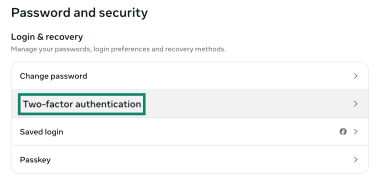
- Select the Facebook account you want to protect.
- Choose a verification method, such as an authentication app or text messages, and follow the on-screen instructions to complete setup.
Checking for unauthorized activity
It’s also a good idea to review recent login activity to make sure no unauthorized sessions remain.
- Go to Settings & privacy > Settings > Accounts Center > Password and security.
- Under Security checks, select Where you’re logged in.
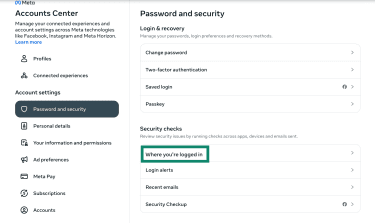
- Choose your Facebook account and review your Account login activity (the list of devices and locations).
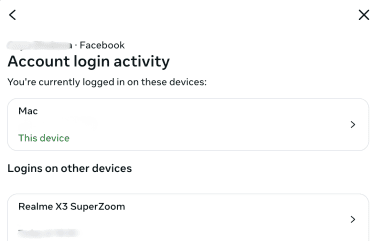
- Log out of any sessions you don't recognize. If needed, log out of all sessions and sign back in using your new password.
Learn more: For additional guidance on recovery and long-term protection, see our guide on preventing phishing attacks.
How to report phishing emails to Facebook
Reporting phishing emails helps Facebook identify scam campaigns and limit their spread. It also creates a record that you took action through official channels.
Reporting fraudulent emails to Facebook
Suspicious emails can be forwarded to phish@fb.com. Forwarding the full message allows Facebook to review the sender, links, and formatting used in the scam.
If the phishing attempt appears inside Facebook, it's possible to report it directly on the platform. Open the message, comment, or profile, select the menu option, and choose Report.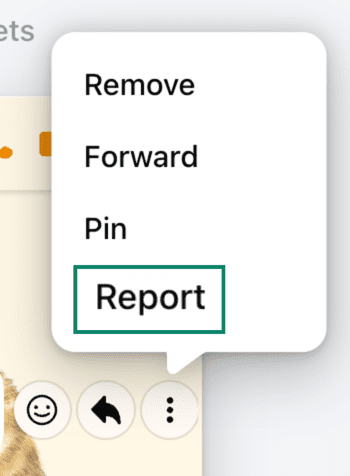
Select Scam, fraud or false information.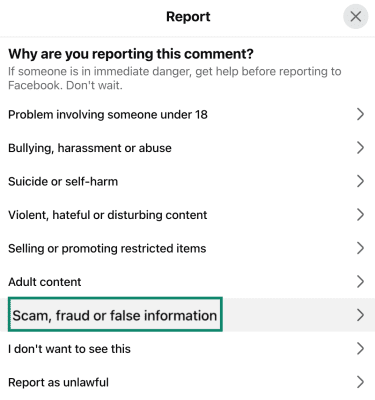
How to block and remove scammers on Facebook
It’s possible to block the scammer by selecting their profile and clicking Block.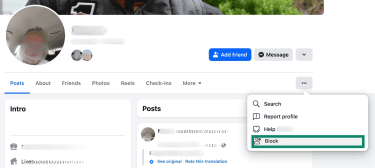
Reporting phishing emails to your email provider
Reporting phishing emails helps email providers improve their phishing and spam filters.
- Outlook: Open the message, select Report, then choose Report phishing.
- Apple Mail: Mark the email as junk, as this reports the message to Apple’s spam detection system.
- Gmail: Open the email, tap the three-dot menu, and select Report phishing.
A reported email can be deleted from the inbox. It’s best to avoid reopening it, as some phishing emails may include tracking elements that attempt to activate when messages are viewed.
Learn more: For a broader overview of how online scams spread and why reporting matters, see our guide on internet fraud.
FAQ: Common questions about Facebook email scams
Does Facebook send email messages?
Yes, Facebook sends emails related to account security and activity. These may include login alerts, security notifications, and account updates.
Legitimate Facebook emails don’t ask for passwords, two-factor authentication (2FA) codes, or recovery codes, and they don’t rely on urgent deadlines to force action. If you’re unsure whether an email is real, you can check the Recent emails section in Facebook’s settings to confirm whether Facebook actually sent it.
Why am I getting password reset emails from Facebook?
Password reset emails can appear for several reasons. In some cases, someone may have entered your email address by mistake. In other situations, repeated reset attempts may indicate that someone is trying to access your account or confirm whether your email address is associated with a Facebook account.
If you didn’t request a password reset, don’t click any links in the email. Open Facebook directly using the app or by typing the website address into your browser, and review your security settings. If the reset email messages continue, changing your password can help prevent unauthorized access attempts.
What should I do if someone logs into my Facebook account?
If you notice a login you don’t recognize, change your password immediately and log out of all active sessions. Enable two-factor authentication (2FA) if it isn’t already turned on, and review recent account activity for changes you didn’t make.
You should also check the security of the email address linked to your Facebook account. If someone can access your email, they may be able to reset your Facebook password again.
What should I do if I clicked a phishing link?
If you clicked a link but didn’t enter any information, close the page and avoid downloading anything. Then review your login sessions and monitor your account for unusual activity.
If you entered login details or other sensitive information, act quickly. Change your passwords, enable two-factor authentication (2FA), and report the phishing attempt. If the message prompted you to download a file, consider scanning your device for malware as an added precaution.
Take the first step to protect yourself online. Try ExpressVPN risk-free.
Get ExpressVPN