How to fix “Connection timed out” in Minecraft easily


Fixing a “Connection timed out” error in Minecraft depends on what’s causing it. The error can be triggered by a range of factors, from local network conditions to server-side problems, but because the message itself is usually generic, pinpointing the underlying cause isn’t always straightforward.
This guide explains what the error means, how to narrow down the source of the problem, and walks through common areas to check, starting with basic network considerations and moving toward more specific troubleshooting steps.
Understanding the “Connection timed out” error
Minecraft doesn’t provide a specific, official definition for the “Connection timed out” error. That said, it’s a standard networking message that describes a failed connection attempt where a response wasn’t received in time.
More specifically, the error means that a client attempted to connect to a server but didn’t receive a response within the expected time frame. Rather than continuing to wait indefinitely, the connection attempt is automatically ended.
What causes the “Connection timed out” issue?
The cause of the “Connection timed out” error can happen anywhere between the client and the server: on the player’s local network, somewhere along the connection path, or on the server itself.
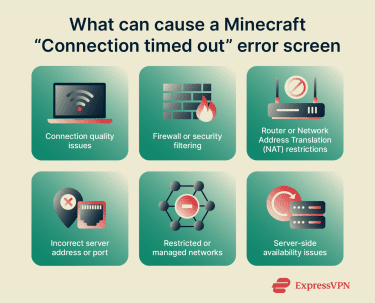
In most cases, the problem falls into one of a few broad categories, including:
- Connection quality issues: High latency, packet loss, or brief connection drops can interrupt the back-and-forth communication required to establish a session, causing the connection attempt to expire.
- Firewall or security filtering: Local firewalls, antivirus software, or operating system security settings may block Minecraft or Java from sending or receiving traffic, particularly after software updates or network changes.
- Router or Network Address Translation (NAT) restrictions: Strict NAT settings or carrier-grade NAT (CGNAT) can interfere with certain types of connections. This is most noticeable when hosting a server, but affects some join attempts.
- Incorrect server address or port: If the server IP address, domain name, or port number is incorrect, the connection request reaches no valid destination, resulting in a timeout.
- Restricted or managed networks: Networks in schools, workplaces, or public Wi-Fi environments may block or limit game-related traffic. In these cases, timeout errors may appear alongside variants such as socket-related connection failures.
- Server-side availability issues: If the server is offline, overloaded, restarting, or undergoing maintenance, it may not respond in time, even when the player’s connection is otherwise stable.
Basic troubleshooting steps for Minecraft’s “Connection timed out” error
Before changing advanced settings or assuming the server is at fault, it’s best to start with basic checks. Many connection timeout issues are caused by temporary or local network conditions that can be identified, and sometimes resolved, quickly.
Check your internet connection
Minecraft doesn’t require much bandwidth, but it does need a steady connection. Even short interruptions or brief drops in connectivity can cause a connection attempt to time out.
Start by confirming that your device is connected to the internet, other websites or online services load normally, and no downloads, updates, or streams are heavily using bandwidth in the background.
If nothing obvious is preventing your connection, move on to checks that help identify issues that may not be immediately visible, such as:
- Speed and ping: Run a speed test to check for unusually high latency or inconsistent results, which can indicate delays that cause the server response to arrive too late.
- Wi-Fi vs. Ethernet: Switching to Ethernet helps rule out wireless interference, signal loss, or distance from the router as a cause of instability.
- Router reset: Restarting the modem and router can clear temporary routing, memory, or firmware-related issues that affect how traffic is handled.
- Quick connection comparison: Testing on a different network, such as a mobile hotspot, helps isolate whether the problem is tied to your home network or to the server you’re trying to reach.
Restart your computer
Restarting your device can resolve temporary issues that interfere with network connections. This includes stuck background processes, lingering network states, or launcher-related problems that may affect how the game connects to servers.
If you’re playing Minecraft on a console or mobile device, specifically the Bedrock Edition, restart that device as well. It’s a simple step, but it can clear problems that aren’t obvious and is worth doing before moving on to more advanced troubleshooting.
Verify the Minecraft server status
If your internet seems stable, the server might be the reason you’re timing out. Servers can go offline, get overloaded, or go into maintenance, and on your end, it may show up as a timeout message.
You can check whether a server is reachable using a Minecraft server status checking tool. If the server appears offline or unreachable, the issue is likely temporary and outside your control. In that case, waiting for the server to come back online may be the only option.
As part of verifying server availability, also confirm that you are connecting to the correct server address. An incorrect IP address, domain name, or port means the connection request reaches no valid destination, which results in a timeout because no response is received.
If the server appears online and the address is correct, try joining a different server. If every server times out, you’re probably dealing with something along your network path. Either way, this tells you which kind of fix to focus on next, instead of guessing.
Ensure your Minecraft version matches the server
In some setups, a connection attempt can fail early and appear as a timeout if the game version doesn’t match what the server expects. The steps for confirming that your Minecraft installation is up to date and compatible with the server you are trying to join depend on the platform you play on:
Minecraft: Java Edition
To check whether the server requires a specific version, consider looking:
- On the server’s website or join page.
- In the server’s Discord (often in #how-to-join or #announcements).
- In the server description or server list.
If the server doesn’t mention a version, it’s likely using Minecraft’s latest version. You can make sure you’re using this version by following these steps:
- Open the Minecraft Launcher and select Minecraft: Java Edition.
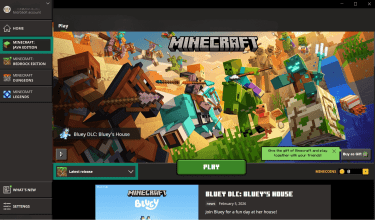
- In the version selector at the bottom left, confirm Latest release is selected. If there’s a pending update, you’ll see an Update option. Once done, click Play.
If the server does require a specific version, you’ll have to create a custom installation:
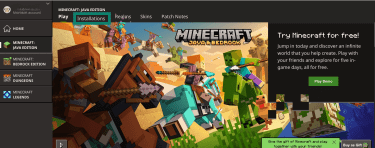
- In the Minecraft Launcher, click Installations.
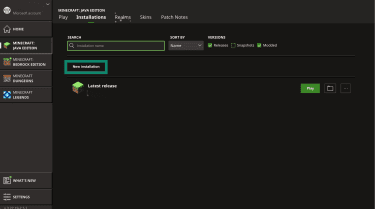
- Select New installation.
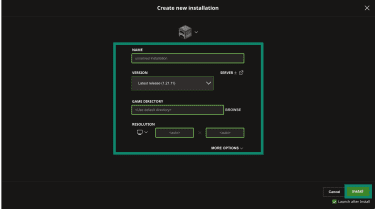
- Enter a name for the installation and select the version required by the server in the Version dropdown. Then, click Install.
Joining a modded server
Modded servers require your setup to match the server exactly. First, check the server’s mod list or modpack (usually on its website or Discord).
Then, open the Minecraft Launcher and go to Installations. Select Edit on your modded installation, and confirm the Minecraft version and mod loader (Forge or Fabric) match the server.
If anything differs, you won’t be able to connect. Using the server’s official modpack is the easiest way to ensure everything matches.
Minecraft: Bedrock Edition
Minecraft: Bedrock Edition always runs the latest stable update unless you're using a beta or preview build. This means you can only update the game through the Microsoft Store on Windows, the game library on your console, and the App Store and Play Store on iOS and Android, respectively.
Advanced solutions for the “Connection timed out” error
If basic troubleshooting has not resolved the issue, the connection timeout may be caused by routing restrictions, security filtering, or network configuration problems.
Allowlisting Minecraft in your firewall
If your firewall blocks Minecraft or Java, in the case of Java Edition, the connection attempt can time out even when your internet connection is otherwise working. This commonly happens after system updates, network changes, or when a security prompt is dismissed without granting access.
Note: Although letting known programs through your firewall is generally safe, it’s a good idea to double-check that you are using the legitimate Java installation.
Windows
Follow these steps on Windows to allow Minecraft through the firewall:
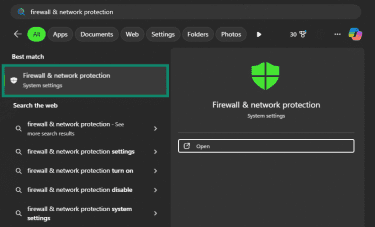
- Open Search, type in Firewall & network protection, and click on the first result.
- Click Allow an app through firewall.
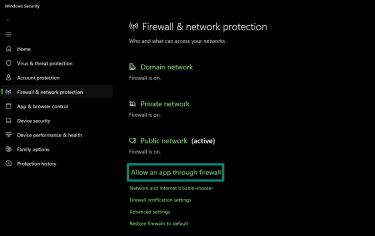
- Select Change settings (you may need admin permission). Find Minecraft and, for the Java Edition, Java entries such as Java(TM) Platform SE binary or javaw.exe. Check Private and Public for the relevant entries, then click OK.
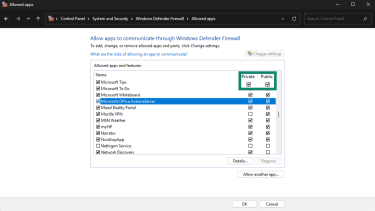
- Restart Minecraft and try connecting again.
If you’re dealing with a Minecraft local area network (LAN) world “Connection timed out” error, this step matters even more. LAN traffic can get blocked if Windows treats your network as public or if permissions are reset after an update.
Note: If you’re using a third-party antivirus firewall, you’ll want to allowlist Minecraft and Java there, too.
macOS
To allow Minecraft through the firewall on a Mac:
- Open System Settings (or System Preferences on older versions).
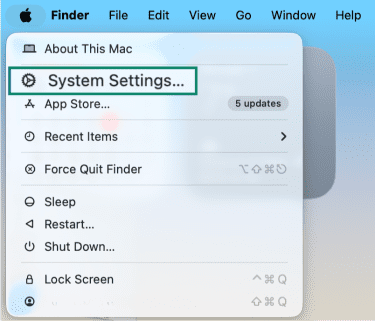
- Go to Network followed by Firewall.
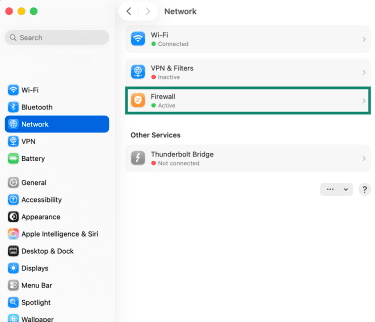
- If the firewall is off, Minecraft traffic will not be blocked here. If it is on, click Options.
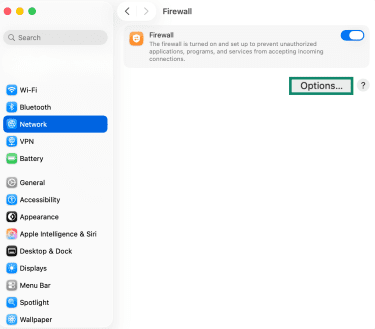
- In the list of applications, look for Minecraft and, if playing Java Edition, the Java runtime and make sure it is set to Allow incoming connections. If Minecraft is not listed, click the Add (+) button and add the Minecraft app (and Java if needed).
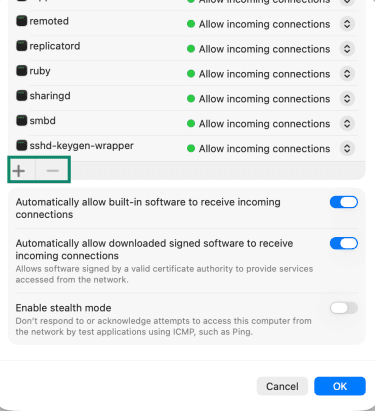
- Close the settings and try reconnecting in Minecraft.
Linux
On Linux, Minecraft uses Java, so the key requirement is that Java is allowed to make outbound network connections. Most Linux systems already allow this by default, but if a firewall is enabled, it can block the connection and cause timeouts.
- To check if the firewall is enabled, run sudo ufw status on systems using UFW (Ubuntu and similar), or sudo firewall-cmd --state on systems using firewalld. If the result is inactive or not running, your firewall is not blocking Minecraft.
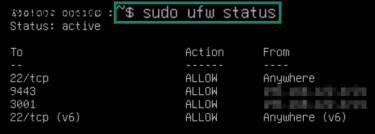
- If the firewall is active, you need to allow outbound traffic so you can join servers. To do that, use the command sudo ufw default allow outgoing.
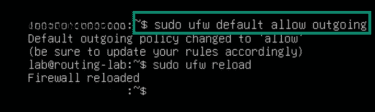
- Finally, reload the firewall configuration with sudo ufw reload on UFW systems, and sudo firewall-cmd --reload on firewalld systems.

Note: On consoles and mobile devices, there are no system-level firewall settings to adjust, so connection timeouts on Minecraft are usually caused by the network itself.
Resetting network configurations for Minecraft
Resetting network configurations clears cached settings such as Domain Name System (DNS) entries, socket states, and routing information that can interfere with connections. This step affects your system’s networking more broadly and may require reconnecting to Wi-Fi afterward.
Important: Resetting network configurations can temporarily disconnect you from the internet and may reset custom network settings. If you use custom network settings, write them down before proceeding.
Windows
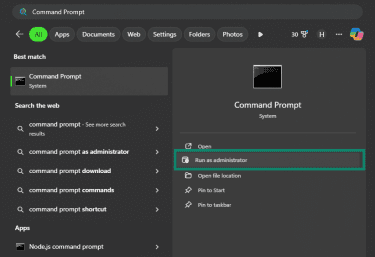
- Open Command Prompt as administrator by clicking on Run as administrator.
- Run ipconfig /flushdns to clear the DNS cache. Then run netsh winsock reset, then netsh int ip reset to reset Winsock and TCP/IP.
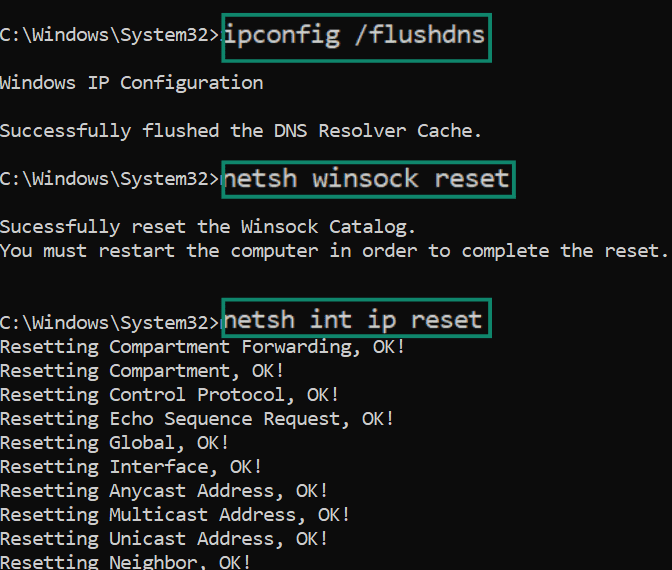
Restart your PC, then test Minecraft again. If you use a custom DNS or static IP setup, note it down first. A reset can undo those changes.
macOS
If timeouts keep happening across multiple servers, a quick network reset on macOS can clear common issues like stale IP leases and DNS caching. Try these steps in order:
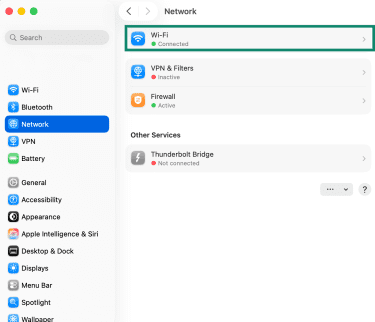
- Open System Settings, followed by Network, and then select Wi-Fi or Ethernet. Turn Wi-Fi off, wait a few seconds, then turn it back on (or unplug and reconnect Ethernet).
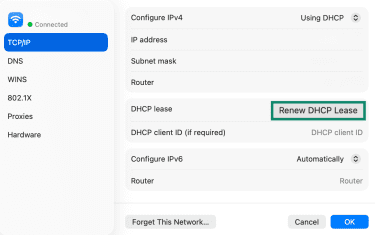
- Next, open Details, select TCP/IP, then click Renew DHCP Lease.
- Once done, flush the DNS cache. To do it, open Terminal and run sudo dscacheutil -flushcache, then run sudo killall -HUP mDNSResponder and enter your password if prompted.
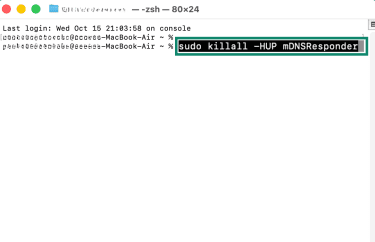
- Restart your Mac, open Minecraft, and try connecting again.
Linux
If Minecraft keeps timing out across multiple servers, a quick “network reset” on Linux usually means: restart your network service, flush DNS cache, and renew your IP lease.
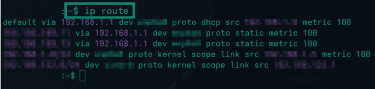
- Open the terminal. Check your active network interface by running ip route and note the interface name next to default (for example, wlan0 or eth0).
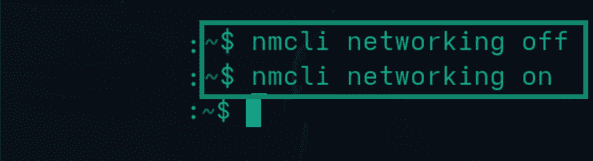
- If your system uses NetworkManager (most desktop Linux distros do), toggle networking off and on: run nmcli networking off, wait a few seconds, then run nmcli networking on.
- Flush your DNS cache (common on systemd-based distros) by running sudo resolvectl flush-caches.

- Renew your IP lease (if you’re using DHCP) by running sudo dhclient -r <interface> and then sudo dhclient <interface> (replace <interface> with the name you noted earlier).

- Restart Minecraft and try connecting again.
How to prevent future "Connection timed out" issues in Minecraft
After you resolve the "Connection timed out" Minecraft error, a few network adjustments can help prevent it from recurring.
Optimizing your network setup
A stable home network helps reduce lag spikes and random disconnects. If you want fewer timeouts, try out the solutions below:
- Use a wired Ethernet connection when possible to avoid Wi-Fi interference and random signal drops.
- If you’re on Wi-Fi, stay within decent range of the router and use the 5GHz band when available, since it’s often less congested than 2.4GHz.
- If your router supports it, enable Quality of Service (QoS) to prioritize gaming traffic and reduce sudden lag bursts.
- Keep your router firmware updated to improve stability and fix networking bugs.
- Restart your router occasionally to clear performance issues that build up over time.
Understanding NAT configurations
NAT affects how easily your devices can connect with other players online. When NAT is strict, connections can fail more often, especially for hosting or peer-style sessions. On Bedrock, NAT issues can also prevent joining friends, even when everything looks fine on the surface.
The goal is to avoid setups that block inbound connections you actually need. Many home routers handle this well with Universal Plug and Play (UPnP), which automatically opens the right ports when a game requests them.
When UPnP doesn’t work reliably, manual port forwarding is the more direct option, but it comes with tradeoffs, so it’s best to open only what’s needed and understand what an open port means for your network.
One more thing to watch for is CGNAT. If your ISP uses it, hosting from home can stay difficult even when your router is set correctly, because inbound traffic may not reach your network the way you expect. In that case, using a Realm or a hosted server is often the more reliable long-term option.
Upgrading recommendations for enhanced play
If timeouts keep happening even after you’ve cleaned up your setup, it may be time to look at your gear and connection quality to enhance internet speed for gaming. A few targeted upgrades can improve stability and reduce the random drops that cause Minecraft’s connection timeout errors.
- Upgrade an older router to a newer dual-band model for better stability, less interference, and improved QoS and NAT control.
- Update your Wi-Fi or Ethernet drivers to prevent dropouts that can look like random connection failures.
- If your line is consistently unstable, consider switching to a more reliable connection type where possible.
- In some cases, heavy modpacks can strain your system and feel like network lag, especially during loading.
- Free up RAM, close background apps, and run Minecraft on an SSD to reduce stalls that complicate troubleshooting.
FAQ: Common questions about how to fix Minecraft “Connection timed out”
Why does it keep saying "Connection timed out"?
The error means the game is taking too long to get a response from the server. Several issues can cause this, but you can follow these troubleshooting steps to narrow down the cause.
Why isn’t Minecraft letting me join my friend’s server?
Most of the time, it’s one of three things: the server details aren’t correct, the server isn’t reachable from the internet, or your setup and the server’s setup don’t match.
How can I speed up my connection to Minecraft?
For Minecraft, “speed” usually means an optimized network with lower ping and fewer spikes. A wired connection is usually the fastest and the most stable, but if you’re on wireless, you can pause streams, downloads, and cloud sync to make the connection feel more responsive.
Is my internet connection stable enough for Minecraft?
Minecraft doesn’t need a lot of bandwidth, but it does need consistency. If your ping jumps around, you’re getting packet loss, or the connection drops briefly, you can run into "Connection timed out" Minecraft errors even if browsing works fine.
What is the NAT configuration for Minecraft?
Minecraft doesn’t require a specific Network Address Translation (NAT) type to play, but Open or Moderate NAT works best, especially for hosting or joining friends. Strict NAT can cause “Connection timed out” errors primarily on Bedrock Edition or when hosting. If you’re hosting, enabling Universal Plug and Play (UPnP) or forwarding the Minecraft port usually fixes it.
How do Minecraft mods affect my connection?
Mods can affect connections in two main ways. First, check mod version compatibility: if a server expects specific mods and versions, a mismatch can prevent the join process from completing cleanly. Checking client logs after a failed attempt can help confirm what’s being rejected.
Second, modded servers often exchange more data during join and load. That can take longer, and in some cases, it can trigger a timeout on slower or unstable connections.
Can I play Minecraft offline without issues?
Yes, single-player offline won’t run into timeout errors because it isn’t trying to connect to a server. The “Connection timed out” message is a multiplayer problem.
Local area network (LAN) play is the one exception worth knowing about. It doesn’t use the open internet, but it still relies on your local network and firewall permissions. If LAN is timing out, make sure Minecraft or Java is allowlisted on the private network so local traffic isn’t blocked.
Take the first step to protect yourself online. Try ExpressVPN risk-free.
Get ExpressVPN