How to check if your information is on the dark web and what to do next


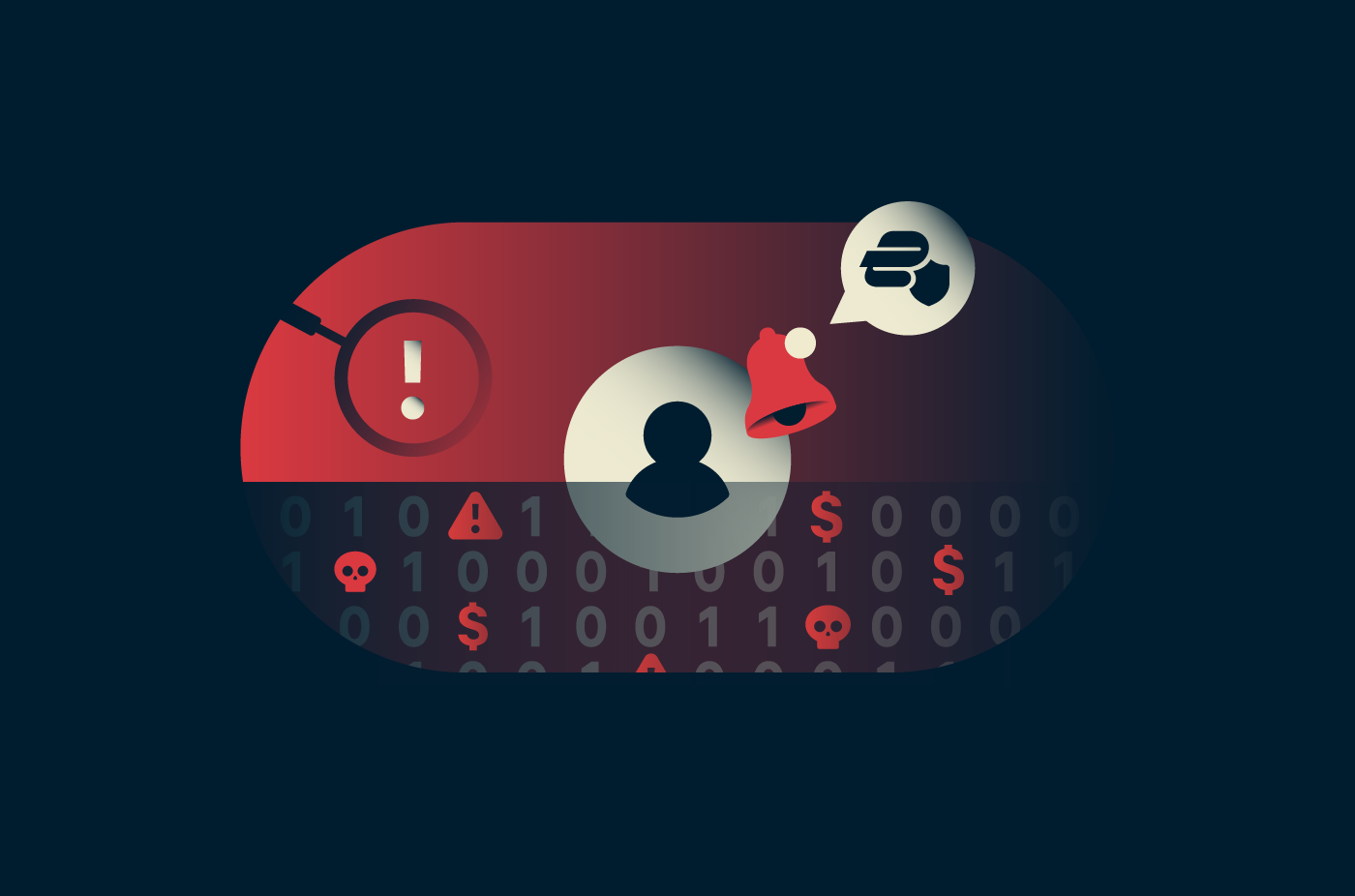
Dark web sites can’t be opened in a regular browser or found through a regular search engine, so for the majority of people, the best way to check whether your personal information is there is to use a monitoring tool. ExpressVPN offers one through Identity Defender, its identity protection app, which is available in the U.S. with the Advanced and Express Pro plans.
Identity Defender includes ID Alerts, a set of monitoring services that flag signs your personal information has been exposed or misused. One of these services, Dark Web Monitoring, scans the dark web for the personal details you add and alerts you when it finds a match.
Each alert shows which monitored details were found, whether a password was included, and recommendations for what to do next.
How does personal information end up on the dark web?
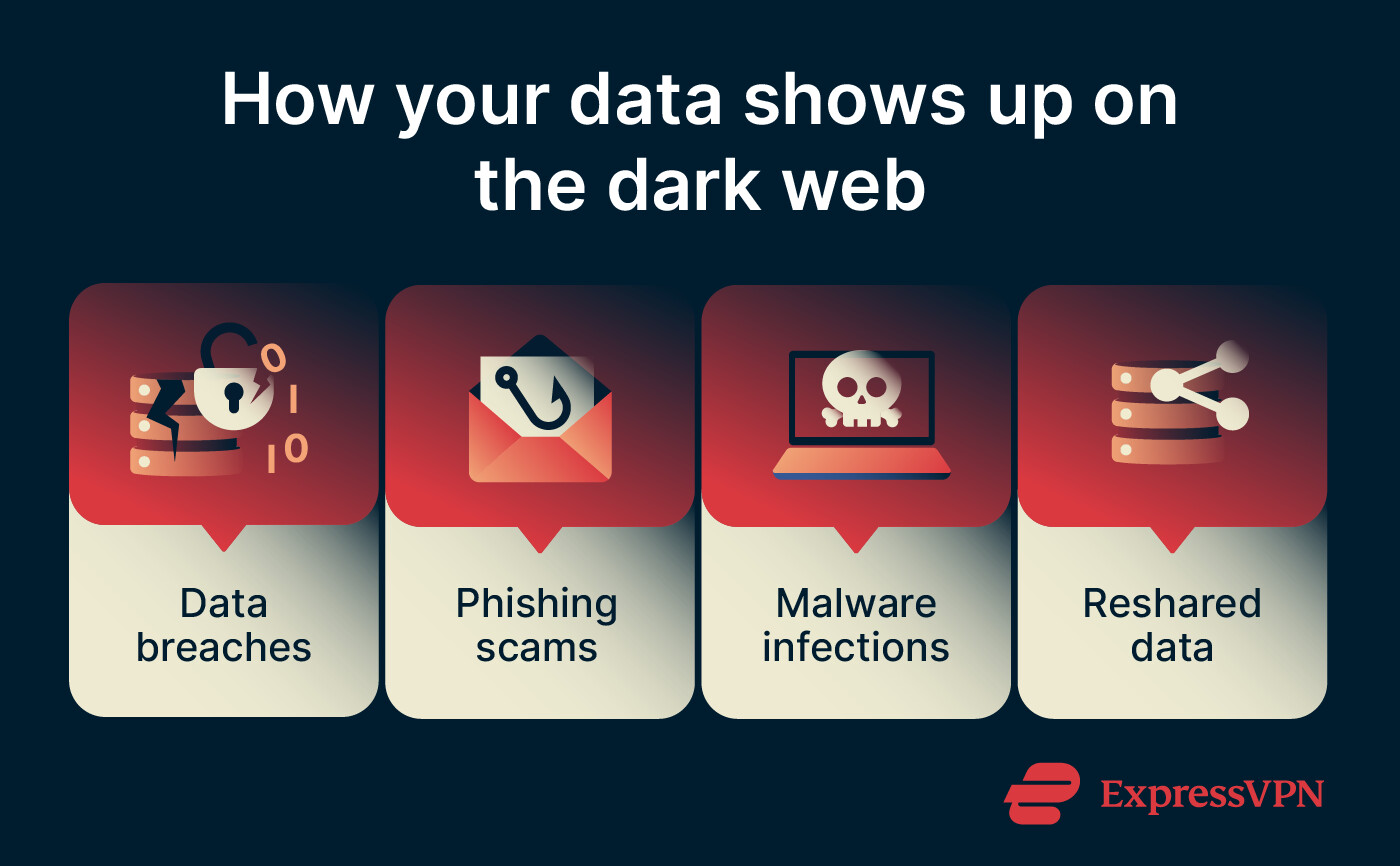
Personal information can end up on the dark web in several ways. Attackers often get it by breaking into the systems of companies, websites, or online services and stealing customer data. They can also target people directly, using phishing scams to trick them into sharing passwords and personal details, or malware that collects login details from an infected device.
Criminals then sell or share this data on dark web marketplaces and forums, where it can be used for identity theft, fraud, and account takeovers. Stolen data is also often combined with data from earlier breaches and shared again, so information taken years ago can show up in a new collection.
How to set up Dark Web Monitoring
Dark Web Monitoring is set up in the Identity Defender app for iOS and Android. The app isn’t available on its own: you need an ExpressVPN account with an active Advanced or Express Pro plan to use it. During setup, you enter some basic personal details, and Dark Web Monitoring starts checking for them automatically.
-
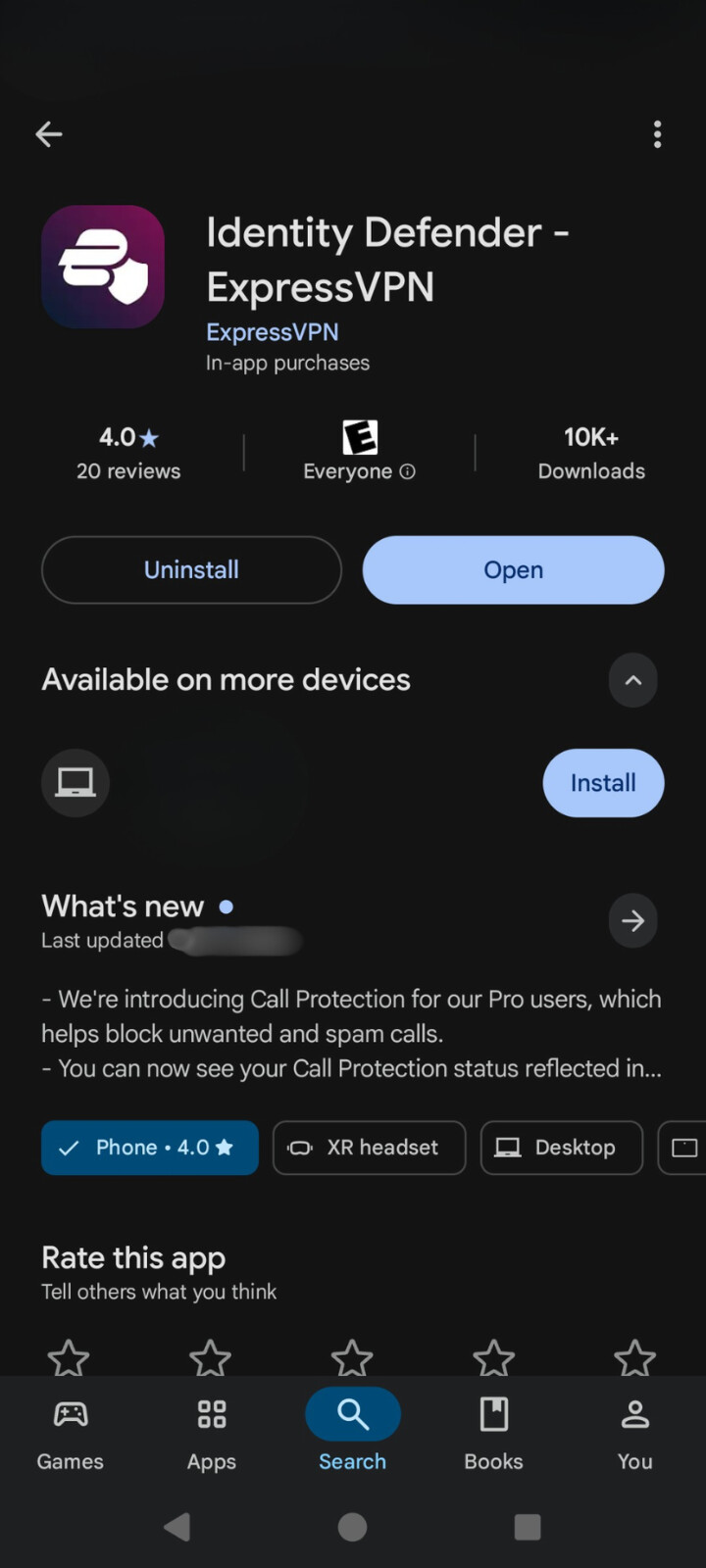
Download Identity Defender from the App Store or Google Play.
![Downloading ExpressVPN's Identity Defender from the app store.]()
-
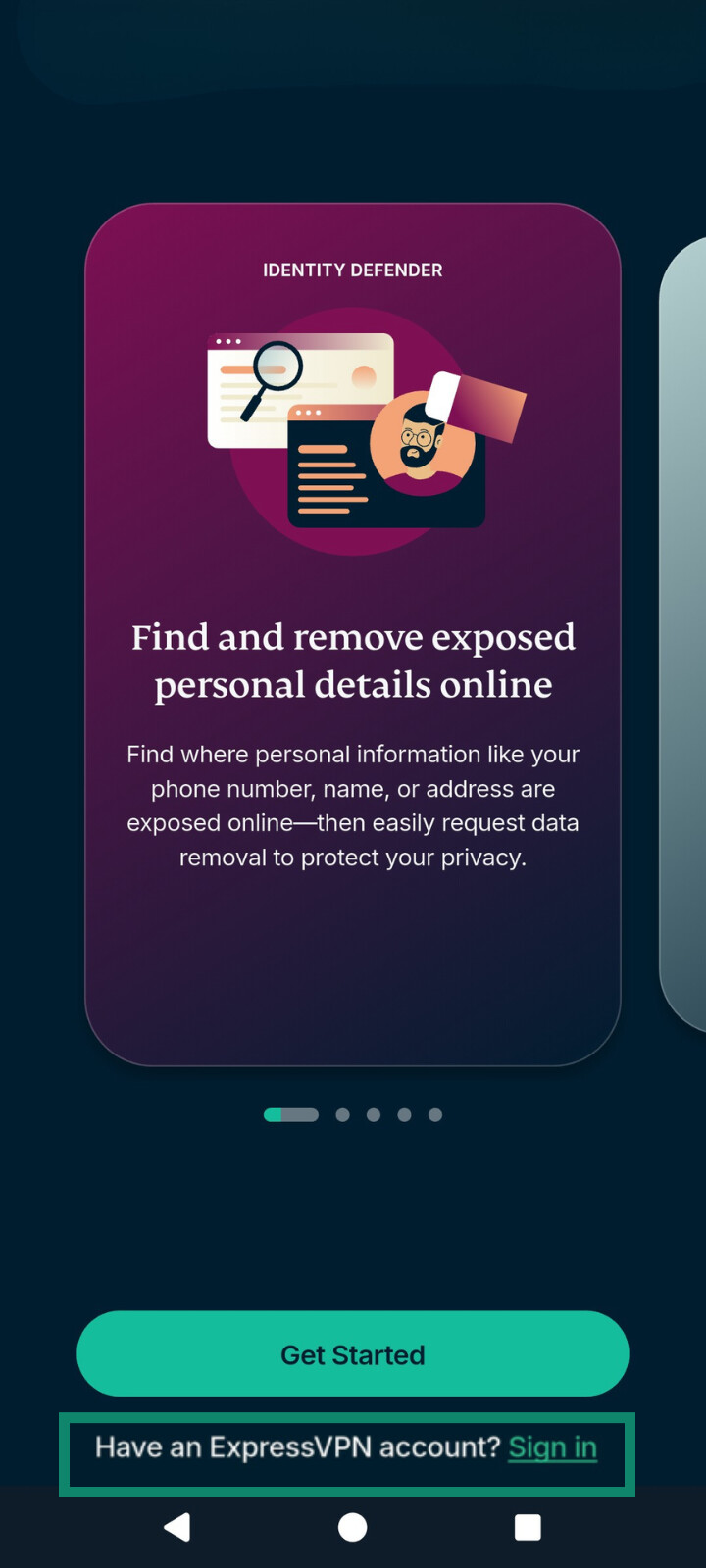
Open the app and sign in with your ExpressVPN account.
![Signing in to ExpressVPN's Identity Defender app.]()
-
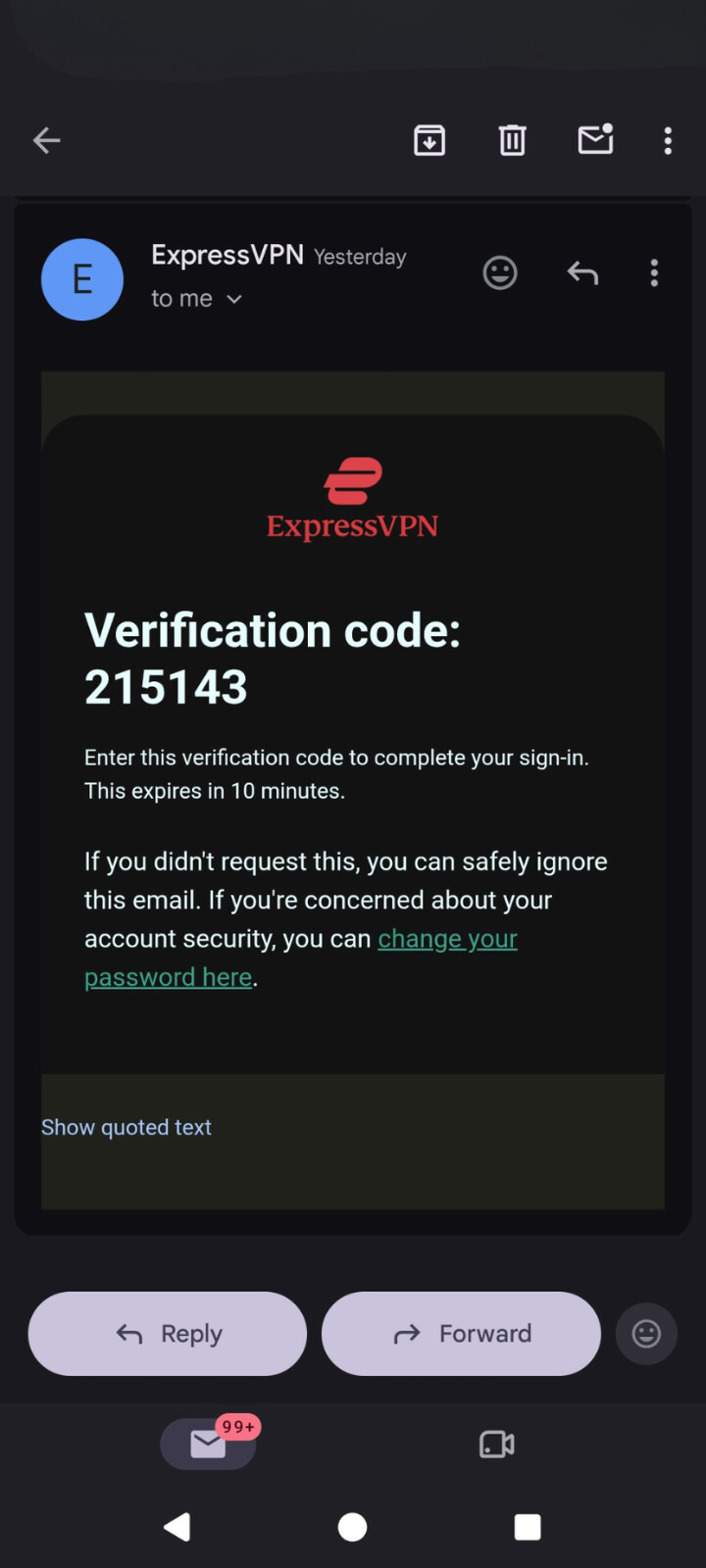
Enter the verification code sent to your email address.
![Entering the verification code into ExpressVPN's Identity Defender app.]()
-
Enter your personal information.
![Providing personal information for identity verification to ExpressVPN's Identity Defender app.]()
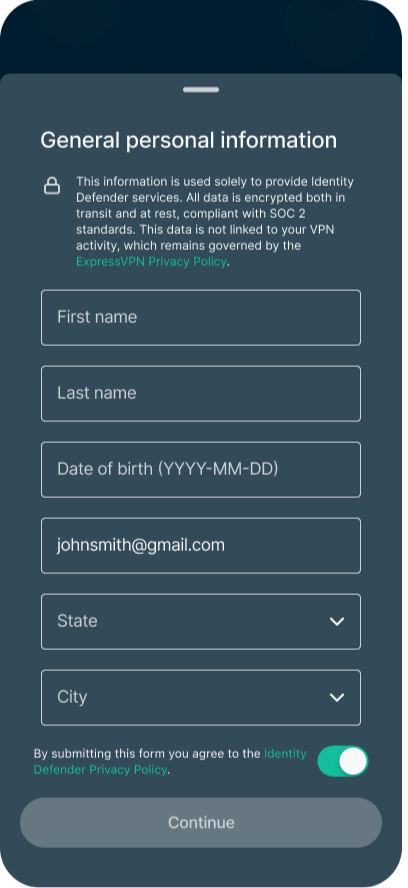
For more details, check out our guide on setting up Identity Defender.
Dark Web Monitoring only checks for the details you’ve added, so if you use other email addresses, phone numbers, or cards, add them as well. This way, an alert can tell you when any of them shows up on the dark web. To add more details:
-
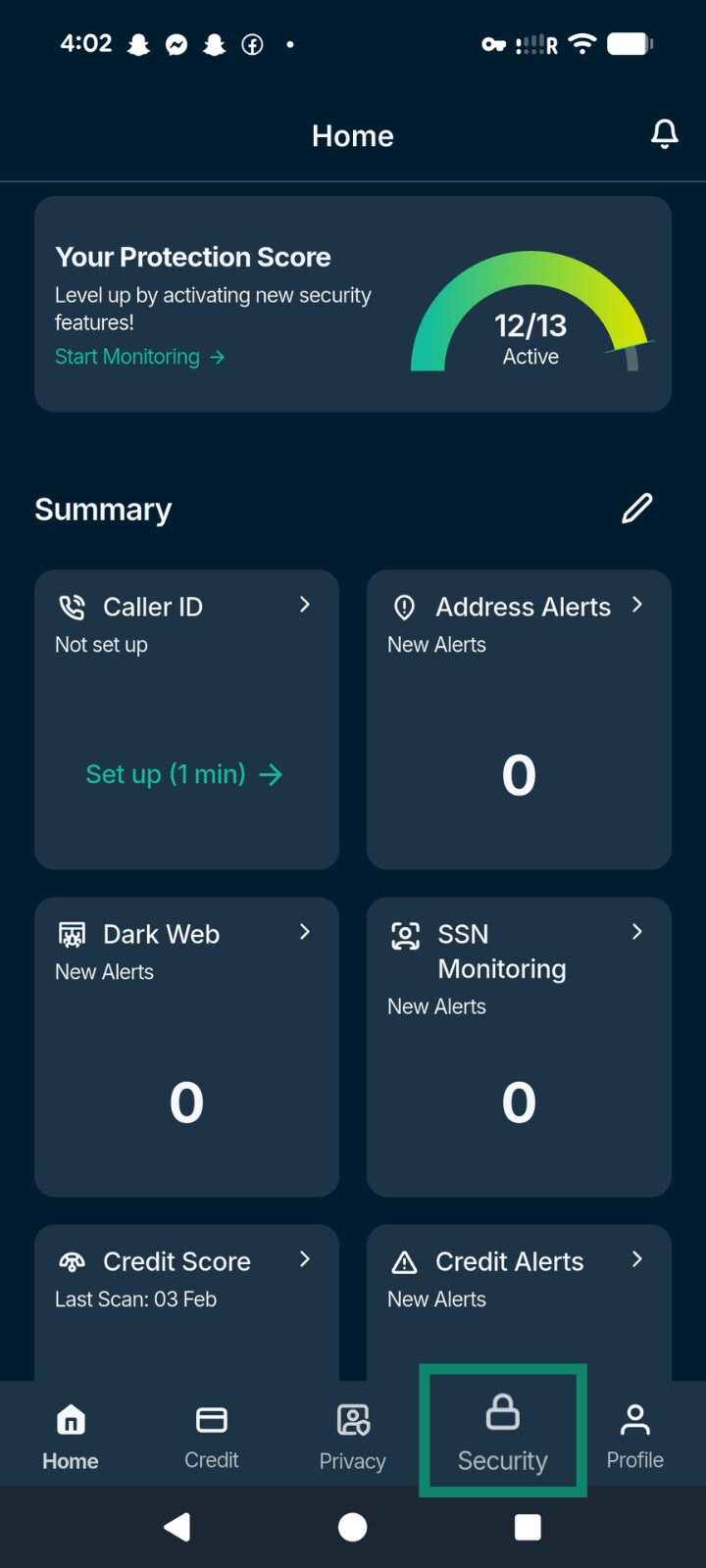
In the Identity Defender app, tap Security.
![06 Identity Defender Security Tab]()
-
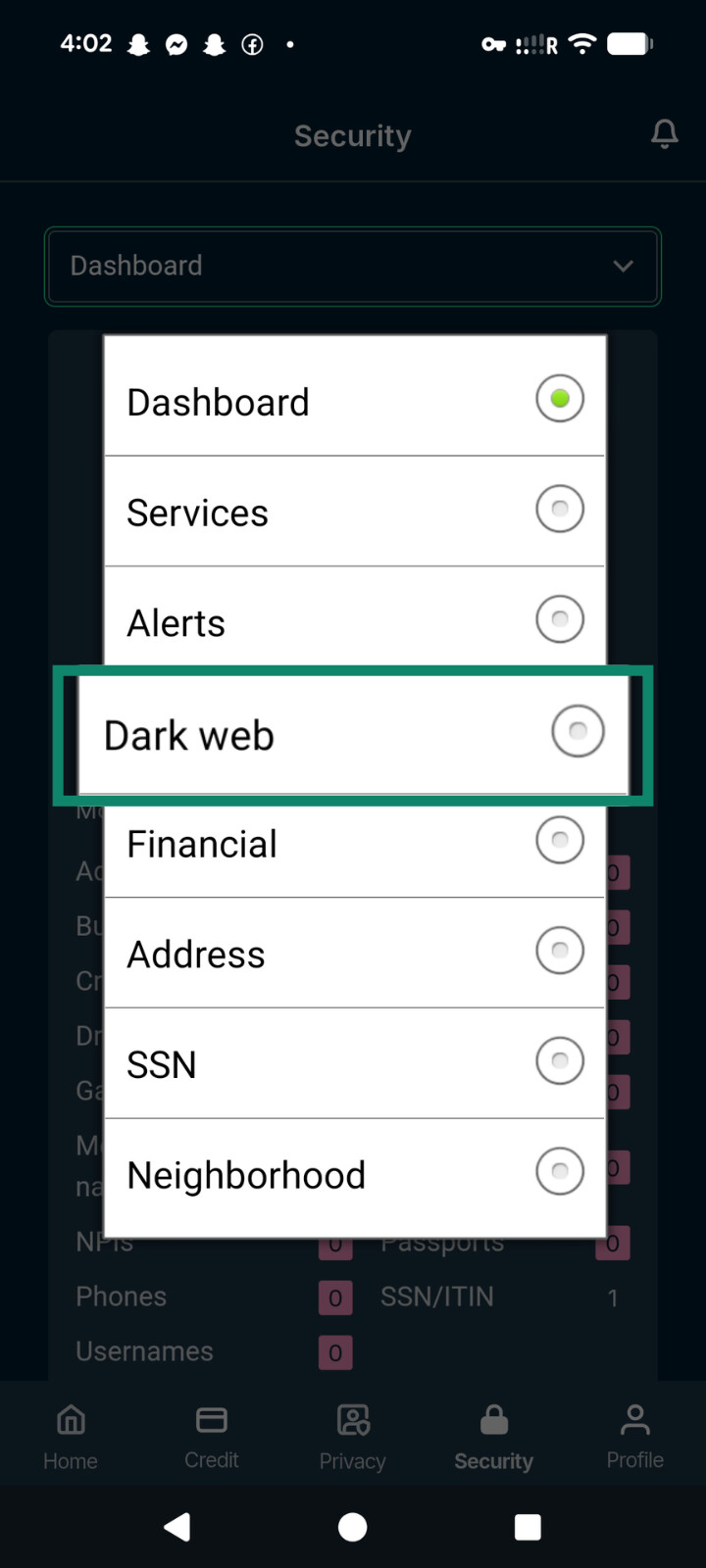
Tap the dropdown menu at the top and select Dark web.
![07 Security Dropdown Dark Web]()
-
Scroll to the type of information you want to add and tap the Add button for it. Enter the details and tap Add again.
![08 Dark Web Add Monitored Details]()
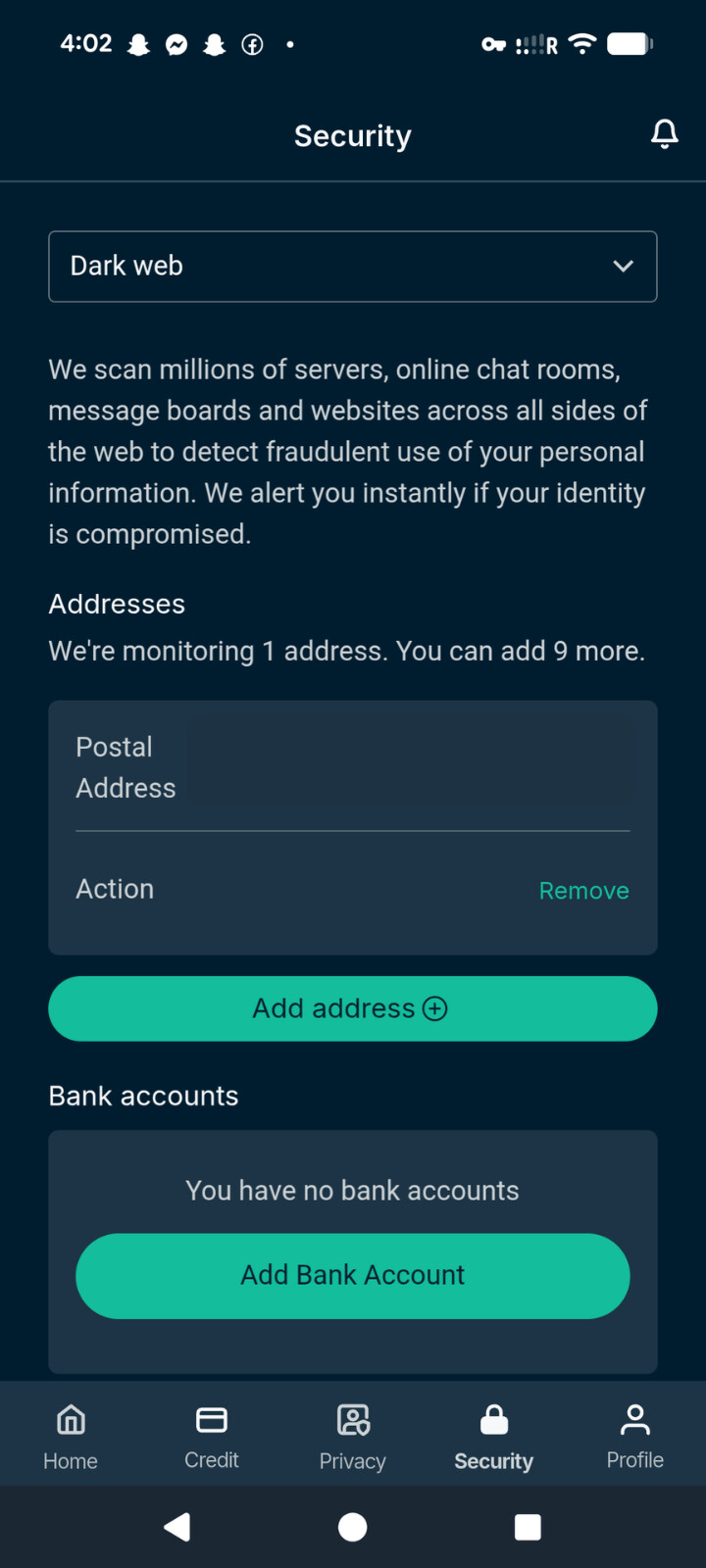
Besides the details from setup, Dark Web Monitoring can check for:
- Phone numbers
- Home addresses
- Bank accounts
- Credit and debit cards
- Crypto wallets
- Driver’s licenses
- Passports
- Medical IDs
- Usernames
- Gamertags
- Social Security number (SSN) or Individual Taxpayer Identification Number (ITIN)
- Mother’s maiden name
- Business license
- National Provider Identifier (NPI) number
The same details are available in the ExpressVPN+ dashboard under Identity Defender > Activity Hub > Edit monitored information.
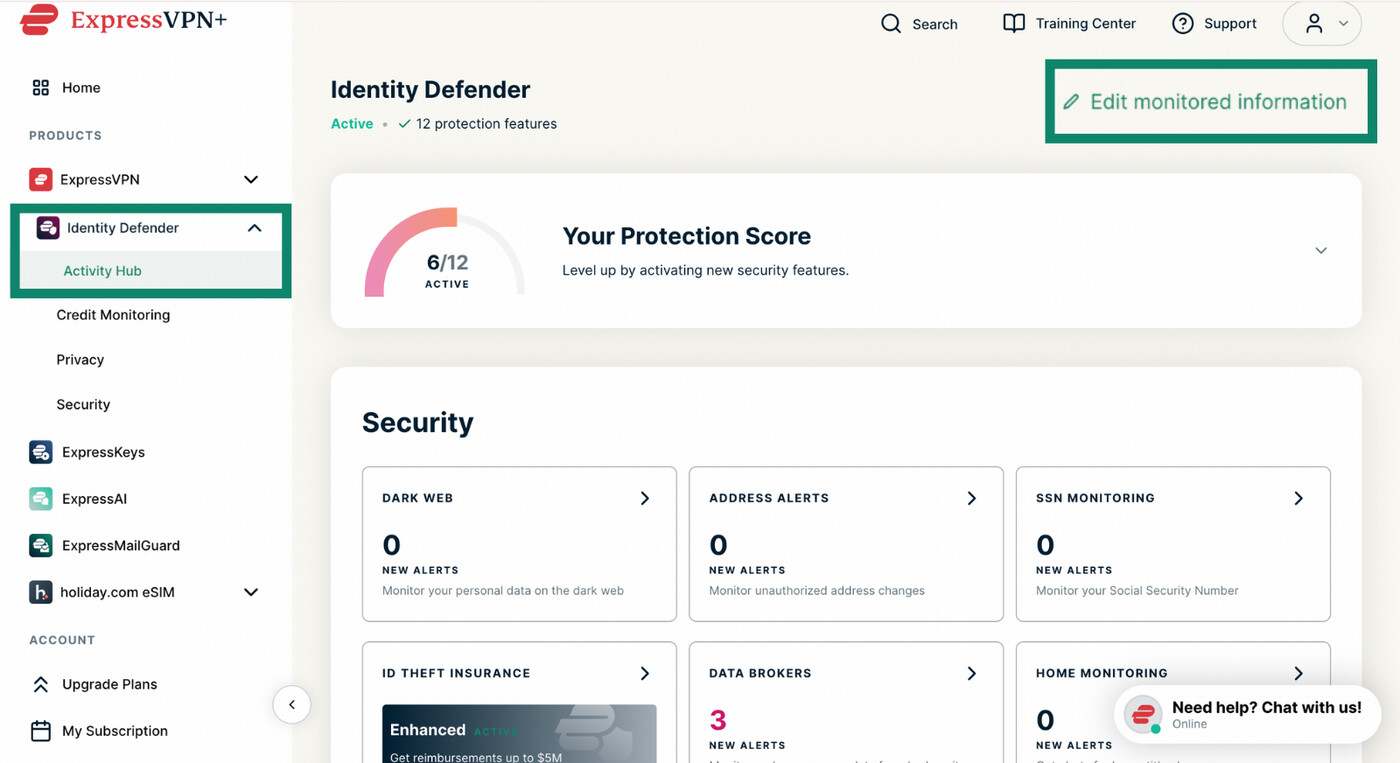
For step-by-step instructions on using ID Alerts, see our support guide.
How to read a dark web alert
When Dark Web Monitoring finds a match, you get an alert in the Identity Defender app and by email.
In the Identity Defender app:
-
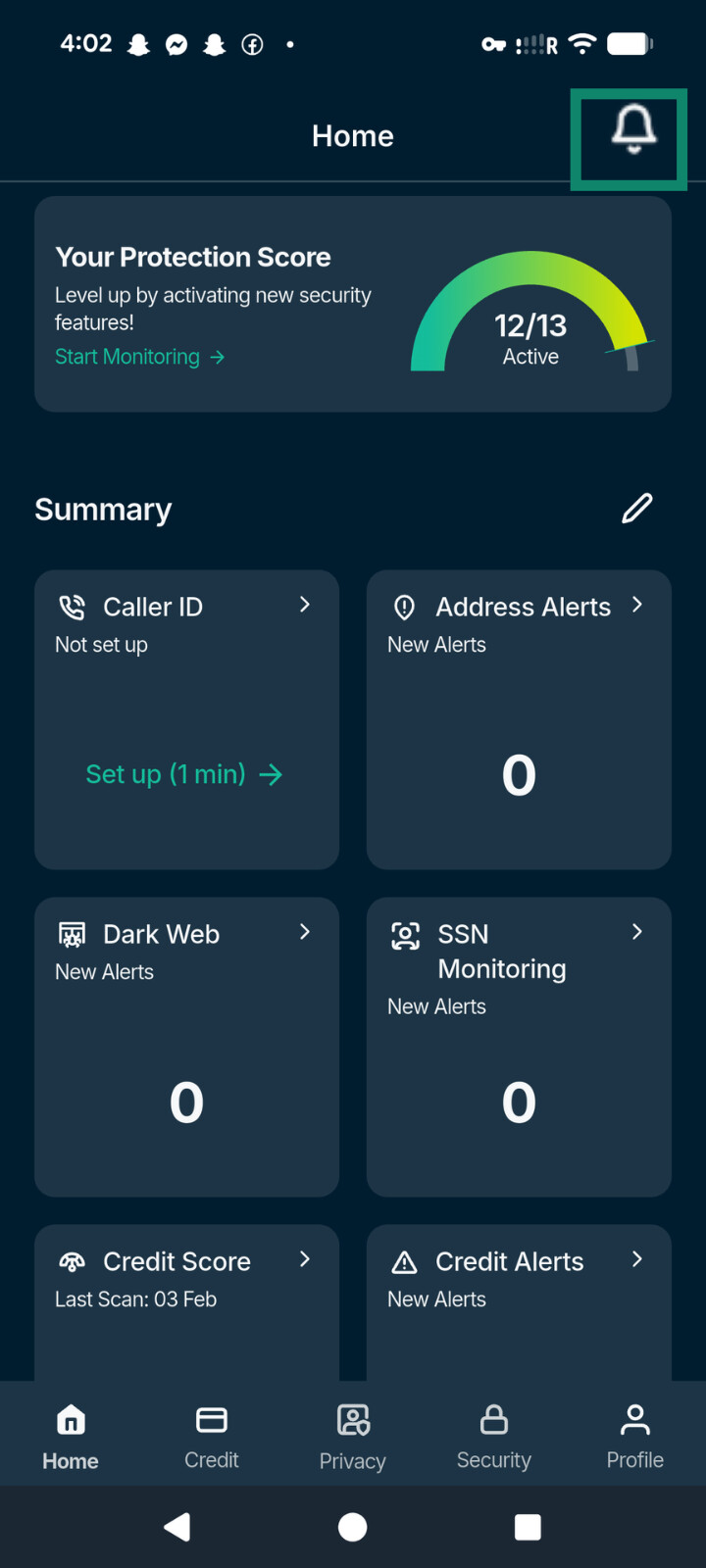
Tap the bell icon at the top of the home screen.
![The bell icon at the top of the Identity Defender app home screen.]()
-
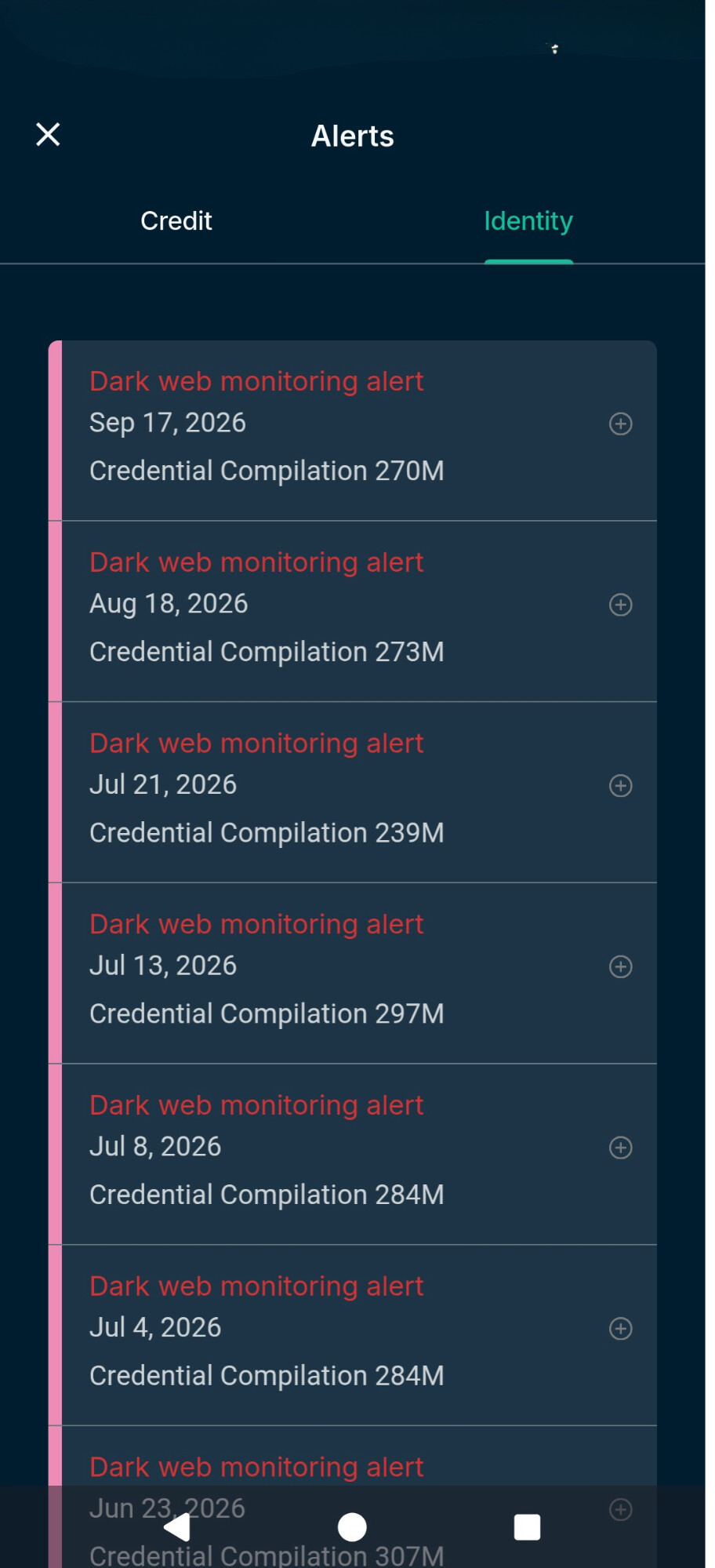
Select the Identity tab to see your dark web monitoring alerts. Tap the + icon next to an alert to see its details.
![Dark web monitoring alerts in the Identity Defender Identity tab.]()
In the ExpressVPN+ dashboard:
-
In the left sidebar, select Identity Defender > Security.
-
Open the Alerts tab to see your alerts.
-
Click the + icon next to an alert to see its details.
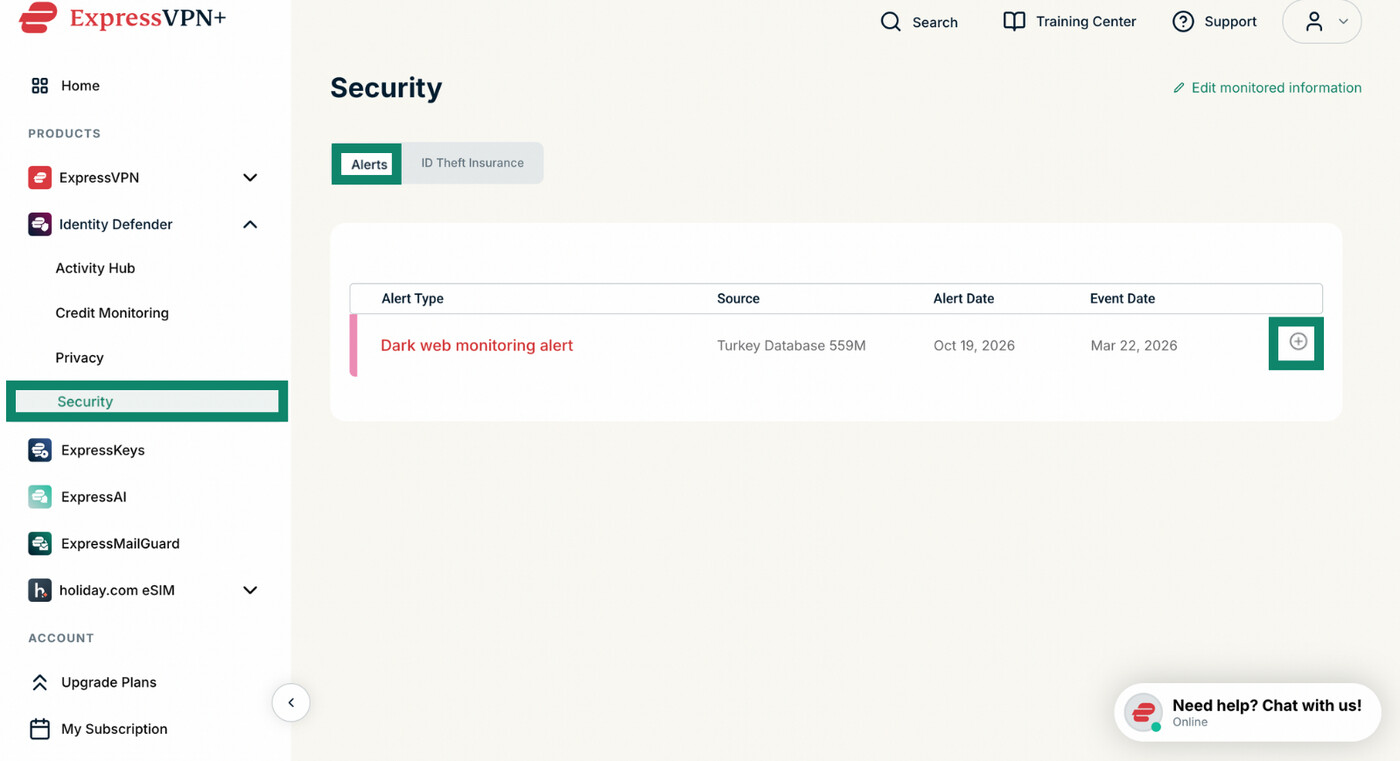
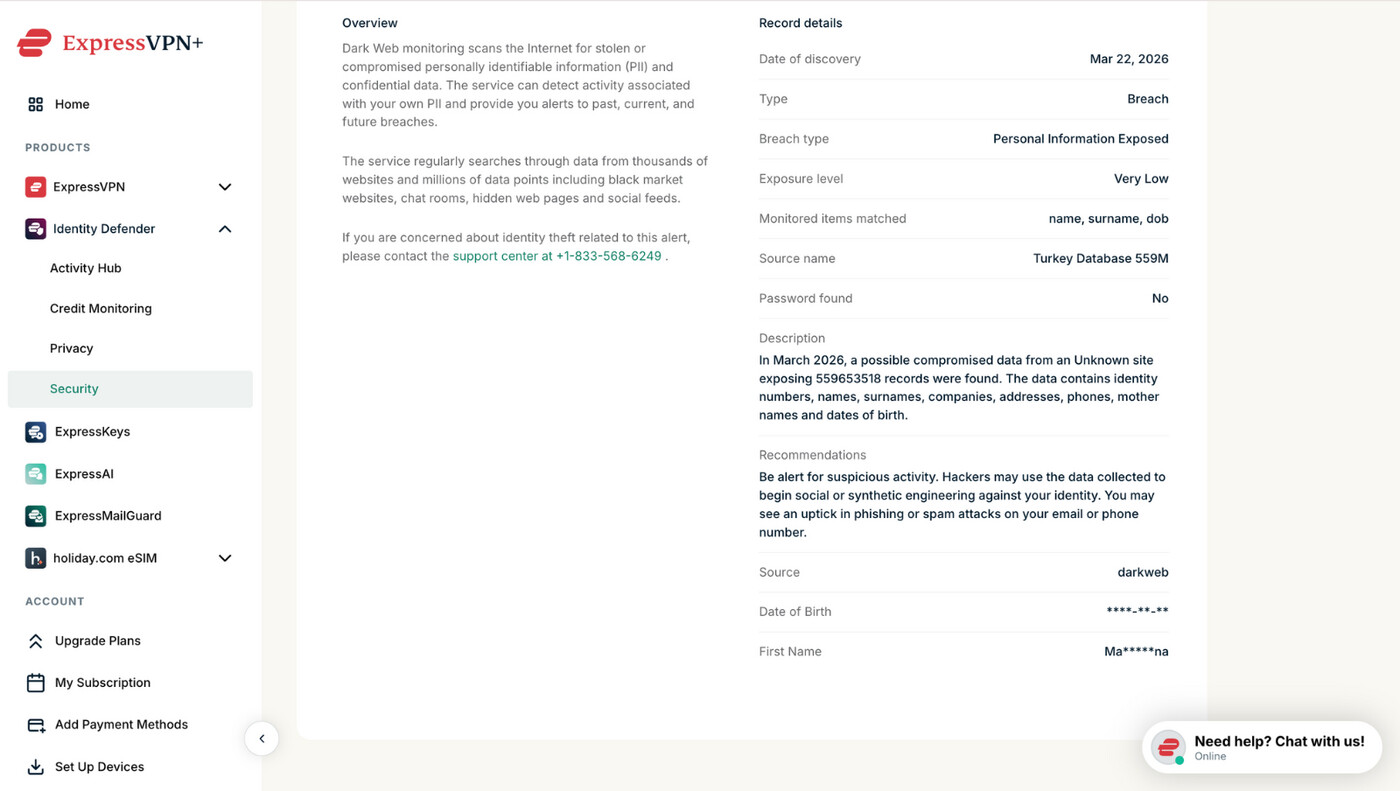
Each alert includes these details:
- Date of discovery and alert date: When the data was found and when you were alerted. These can be months apart because Dark Web Monitoring can also alert you to data from past breaches.
- Type: The kind of alert, such as "Breach."
- Breach type: What kind of exposure was found, such as "Personal Information Exposed."
- Exposure level: A rating of the exposure.
- Monitored items matched: Which of your monitored details were found, such as your name or date of birth.
- Source name: The name of the dataset where your details were found, such as "Credential Compilation 270M."
- Password found: Whether a password was found along with your details.
- Description: What the source contains overall. This can include types of data beyond the ones that matched your details.
- Recommendations: Suggested next steps for that specific alert.
- Matched details: The details that were found, shown partly hidden. For example, a date of birth appears as asterisks.

Note: For more on managing alerts, see our guide on Identity Defender alerts and notifications.
What to do after a dark web alert
After you get a dark web alert from Identity Defender, start with the Recommendations in the alert, which suggest next steps for that specific exposure. Beyond that, what to do depends on which of your details were found.
If a password was found
If Password found says Yes, change the password for that account and for any other account where you use the same password. ExpressKeys, our password manager, can generate a new password for each account, and its Password Health feature flags passwords you’ve reused. Turning on two-factor authentication (2FA) adds another layer of protection, so a stolen password alone isn’t enough to get into your account.
If your contact or personal details were found
If the alert matches details like your name, date of birth, email address, or phone number, there’s nothing to reset. Exposed contact details can lead to more phishing and spam messages, and criminals can use personal details for social engineering.
Block malicious sites in the ExpressVPN app blocks connections to known phishing and malicious sites, which helps if you click a link in one of these messages. You can turn it on under Add-ons > Advanced Protection. It can’t block new sites that aren’t yet on its list.
If your financial details were found
If a bank account or card number was found, contact your bank or card issuer to close or replace the account or card. After that, update any automatic payments that used the old details. IdentityTheft.gov has more guidance for each type of exposed financial information.
If your Social Security number was found
If your SSN was found, consider placing a credit freeze with Equifax, Experian, and TransUnion. A freeze prevents creditors from approving new credit accounts in your name, and you need to contact each bureau separately.
How Identity Defender helps if your information is misused
If someone uses your exposed information to commit fraud, Identity Defender gives you access to restoration support and ID Theft Insurance*. Both are included with the Advanced and Express Pro plans.
Restoration support helps you recover from identity theft. To reach it, open the Identity Defender app, tap Security, select Services from the dropdown menu, and call the restoration number.
ID Theft Insurance* covers eligible expenses from identity theft, such as legal fees and lost wages. Coverage limits depend on your plan and are subject to the policy terms.
Want to know if your information is on the dark web?
Identity Defender’s Dark Web Monitoring checks for your personal details and alerts you when it finds a match, with recommendations on what to do next.
Start dark web monitoring with ExpressVPN
Included with Advanced and Express Pro plans for U.S. users.
FAQ
Does finding my information on the dark web mean my identity has been stolen?
Can ExpressVPN remove my information from the dark web?
How can I tell if a dark web alert from ExpressVPN is real?
Will ExpressVPN notify me if my information appears on the dark web again?
*The insurance is underwritten and administered by American Bankers Insurance Company of Florida, an Assurant company, under group or blanket policies issued to Array US Inc, or its respective affiliates, for the benefit of its Members. Please refer to the actual policies for terms, conditions, and exclusions of coverage. Coverage may not be available in all jurisdictions. Review the Advanced Tier Summary of Benefits and the Pro Tier Summary of Benefits.