Phone security: How to protect your iPhone or Android with ExpressVPN


ExpressVPN encrypts your phone’s internet traffic and routes it through an ExpressVPN server, so the Wi-Fi networks and mobile carriers your phone connects through can’t see which sites and apps you use. Depending on your subscription, you can also access tools that block known malicious sites, trackers, and ads, manage your passwords, create email aliases, and, for U.S. subscribers, monitor for online identity exposure.
ExpressVPN doesn’t lock your phone, install software updates, manage app permissions, or protect your device from physical loss or theft. Those protections come from your phone’s own settings, like your passcode, automatic updates, and Find My (iPhone) or Find Hub (Android).
What ExpressVPN covers on your phone
Here’s a quick overview of common threats and which ExpressVPN feature addresses them:
| Threat | ExpressVPN features that address it |
|---|---|
| Untrusted or fake Wi-Fi networks | VPN, Internet Kill Switch, Auto-connect (Android only) |
| Known phishing and malicious domains | Advanced Protection |
| Trackers in apps and browsers | Tracker Blocker |
| Weak, reused, or exposed passwords | ExpressKeys Password Health |
| Account takeover through weak authentication | ExpressKeys authenticator and passkeys |
| Identity exposure | ExpressVPN Identity Defender |
| Email address exposure and spam | ExpressMailGuard |
Encrypt your phone's connection on untrusted networks
ExpressVPN encrypts the traffic between your phone and the VPN server and sends your Domain Name System (DNS) requests through ExpressVPN's private, encrypted DNS. This helps:
- Prevent untrusted networks from seeing which sites and services you connect to on your phone.
- Stop attackers on the same network from reading or altering your traffic in man-in-the-middle attacks (where an attacker secretly positions themselves between your phone and the Wi-Fi network or router it’s using).
- Protect your traffic if you accidentally connect to a fake Wi-Fi hotspot.
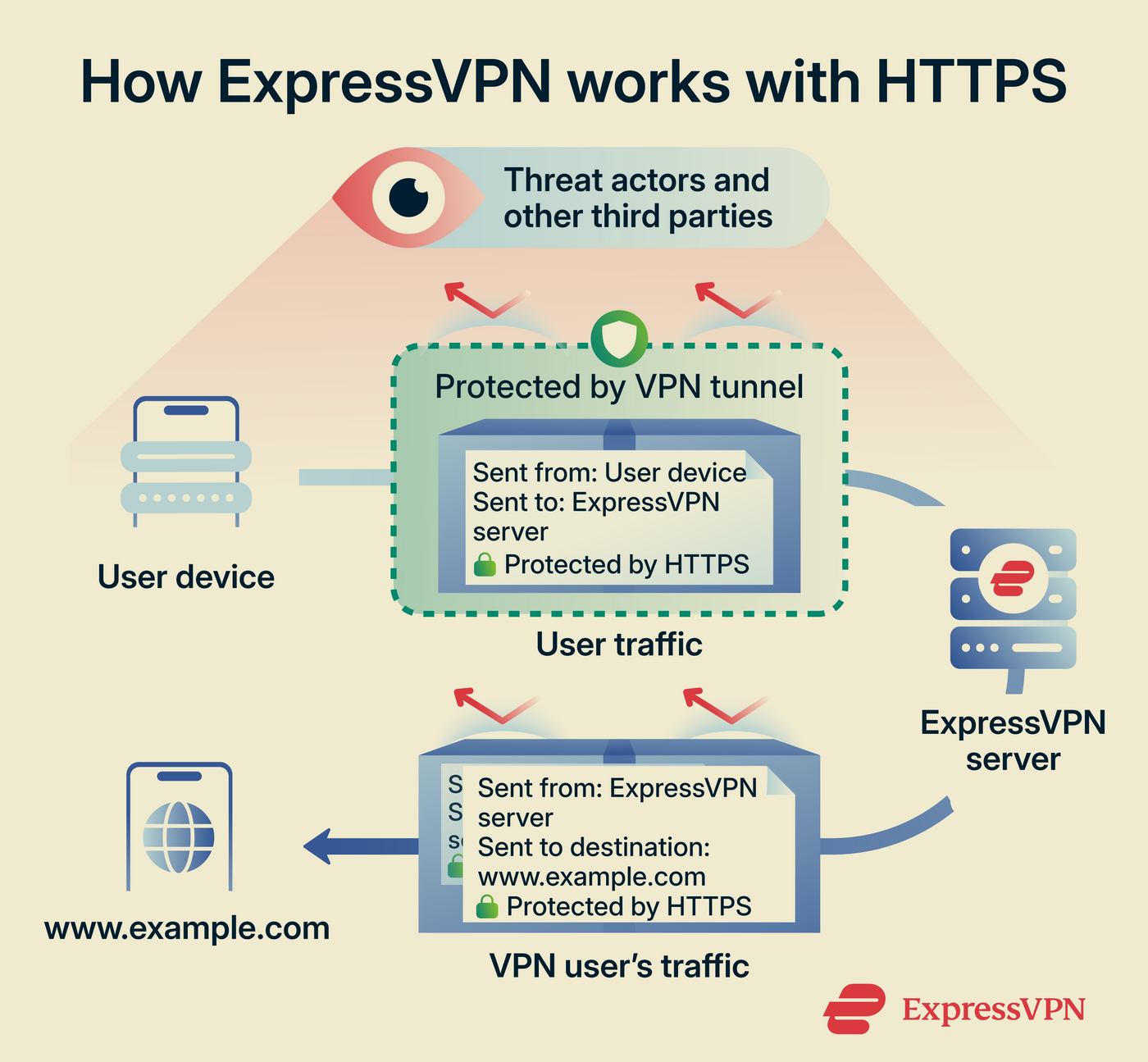
ExpressVPN also provides an extra layer of protection on top of HTTPS. HTTPS encrypts the connection between your phone and the website or service you’re using, helping protect the content of your communications from being read in transit. When you use ExpressVPN, that HTTPS-encrypted traffic is sent through an encrypted VPN connection. This means HTTPS protects that content, while the VPN masks where your traffic is going from your internet service provider (ISP), network admins, and connection eavesdroppers.
Connect automatically on networks you don't trust
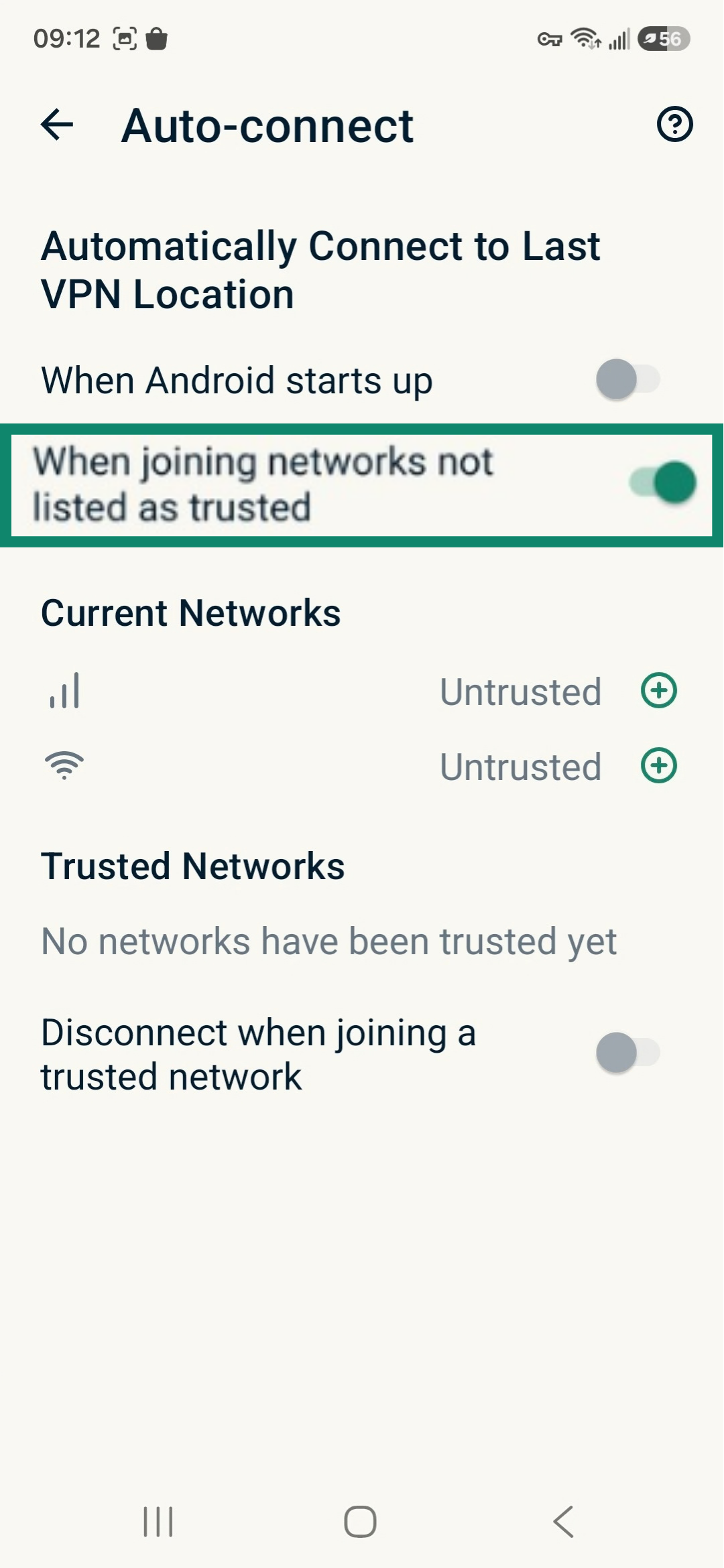
On ExpressVPN’s Android app, Auto-connect automatically connects you to the VPN when you join a network that isn’t marked as trusted. This helps reduce the chance of your phone using an untrusted or fake Wi-Fi network before you remember to turn the VPN on. New networks, including mobile data networks, start out as untrusted.
To enable Auto-connect, go to the VPN tab, tap Not set up: Auto-connect, and toggle When joining networks not listed as trusted in the Auto-connect settings.
On Android 10 and above, you also need to set ExpressVPN’s location permissions to Allow all the time. Otherwise, the app won't be able to detect which network you’re on.
For more information on how to set up and use the Auto-connect feature, including how to mark a network as "trusted," follow our: Android Auto-connect setup guide.
On iPhone, you can enable Connect On Demand in iOS settings to help automatically restore ExpressVPN’s connection after network changes or interruptions. To access it, go to Settings > General > VPN & Device Management > VPN > info icon next to ExpressVPN > Connect On Demand. Unlike Android’s Auto-connect feature, it can’t be configured to connect specifically when you join a network that isn’t marked as trusted, but it still helps reduce the chance of your phone being left without VPN protection after the connection drops or the network changes.
Block known malicious sites, trackers, and ads on your phone
ExpressVPN’s Advanced Protection feature is a DNS-based blocker that can block connections to domains on maintained blocklists. For example, if you open a link to a malware-infected site in an SMS message, Advanced Protection can block the connection before the site loads.
Advanced Protection’s blocklists cover:
- Malicious sites: Phishing sites and sites that attempt to infect your phone with malware.
- Ads: Domains used to serve ads.
- Trackers: Domains used to track your activity across websites and apps.
- Adult sites: Sites with explicit adult and gambling content.
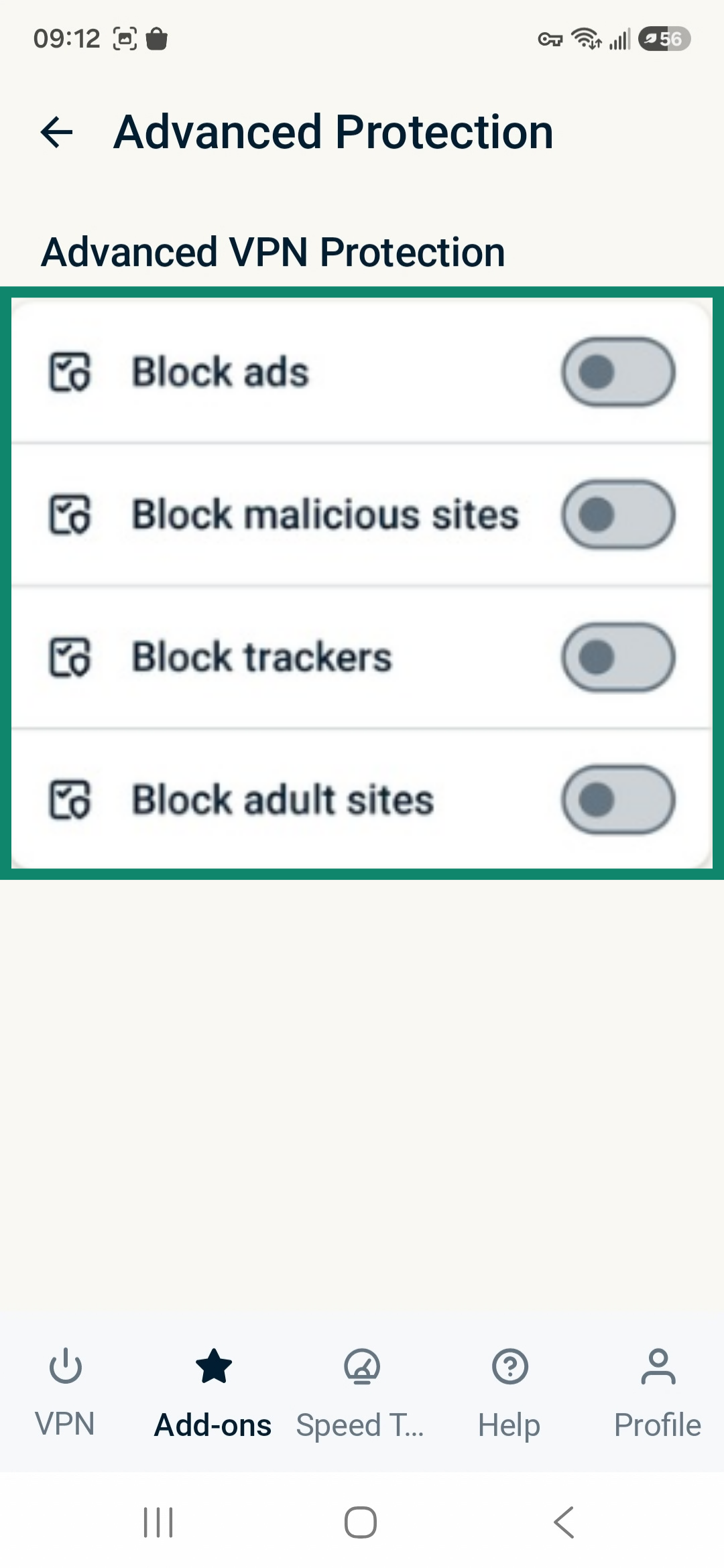
You can turn each blocklist on or off separately, and blocking applies in both browsers and apps.
When using Advanced Protection, keep these limitations and requirements in mind:
- You must be connected to the VPN for it to work.
- It doesn’t work with the IKEv2 protocol.
- The blocklists are compiled from publicly available and open-source lists. Newly created domains may not be on these lists yet.
- It doesn’t read or filter your text messages or emails, so it won’t flag suspicious messages or put spam into a junk folder.
- It isn’t an antivirus, so it can’t scan for or remove malware on your device.
Advanced Protection is off by default. To turn it on, connect to the VPN, tap Add-ons, tap Advanced Protection, and turn on the features you want to use.
For more information on Advanced Protection and how to use it, see the support guide: What is Advanced Protection.
Protect the accounts on your phone with ExpressKeys
ExpressKeys is a password manager that can help make the accounts you use on your phone more secure by:
- Generating strong, unique passwords.
- Autofilling passwords in apps and sites.
- Running Password Health checks for weak, reused, or exposed passwords.
- Flagging saved login URLs that use HTTP instead of HTTPS.
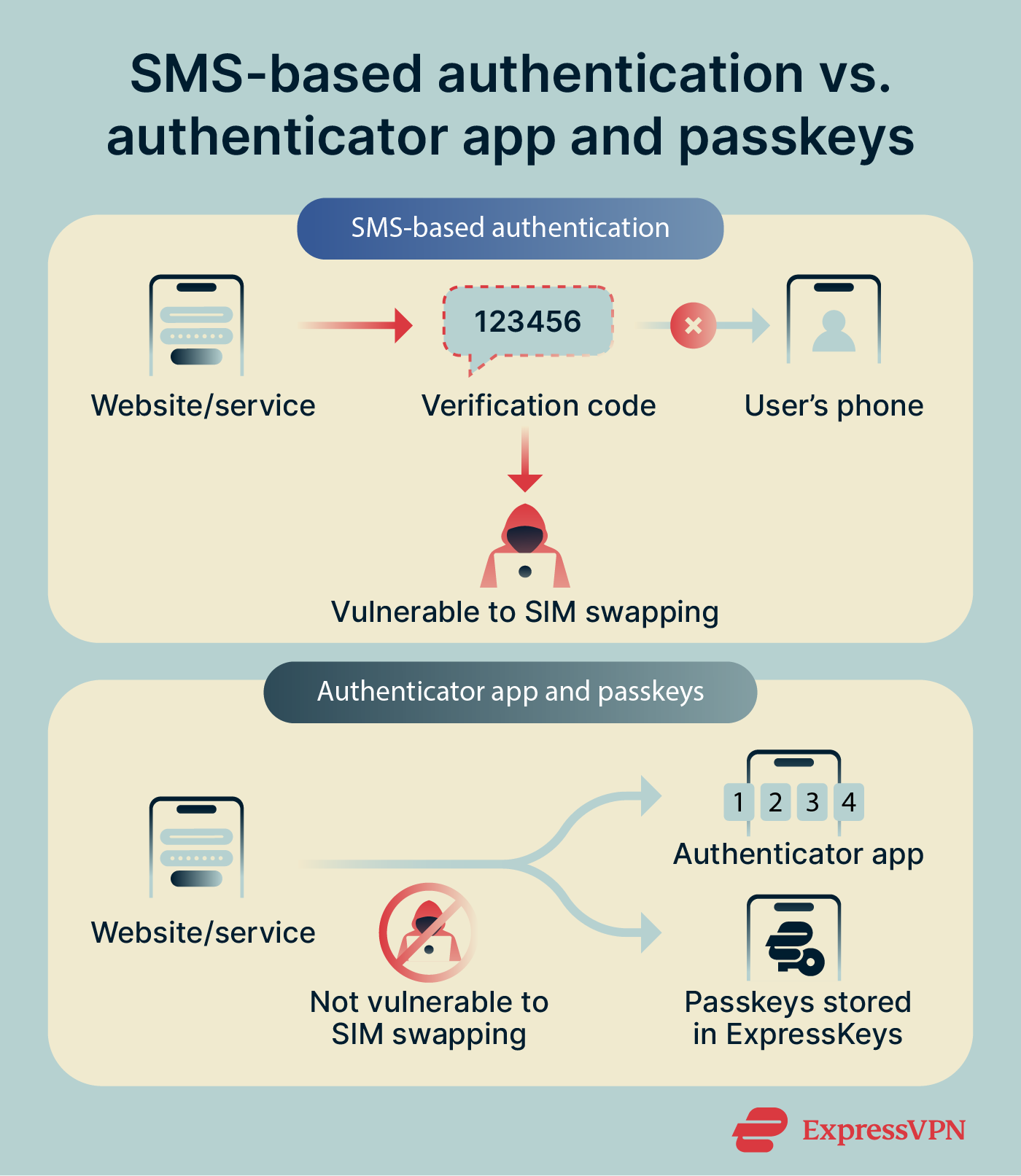
ExpressKeys can also help strengthen account authentication. Its built-in authenticator can generate time-based one-time codes for accounts that support two-factor authentication (2FA), so you don’t have to rely on SMS codes. Password Health also flags saved accounts that don’t have 2FA turned on. ExpressKeys supports passkeys on Android and iPhone as well, letting you sign in to supported apps and sites without a password.
ExpressKeys is included with the Advanced and Express Pro tiers. You can also get ExpressKeys as a standalone subscription. The app runs on iOS 18 or later and Android 13 or later. For more information about it, see the support guide: What is ExpressKeys?
Limit email exposure when using your phone
Many apps and mobile sites ask for an email address when you create an account, make a purchase, or sign up for a service. ExpressMailGuard lets you use an email alias instead of your real address, helping limit how widely your real email is shared.
ExpressMailGuard forwards messages sent to the alias to your real inbox, so they show up in the email app you already use on your phone, and you can reply from the alias without revealing your real address. If an alias starts attracting spam or suspicious messages, you can deactivate it without changing your real email address.
ExpressMailGuard is included with Basic, Advanced, and Express Pro tier, with usage limits depending on your subscription.
Monitor for identity exposure (U.S. only)
If you're a U.S. subscriber on the Advanced or Express Pro plan, you can use the Identity Defender app for iPhone and Android to monitor for signs that your personal information has been exposed or misused.
The Caller Identification feature (available for Android users in the U.S. on the Express Pro plan) warns you if an incoming call may be spam or a scam, helping you avoid engaging with potentially fraudulent callers.
Identity Defender also includes:
- ID Alerts: Monitors your personal information for signs of exposure or suspicious activity and alerts you when it detects potential risks. The number and types of alerts available depend on your subscription.
- Data Removal: Finds your personal information on data broker and people-search sites and sends removal requests on your behalf.
- Credit Scanner: Monitors your credit activity and provides reports and alerts about changes that could indicate fraud.
- ID Theft Insurance*: Provides coverage for eligible losses resulting from identity theft. Coverage is up to $3 million for Advanced subscribers and up to $5 million for Express Pro subscribers.
Want more protection for your iPhone or Android?
ExpressVPN helps keep your mobile browsing private, blocks connections to known malicious sites, and offers tools to protect your passwords and personal information. These features work alongside your phone's built-in security to help reduce everyday online risks.
Protect your phone with ExpressVPN
Try ExpressVPN with a 30-day money-back guarantee for new users.
What ExpressVPN can't do for your phone's security
ExpressVPN complements your phone's built-in security features and security best practices, but it doesn’t:
- Scan for or remove malware or spyware.
- Stop a SIM swap or other attacks that intercept your SMS messages.
- Help you lock, locate, or wipe a lost phone.
- Install app or operating system updates.
- Manage app permissions.
- Make a sideloaded app safe.
- Hide all information that can identify you online.
FAQ
What does ExpressVPN protect on my phone?
Does ExpressVPN replace an antivirus on my phone?
Can ExpressVPN protect me from SIM swapping?
Will ExpressVPN's kill switch affect CarPlay or Personal Hotspot?
Do I need a VPN on my phone when I use mobile data?
Can ExpressVPN tell me if my phone has been hacked?
How many phones can I protect with one ExpressVPN subscription?
*The insurance is underwritten and administered by American Bankers Insurance Company of Florida, an Assurant company, under group or blanket policies issued to Array US Inc. or its respective affiliates, for the benefit of its Members. Please refer to the actual policies for terms, conditions, and exclusions of coverage. Coverage may not be available in all jurisdictions. Review the Advanced Tier Summary of Benefits and the Express Pro Tier Summary of Benefits.