 Celebrate with up to 80% off
How to remove malware from iPhone and prevent it from coming back


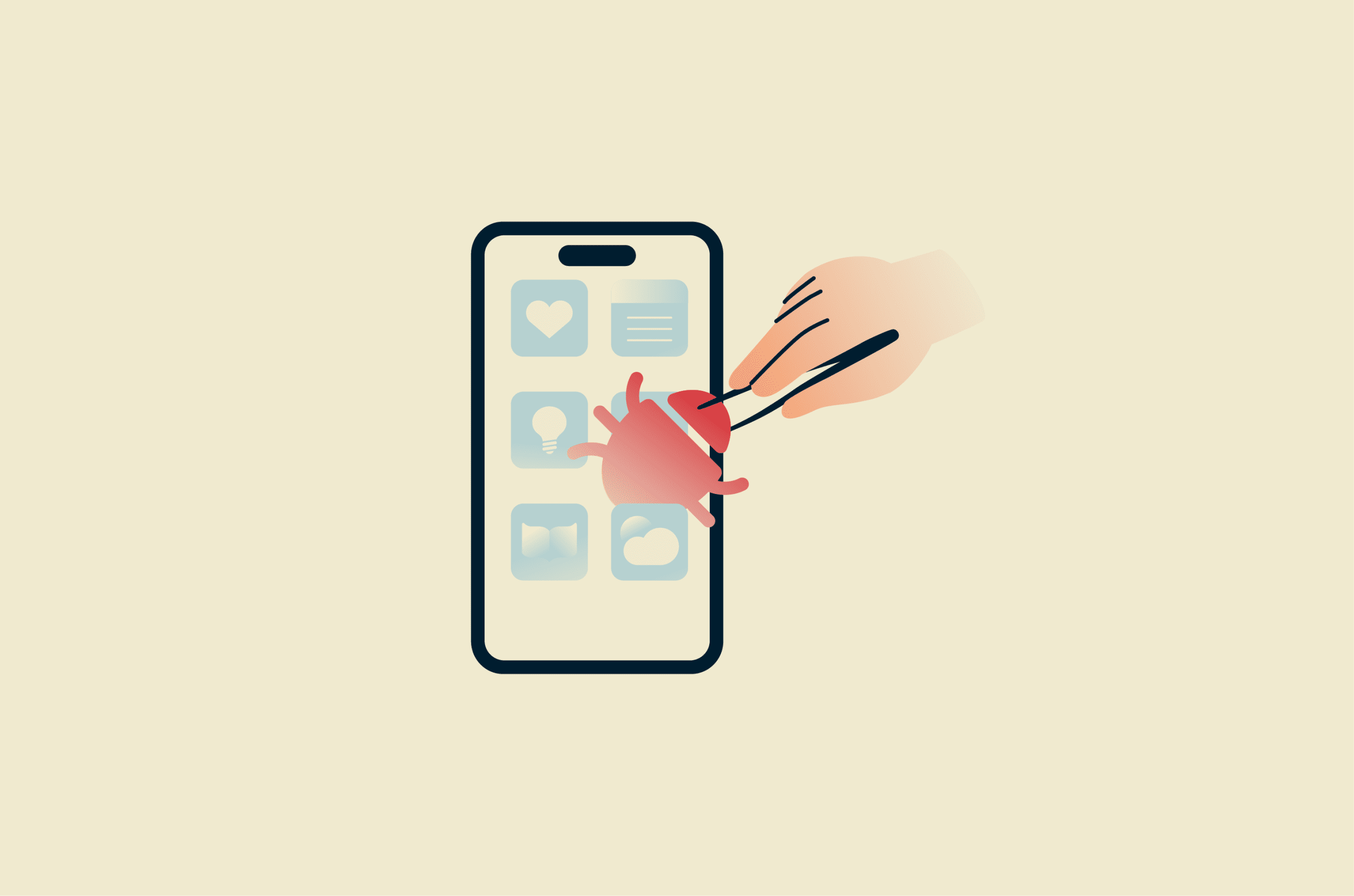
Traditional self-spreading malware is uncommon on iOS. That said, iPhones aren’t immune to malware, and jailbroken devices can be more vulnerable since many built-in protections are removed.
In this guide, we’ll discuss how to check your iPhone for signs of malware, remove suspicious apps or profiles, and take practical steps to prevent it in the future.
How malware sneaks in: Common entry points
iPhones don’t get traditional, self-replicating viruses as your desktop would. iOS isolates apps and restricts access to other apps’ data and system files through a security model known as sandboxing. This limits how much an app can access or change without permission.
That’s why most security alerts you see in Safari or another browser on your iPhone aren’t real infections. Usually, they’re a scamming tactic designed to pressure you into clicking, downloading, or paying for a fake fix.
Still, that doesn’t mean iPhones can’t be compromised. For example, malicious configuration profiles can reroute internet traffic, and suspicious apps may request extra permissions. Phishing or smishing links and calendar spam rely on social engineering rather than technical exploits, but they can still expose your personal information or cause ongoing problems.
Jailbreaking an iPhone can make things more risky, as you remove several built-in security layers that protect your data and the operating system. Without those protections, apps can gain deeper access to the device. This makes it easier for attackers to steal information, damage the system, compromise your network activity, or install malware.
Most iPhone threats begin with a text message, a link, or a pop-up. Once you interact with it, that’s when the issue starts.
You might be asked to subscribe to a malicious calendar, or install a configuration profile, or download an app that asks for more access than it needs.
The operating system itself usually remains intact, but your settings or granted permissions may have changed. This is often what allows an attacker to interfere with your data or device behavior, for example, by tricking you into installing or running malicious software or granting it access.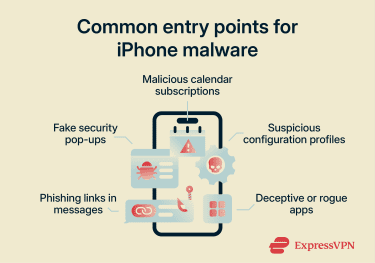
Common iOS malware types
The most common types of iPhone malware include:
- Ransomware: Locks access to files or the device and demands payment.
- Adware: Displays unwanted ads or forces browser redirects. On iOS, this is usually limited to browser activity rather than the operating system itself.
- Trojan: Disguised as legitimate software, which typically appears as a deceptive app or one that looks safe but misuses permissions.
- Rootkit: Rootkits are designed to hide deep within a system and avoid detection. On iOS, this requires advanced exploitation, so it's generally associated with jailbroken devices that disable code signing enforcement and other platform protections.
- Spyware: Spyware secretly monitors activity or collects sensitive data, such as messages, call logs, location information, or account credentials.
Recorded cases of iPhone malware
A few well-documented cases show that iPhone attacks are possible, though they typically involve specific vulnerabilities or compromised software, rather than everyday app use. These include:
- Pegasus: Pegasus is advanced spyware that targeted journalists, activists, and government officials. It exploited previously unknown iOS vulnerabilities, such as zero-click iMessage exploits, to gain deep access to affected devices.
- WireLurker: The WireLurker Trojan spread through infected macOS apps. When an iPhone was connected to an affected Mac, the malware could install malicious apps onto the device.
- XcodeGhost: XcodeGhost involved a compromised version of Apple’s developer tool, Xcode. Apps built with the infected tool were distributed through the App Store before the issue was identified and fixed.
How Apple prevents malware on iPhone
Apple designed iOS with multiple layers of security to limit the spread of malware. One of the most important protections is sandboxing. Every app runs in isolation, which means it can’t read data from other apps or modify system files unless you allow it.
Apps also can’t freely run their own code or gain root-level access (full control over the operating system), which makes it much harder for self-spreading malware to infect an iOS device.
Some of Apple’s key built-in threat protections for iPhone include:
- App sandboxing: Each app runs in its own sandbox and must request permission to access data such as photos, location, or contacts.
- App Store review and code signing: Apps go through a review process before they’re published. Code signing ensures that once an app is approved, it can’t be secretly modified.
- Secure boot chain: Every time your iPhone starts up, it verifies that only trusted Apple software loads. If something has been altered, the device won’t boot normally.
- Secure Enclave: A separate hardware security coprocessor that stores your passcode, Face ID or Touch ID data, and encryption keys. Because this data is processed in isolation, it’s harder to access even if another part of the system is compromised.
- On-device encryption: Files stored on your iPhone are encrypted and tied to your passcode. Without the correct passcode, the data remains unreadable.
- Apple Account (Apple ID) protections: Two-factor authentication (2FA) adds an extra verification step when signing in, and Activation Lock prevents someone from erasing and reusing your device without your Apple Account credentials.
- iCloud encryption: Many types of iCloud data use end-to-end encryption (E2EE), so only your trusted devices can access them. Advanced Data Protection expands this coverage further.
- Regular security updates: Apple releases updates to fix newly discovered vulnerabilities. Installing updates promptly reduces the chance that known weaknesses can be exploited.
Signs your iPhone has malware
Despite the extensive Apple protections listed above, no system is completely immune, which is why it’s important to learn how to recognize signs of a malware infection.
iPhone issues usually show up as ongoing, unusual behavior. Signs tend to be subtle:
- Unexplained battery drain or overheating: A device that consistently runs hot or loses power quickly without heavy use may be running background processes you didn’t expect. That said, this can also be caused by legitimate apps or system processes, not necessarily malware.
- High data usage while idle: Unexpected spikes in mobile data usage can indicate background network activity.
- Unknown apps installed: Apps appearing on the Home Screen that you don’t recognize or don’t remember installing.
- Unexpected screen activity: Apps opening on their own, settings changing without you doing anything, or repeated screen recording symbols appearing when you’re not using those features.
- New configuration profiles: Profiles listed under VPN & Device Management that you didn’t intentionally add.
- Messages sent without your action: Emails, texts, or social media messages that appear to have been sent from your account.
- Repeated Apple Account login alerts: Notifications about sign-in attempts from unfamiliar locations or devices.
These signs don’t automatically confirm that your iPhone has malware, but they may be worth investigating to ensure nothing suspicious is running on your device.
How to check your iPhone for malware
If something doesn’t look right, the next step is to review your device settings. It’s a good idea to focus on areas where changes are most likely to appear, such as installed apps, configuration profiles, app permissions, and Apple Account activity.
Use built-in settings to review apps and storage
One of the simplest ways to spot something unusual is to review what’s installed on your device and how much space each app is using.
To see the full list:
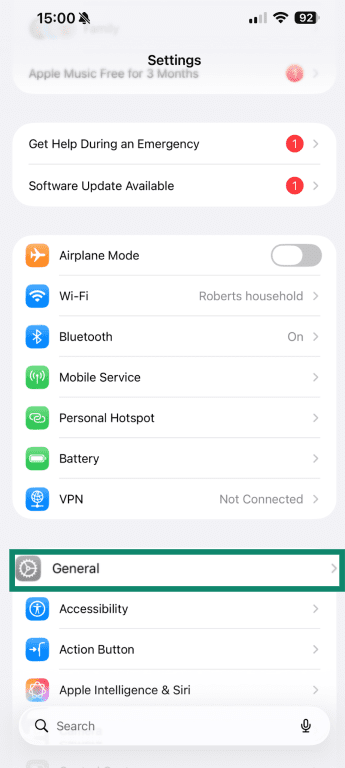
- Open Settings and select General.
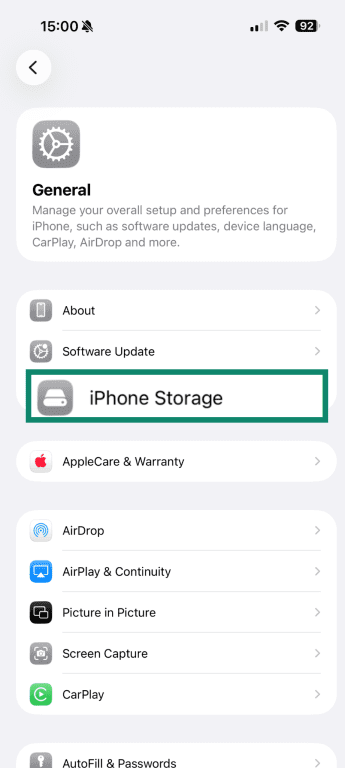
- Tap iPhone Storage.
- You’ll see every app currently installed on your iPhone, along with the amount of storage it uses.
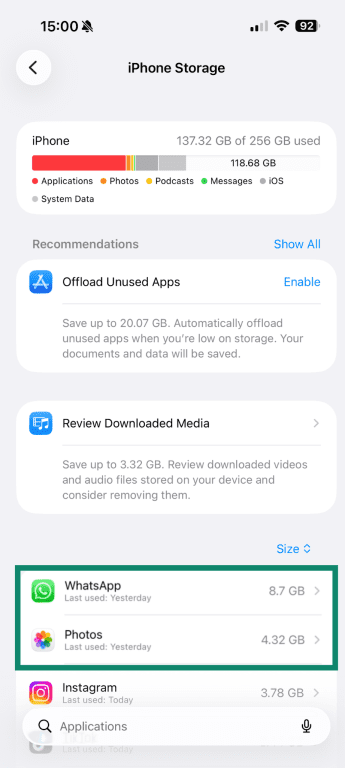
Look for any apps you don’t recognize, don’t remember installing, or ones that are using a lot of storage. If an app you rarely use is taking up a large amount of space, it may be storing data in the background. That doesn’t automatically indicate malware, but it could be worth reviewing.
If something looks unfamiliar, tap it to see when it was installed and how much data it stores. From there, you can check the installation data against recent changes in your device’s behavior to see if there’s a link.
Use Safety Check (iOS 16 or later)
If your iPhone is running iOS 16 or later, you can use Safety Check to review account and app access in one place.
Safety Check lets you review which apps have access to sensitive data, which devices are signed in with your Apple Account credentials, and which people or apps you’re sharing information with. Flag anything that looks suspicious so you can investigate it further.
To find it:
- Open Settings, then select Privacy & Security.
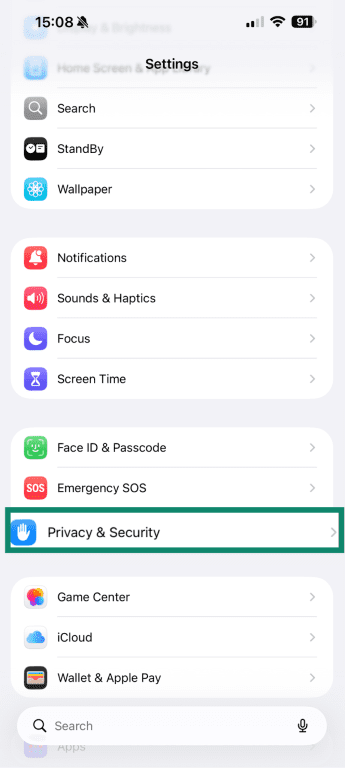
- Tap Safety Check.
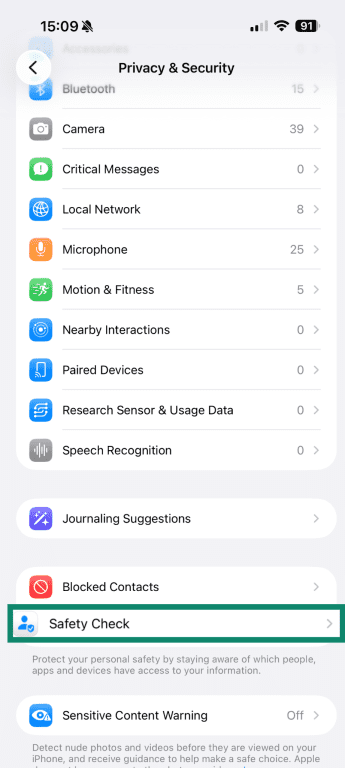
- Click Manage Sharing & Access.
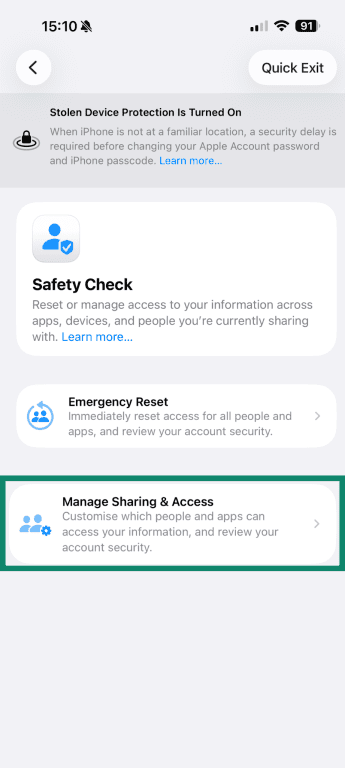
- Click Continue.
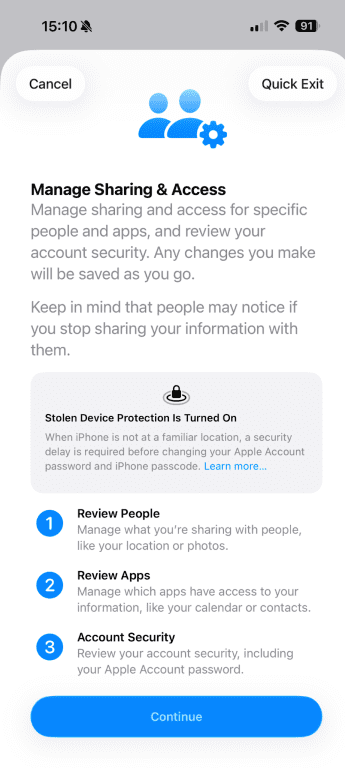
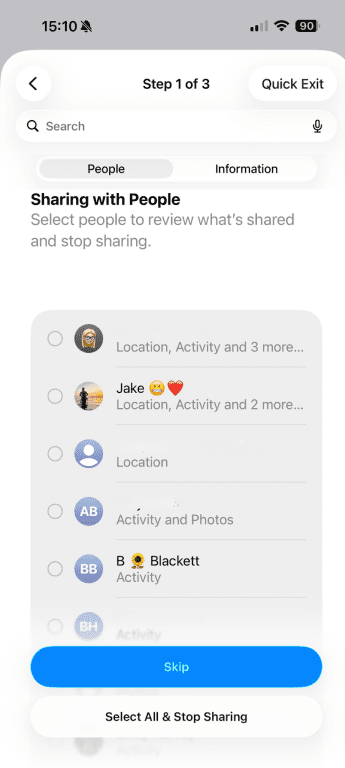
- You’ll see a list of people you share information with, and the type of information you share.
Check privacy settings and app permissions
If an app is suspicious, it may request access to more data than it actually needs. This can include your location, contacts, microphone, camera, or photos, all of which can give away personal data.
To check your iPhone privacy settings:
- Open Settings and select Privacy & Security.
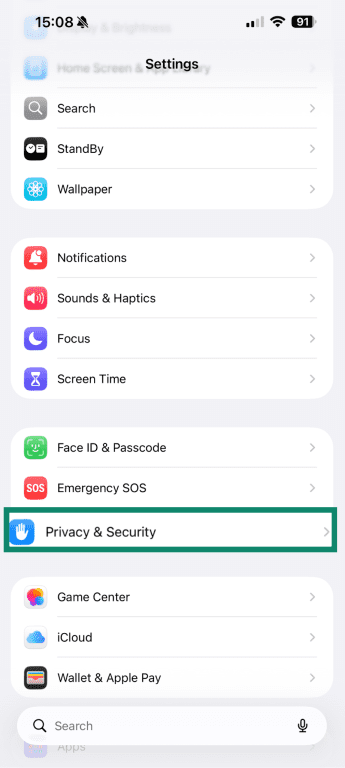
- From there, review categories such as Location Services, Microphone, Camera, and Contacts.
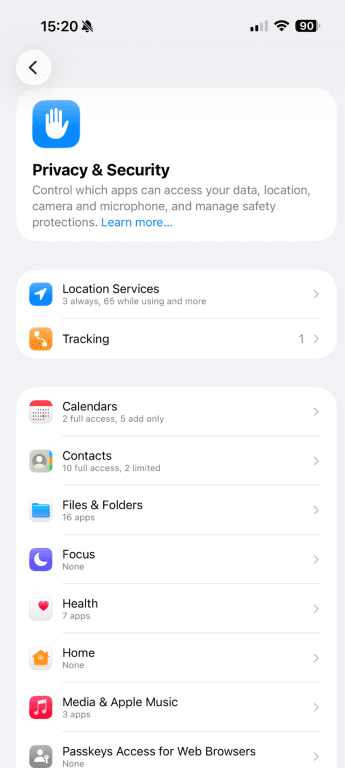
- Open each section to see which apps currently have permission.
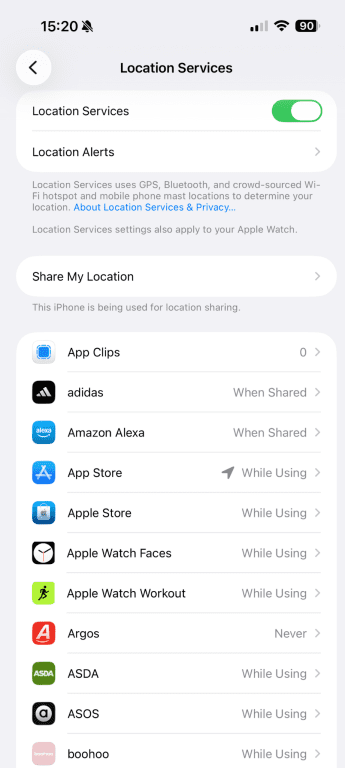
As you look through the list, consider whether the access matches how you use the app. For example, a messaging app using your contacts is something you’d expect, but a simple game requesting constant microphone access may not be.
Monitor microphone and camera indicators
Your iPhone shows a small green or orange dot at the top of the screen when the camera or microphone is active. The green dot means the camera or both the camera and microphone are in use, while the orange dot means the microphone is active.
These should appear only when you’re actively using an app that needs them. If you notice one when you’re not recording or on a call, check which app is open, as it could mean an app is accessing the camera or microphone in the background. You can also swipe down to open the Control Center to see which app recently used the microphone or camera.
Review App Privacy Report
The App Privacy Report gives you a closer look at how apps use your data and network access. It shows how often apps have accessed sensitive data, including your location, photos, camera, microphone, and contacts, over the past seven days. It also lists the domains each app has connected to during that time.
To find it:
- Open Settings and select Privacy & Security.
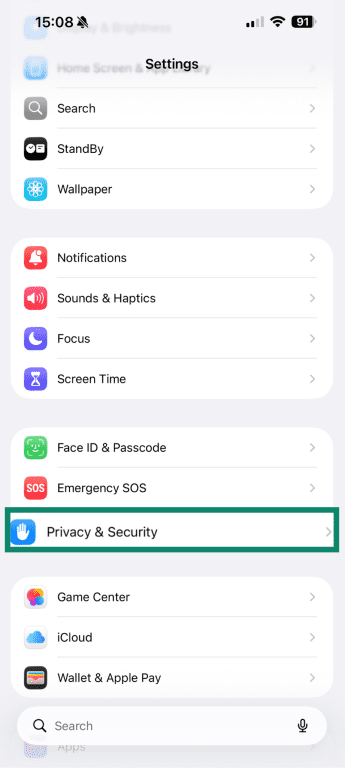
- Tap App Privacy Report.
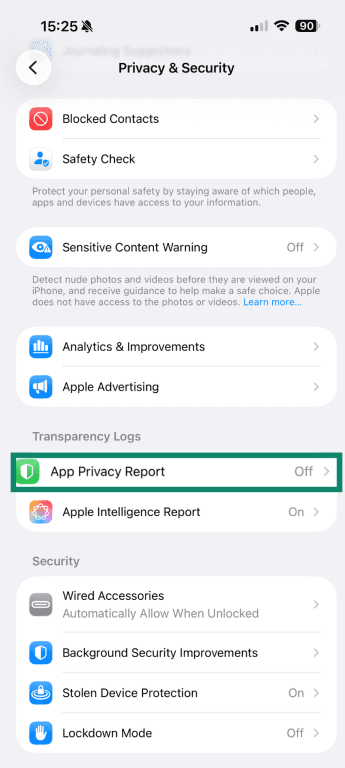
- Click Turn on App Privacy Report, if not already enabled.
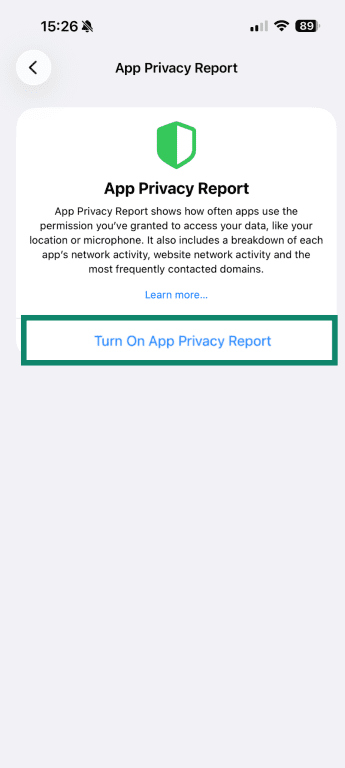
- You’ll see a report with app network activity and most contacted domains.
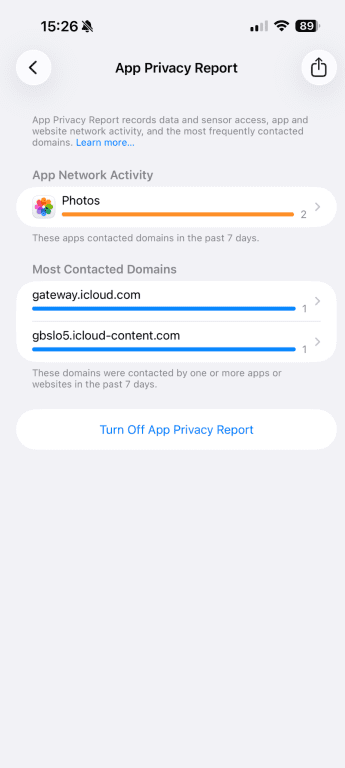
Tap each category to learn more. For example, you can tap on the frequently contacted domains to see which apps are using that domain most frequently. Look for patterns that seem unusual. For instance, an app you rarely use accessing your location repeatedly in the background may be a red flag.
You can also review the list of websites each app has contacted. If a simple utility app is constantly connecting to multiple external domains, or if you see constant background activity from an app you barely use, that may be worth investigating.
Check Apple Account security
Your Apple Account controls access to your iCloud data, backups, and connected devices, so it’s important to make sure someone hasn’t accessed it unexpectedly.
To review signed-in devices:
- Open Settings and tap your name at the top of the screen.
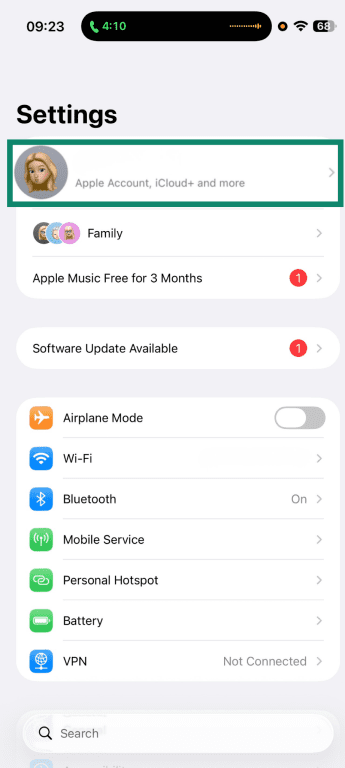
- You’ll see a list of devices currently signed in with your Apple Account. Scroll through and make sure you recognize each one.
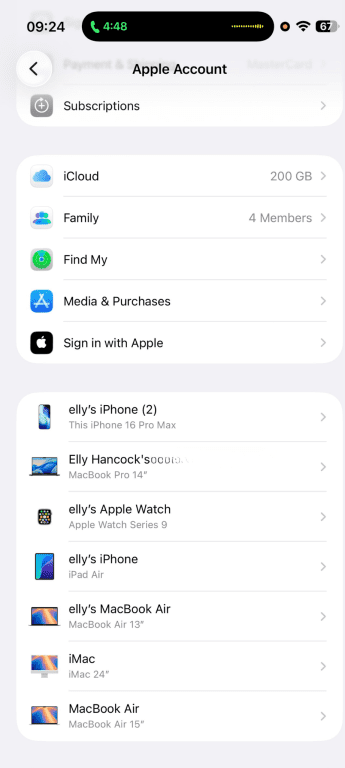
You should also pay attention to any login alerts from unfamiliar locations or devices. If you receive a notification about a sign-in attempt you didn’t make, that could be a sign to review your account.
Steps for removing iPhone malware
If you’ve noticed unusual behavior and something doesn’t look right, the next step is to address it methodically. You can start with quick, easy checks and escalate as needed.
Restart your phone
A restart can resolve temporary issues caused by browser scripts or background apps.
To restart your device:
- Press and hold the side button and one of the volume buttons.
- Slide to power off.
- Wait a few seconds, then turn the device back on.
If the issue was caused by a temporary process or a browser-based scare page, restarting may clear it. After powering back on, monitor your iPhone to see whether the behavior continues.
Update your iOS version
Security updates patch known vulnerabilities, which are weaknesses that apps or websites could otherwise exploit. Many advanced spyware attacks exploit devices that haven’t been updated, since those security gaps remain open.
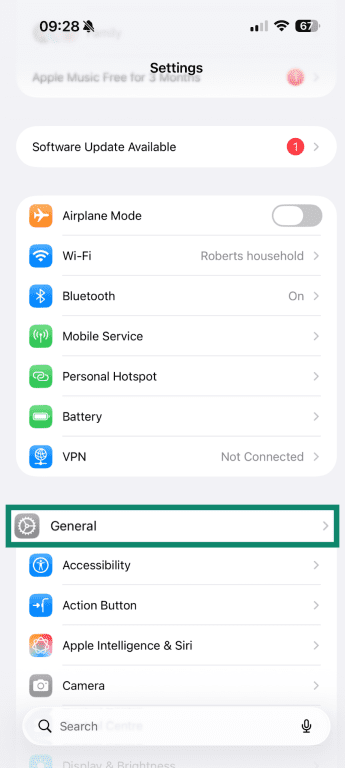
That’s why it’s important to update your iPhone as soon as patches are released, as you may be able to stop a vulnerability before it can affect your device. To check for updates:
- Open Settings and select General.
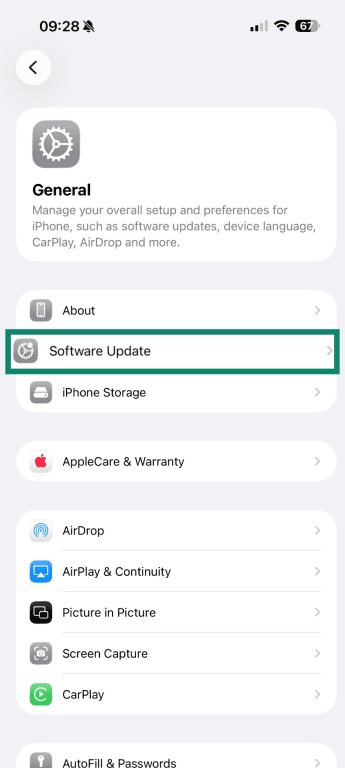
- Tap Software Update.
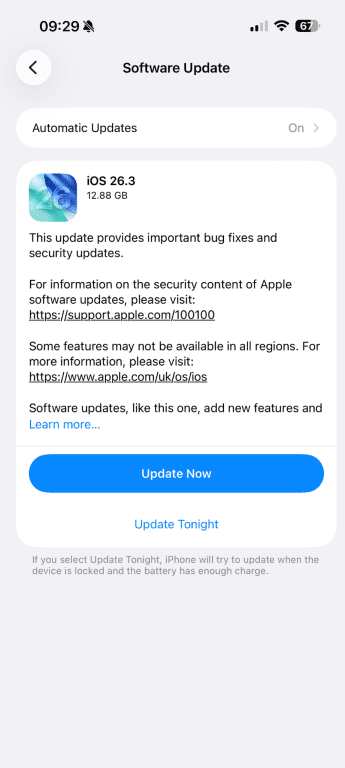
- Your iPhone will check for any updates. If there is, click Update Now to install.
Uninstall suspicious apps
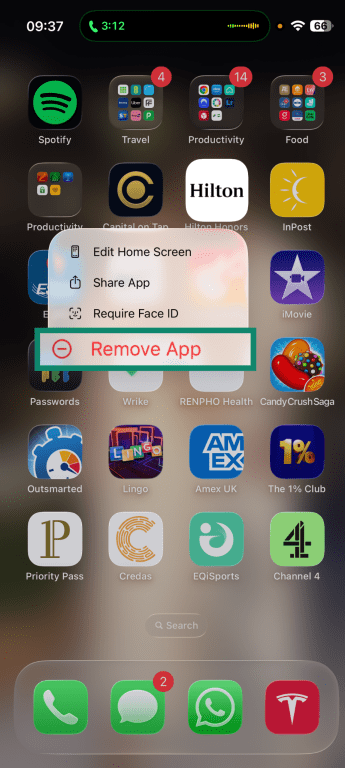
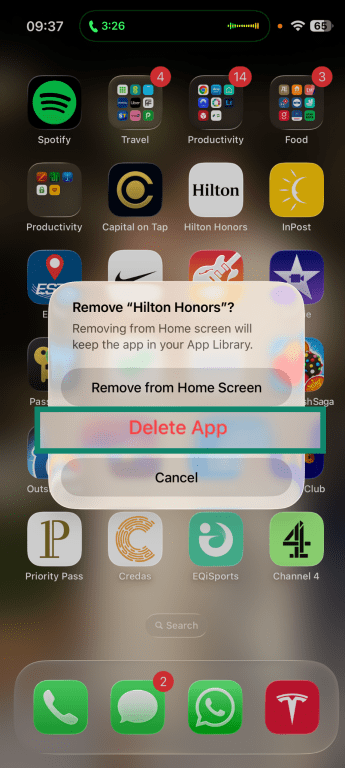
If you’ve identified an app you don’t recognize or don’t remember installing, it’s a good idea to remove it. To delete an app:
- Press and hold the app icon on your Home Screen and tap Remove App.
- Select Delete App, then confirm.
Remove malicious configuration profiles
Configuration profiles are used to control certain settings on an iPhone. Businesses and schools often use them to manage devices, set up email accounts, or configure Wi-Fi networks. However, if there’s a profile on your personal iPhone that you don’t recognize, it’s worth reviewing.
A configuration profile can change how your device connects to the internet, install security certificates, or apply restrictions that remain in place until the profile is removed. This can create various issues and security risks, such as routing your traffic through an unknown server or altering your device’s settings without you realizing.
Because these changes affect how the device operates at a system level, they don’t disappear when you close an app or restart your phone.
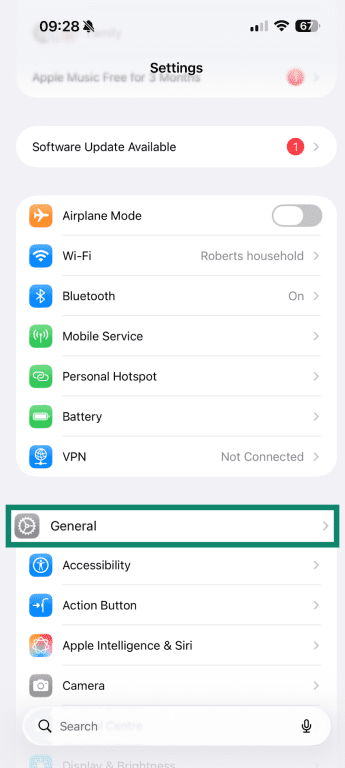
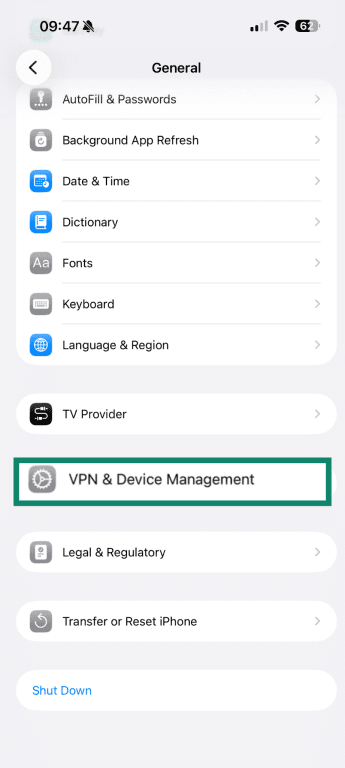
To check for installed profiles:
- Open Settings and select General.
- Tap VPN & Device Management.
If profiles appear, tap each one to view its details. Confirm that you recognize it and understand why it’s there.
If iOS won’t let you remove the profile, the device may be supervised through mobile device management (MDM). If it’s a work or school device, contact the administrator before making changes. If it’s your personal device and you can’t remove the profile, back up your data and consider performing a factory reset.
Clear your browsing history and website data
If you’ve seen repeated pop-ups or “Your iPhone is infected” warnings, the issue may be limited to your browser rather than the device itself. Clearing your browsing data can remove cached scripts, cookies, and redirect settings that keep those pages reappearing.
To clear Safari data:
- Open Settings and select Apps.
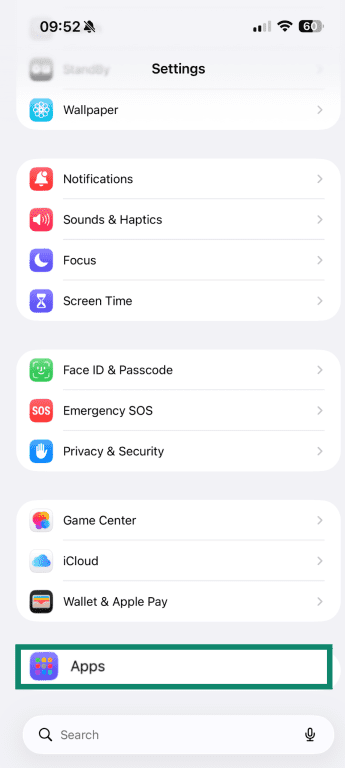
- Click on Safari.
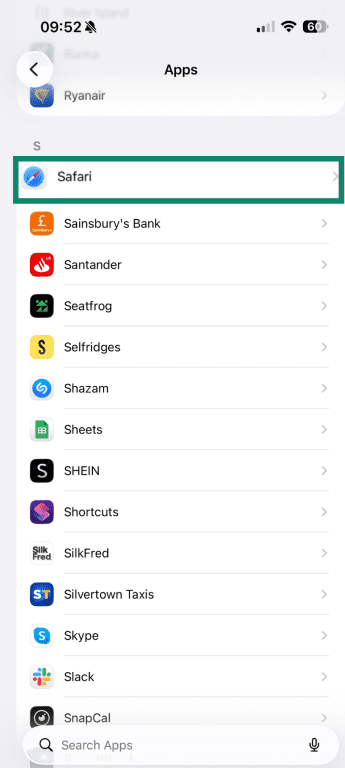
- Tap Clear History and Website Data.
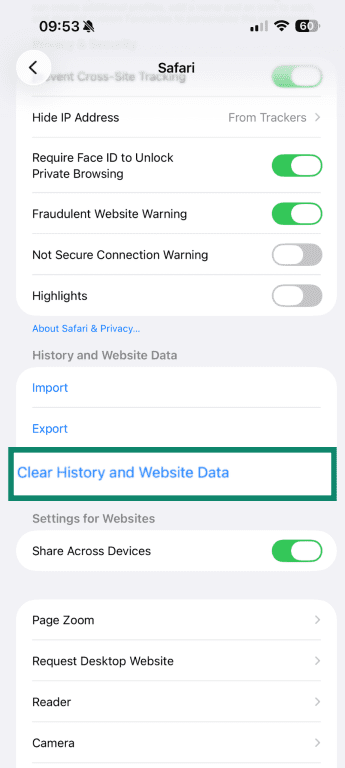
- Select the timeframe to clear your data, then tap Clear History.
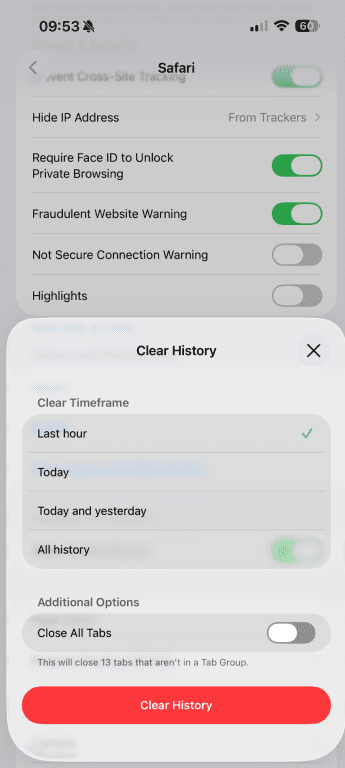
Clearing browsing data won’t affect the operating system, but it can quickly resolve fake virus alerts and repeated redirects.
Change passwords and enable two-factor authentication
If you suspect that an app or phishing attempt may have exposed your account details, updating your passwords is a sensible next step.
Start with your Apple Account:
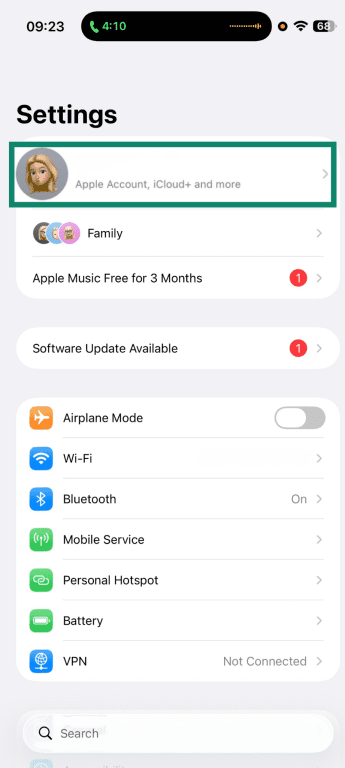
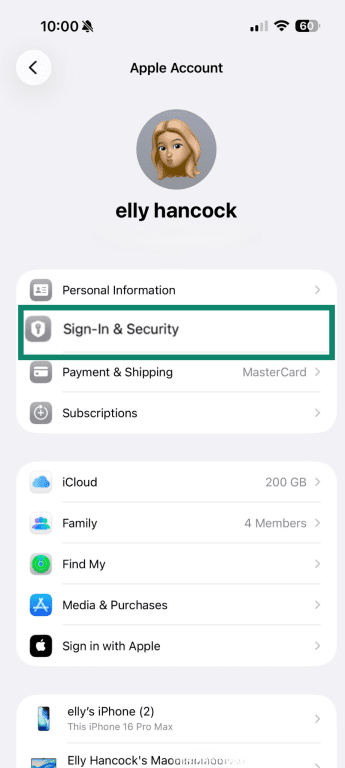
- Open Settings and tap your name at the top of the screen.
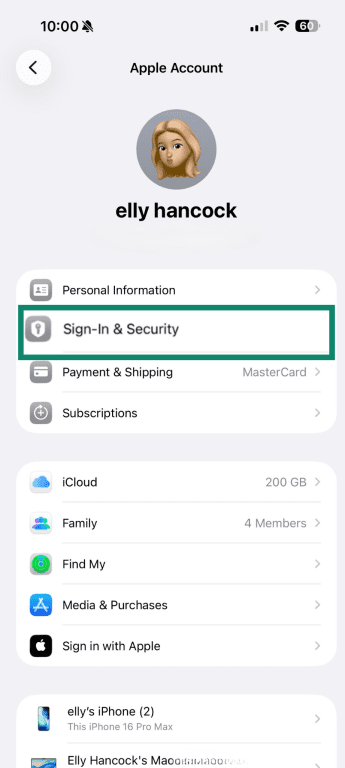
- Select Sign-In & Security.
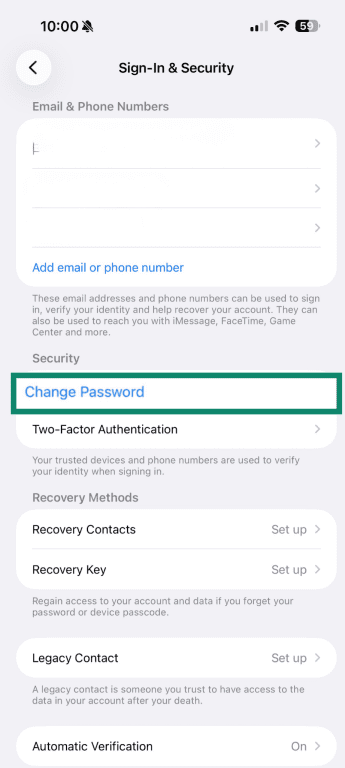
- Tap Change Password.
Remember to choose a strong, unique password that you don’t use elsewhere. It’s also a good idea to update passwords for important accounts, such as email, banking, and social media. A password manager like ExpressKeys can help you do that more quickly.
Make sure you’ve also enabled 2FA for your Apple Account and other sensitive accounts. This means signing in requires both your password and a verification code, which adds an extra layer of protection. Here’s how to turn it on:
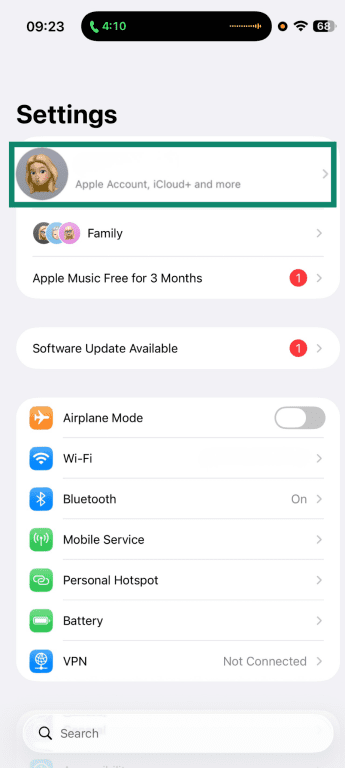
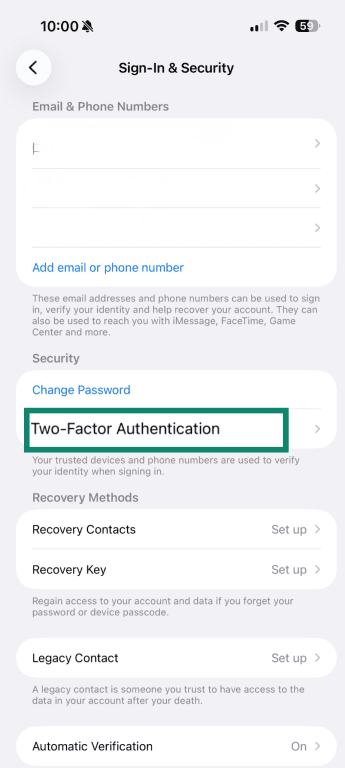
- Open Settings and tap your name.
- Select Sign-In & Security.
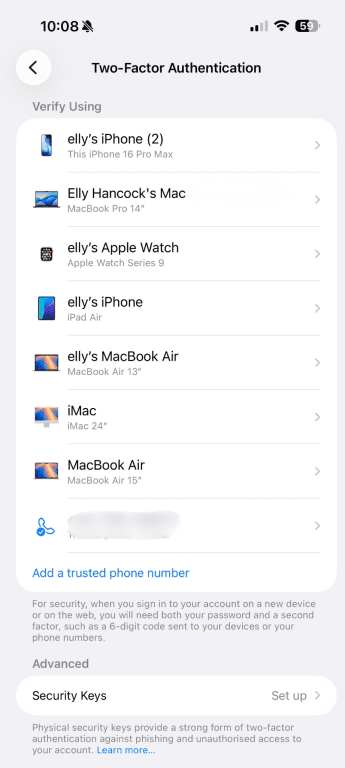
- Tap Two-Factor Authentication.
- You’ll see a list of devices you can use authentication for, if any. You can add new devices and trusted phone numbers yourself.
Enable Lockdown Mode
If you suspect your iPhone may be exposed to advanced spyware, you can enable Lockdown Mode (introduced in iOS 16). This setting disables certain features that attackers sometimes try to exploit, reducing the number of potential entry points.
It restricts some message attachments, limits certain web features, and blocks incoming invitations from unknown contacts. It also blocks wired connections while the device is locked.
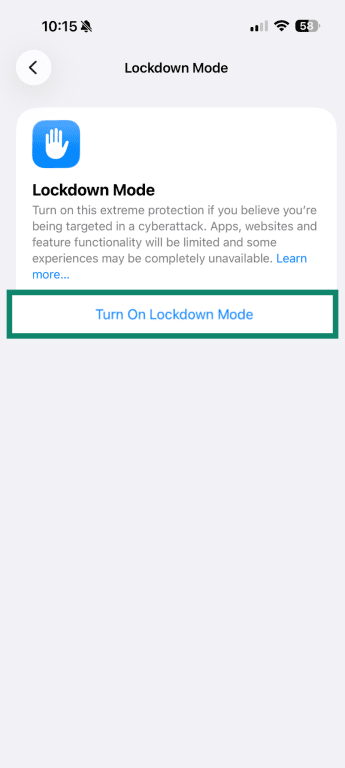
To enable Lockdown Mode:
- Open Settings and select Privacy & Security.
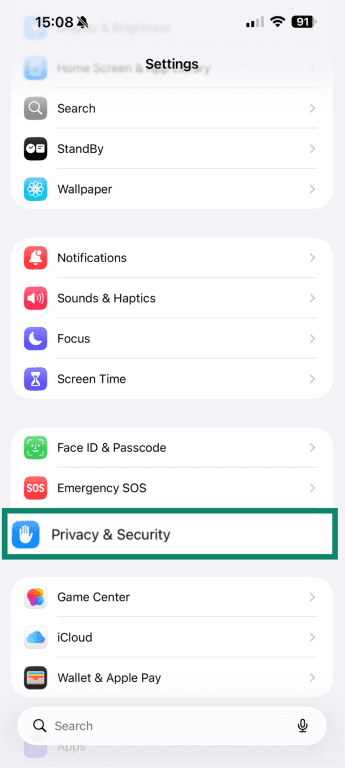
- Tap Lockdown Mode.
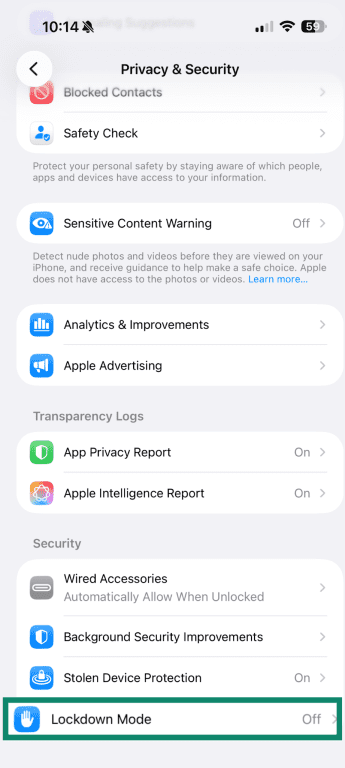
- Tap Turn On Lockdown Mode.
Restore from backup or factory reset as a last resort
If unusual behavior persists even after you’ve tried the steps above, it might be worth restoring your device. This should be considered an escalation step, since a factory reset removes apps, configuration profiles, and custom settings.
Before making changes, back up your important data. You can use iCloud or connect your iPhone to a computer to create a backup.
If you plan to restore from a backup, choose one created before the suspicious activity began. Restoring from a recent backup that already contains the issue may not resolve the problem.
To reset your device, go to Settings > General > Transfer or Reset iPhone and choose Erase All Content and Settings. Follow the prompts to complete the reset.
Prevention tips to keep your iPhone malware-free
Prevention usually comes down to keeping Apple’s strong protections active and being mindful about what you install and click. The goal isn’t to eliminate all risk, but to limit your exposure and make it harder for scams and malicious apps to sneak onto your device.
Stay updated
Install iOS updates as soon as they’re available to limit vulnerabilities and reduce the chances of an exploit working. You can enable automatic updates so they’re installed right away. Simply select Automatic Updates in your Software Update Settings: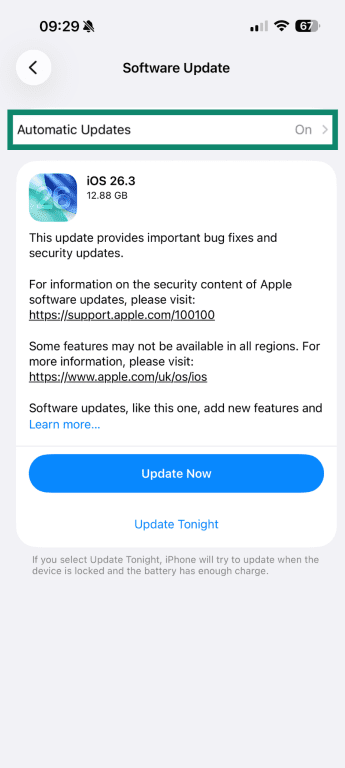
Use trusted apps only
Where you download apps from matters. The App Store includes a review process that reduces the risk of malicious or deceptive software, so it’s best to install apps directly from there. Avoid downloading apps through unknown links, pop-ups, or configuration profiles that prompt you to trust an unfamiliar developer.
Before installing an app, be sure to review a few details:
- The app developer’s name
- Ratings and written reviews
- The permissions the app requests once installed
If something feels unusual, such as a simple flashlight app asking for access to your contacts or microphone, it’s worth reconsidering.
It’s also a good habit to delete apps you no longer use. After all, fewer installed apps mean fewer permissions and fewer opportunities for misuse.
Use trusted security apps for scam detection
Because of iOS restrictions, security apps can’t deeply scan the operating system or inspect other apps’ data. What they can do is help reduce exposure to common online threats.
Many security apps can block known malicious websites, flag phishing attempts, and warn you before you visit domains linked to scams. For example, ExpressVPN’s Threat Manager can block your apps and browser from communicating with known malicious trackers or scam domains. It checks domains against a regularly updated blocklist to help make sure the site you’re accessing isn’t malicious. Although it can’t remove malware, it can help limit your exposure to threats.
Browse safely on the internet
Many iPhone security issues begin in the browser, so safe browsing habits make a real difference.
Be cautious with links in emails, SMS messages, or social media posts, especially if they create a sense of urgency or request personal information. If a message claims there’s a problem with your account, open the official website directly instead of tapping the link.
Avoid interacting with pop-ups that say “Your iPhone is infected” or claim your device is locked. These are usually scare tactics designed to push you to download an app or enter payment details.
It’s also worth considering a virtual private network (VPN) to help you browse safely. A VPN encrypts your internet traffic before it leaves your iPhone, which helps prevent others on the same network from seeing what you’re doing.
On unsecured public Wi-Fi, attackers can attempt to intercept login details, redirect you to fake websites, or inject malicious content into web pages. Encryption makes that kind of interference much more difficult, as attackers can’t see what you’re doing online.
However, a VPN won’t stop you from entering your details on a phishing site or downloading an app willingly. It also can’t remove malware from your device. A VPN protects your connection and can reduce your risk of many online threats, but safe browsing habits still matter.
FAQ: Common questions about malware on iPhone
How do I check my iPhone for malware?
Can iPhones get malware from websites?
Does updating an iPhone remove malware?
What should I do if my iPhone shows a pop-up saying I have a virus?
Do iPhones need antivirus apps, or are built-in protections enough?
Is it safe to install apps from the App Store?
When should I factory reset my iPhone?
Can an iPhone get malware without jailbreaking?