 Celebrate with up to 80% off
How to resolve “This app has been blocked for your protection”


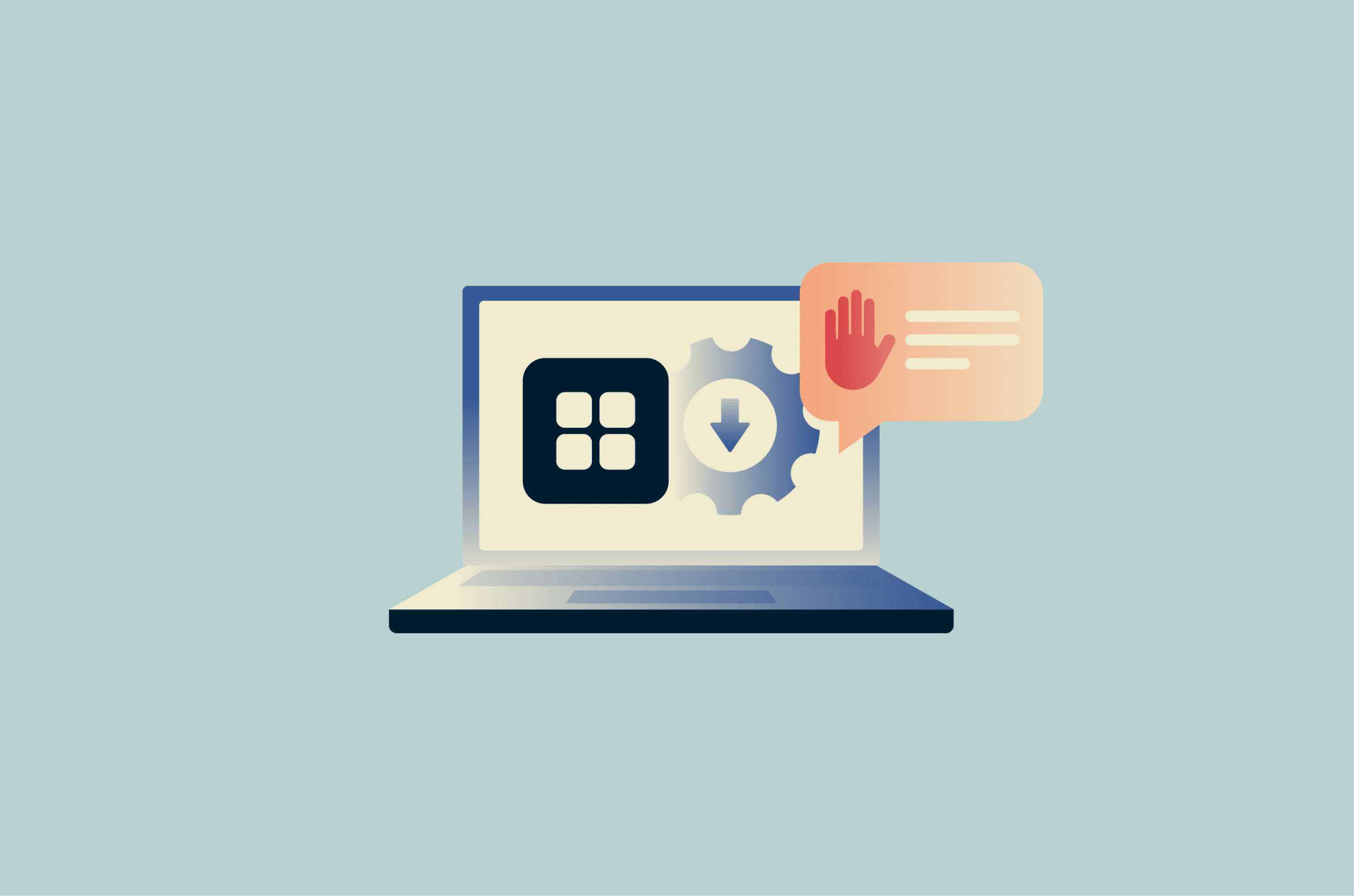
“This app has been blocked for your protection” tends to show up at the worst time, right when you’re trying to open or install an app you trust. The tricky part is that Windows uses similar language for different kinds of blocks, and the fix depends on what is actually stopping the file.
It might be Microsoft Defender SmartScreen questioning the app’s reputation. It might be User Account Control (UAC) stepping in when the app asks for administrator access. In other cases, the real blocker is your antivirus, a browser download warning, Mark of the Web (MOTW), or a work or school policy.
To resolve this issue, you first have to understand which Windows feature may be causing the block.
Understanding the block message
If you see “This app has been blocked for your protection,” Windows is telling you it doesn’t trust something about the file, the publisher, the request for admin access, or the way the app was downloaded. That doesn’t always mean the app is malware. It does mean Windows wants you to slow down and check what’s going on before you run it.
This is where things get muddy. People often treat every app-blocked message as the same warning, then jump straight to ways to force the app through. In reality, though, different Windows features can trigger similar-looking messages, and the right next step depends on which one you’re dealing with.
What causes the block?
Most of the time, the block comes from one of four places:
- SmartScreen
- UAC
- Browser or antivirus protection
- Smart App Control (on some Windows 11 PCs)
SmartScreen checks trust and reputation. UAC controls admin-level access, and browsers and antivirus tools can prevent the file from opening. Smart App Control is stricter and may block untrusted or malicious apps outright. Unlike SmartScreen, it isn’t a practical temporary toggle for one trusted app, and it doesn’t currently allow per-app exceptions.
Here’s a quick side-by-side view of the Windows features to avoid mixing them up:
| Feature | What it checks | When it appears | What it’s asking |
| Microsoft Defender SmartScreen | Whether a downloaded file, website, or app looks known-safe, suspicious, or malicious based on Microsoft’s reputation checks. | Usually when you download or try to open a file from the internet. | Should you trust this file? |
| UAC | Whether an app should be allowed to run with administrator privileges. It also checks publisher information when an app asks for elevation. | When an app tries to make system-level changes, like installing software or editing protected settings. | Should this app get more control over the device? |
| Smart App Control | Whether an app is likely to be safe to run, using code-signing checks and Microsoft’s app intelligence. It helps block untrusted or potentially harmful apps. | When you try to run an app on a Windows 11 device with Smart App Control turned on, and Windows decides the app is untrusted or potentially harmful. | Is this app safe? |
Microsoft Defender SmartScreen and reputation protection
If the app came from the web, SmartScreen may be the first line of defense, especially when Windows has marked the file as coming from an untrusted internet source.
It can block files known to be dangerous or warn about files that are simply uncommon, use an outdated signing method, or lack normal trust signals. That means a SmartScreen warning doesn’t always indicate malware, but it does mean Windows doesn’t yet trust the file.
User Account Control and administrator policies
UAC is about permission and not reputation. It appears when an app wants administrator access to make system-level changes. This means a file can pass SmartScreen and still trigger a UAC prompt for deeper access.
Microsoft gives administrators ways to tighten these rules. One example is a UAC policy called “User Account Control: Only elevate executables that are signed and validated.” If that setting is enabled, Windows checks the app’s signature before allowing it to run with elevated privileges. On work or school devices, this can lead to a block even when the user has admin access on paper.
Antivirus and browser download protection
Sometimes, Windows isn’t what’s blocking the app. Your browser may pause the download based on its settings, SmartScreen may warn based on the file’s reputation, or your antivirus software may quarantine the file after detecting something suspicious. That matters because the fix depends on where the block happened.
SmartScreen is mainly reputation-based. Antivirus tools look for malware and other threats using a mix of signatures, behavior monitoring, heuristics, and cloud analysis. So if the browser stopped the download, the next step is different from a SmartScreen warning, and that is different again from an antivirus quarantine.
Before you unblock anything
Before you click through anything, do a few quick checks. They’ll tell you whether you’re dealing with a routine trust issue or a file you should leave alone.
Check the app source and publisher
Start with the obvious question: where did the file come from? A download from the developer’s official site is very different from a forum mirror, a “free download” site, or an unexpected attachment. If the file originated from a questionable source, the warning deserves more weight. That’s why the source matters first.
Then check the publisher name in the warning. If it’s missing, doesn’t match the developer, or looks unrelated to the app, stop there. That kind of mismatch is a stronger warning sign than a simple “unrecognized app” message. A valid digital signature helps confirm who signed the file and that the signed contents haven’t been tampered with.
Windows also uses the certificate trust chain and revocation status in its trust decision, so a signed file can still raise concerns if the certificate doesn’t chain back to a trusted authority or has been revoked.
This could mean the file was altered after signing, such as by adding malware, changing code, or repackaging the installer by someone other than the original publisher.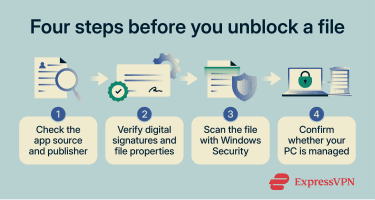
Verify digital signatures and file properties
Next, inspect the file itself:
- Open File Explorer > Downloads (or wherever you saved the download, e.g., network/shared folder) and find the installer, such as a .exe or .msi file.
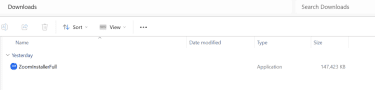
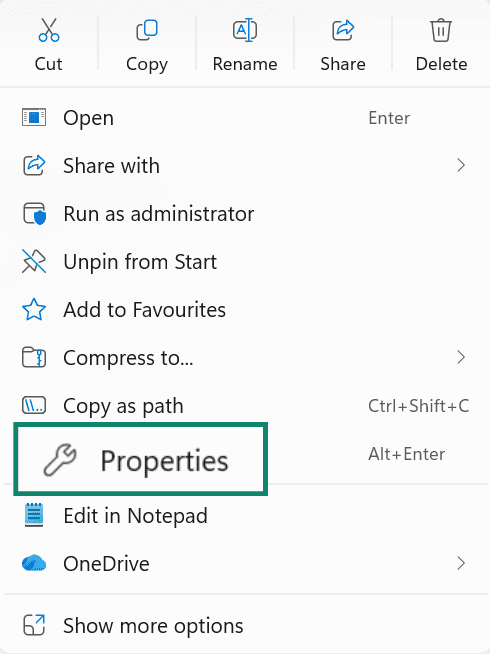
- Right-click it and choose Properties.
- Then check for Digital Signature (tab).
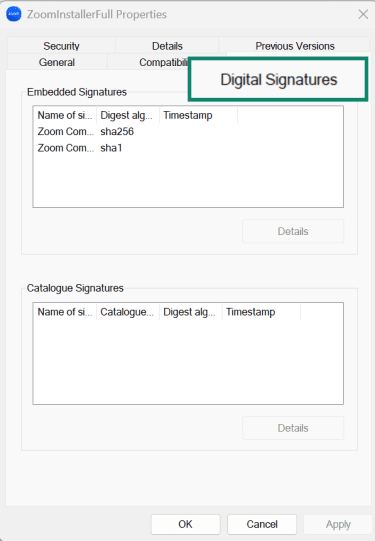
- Open it, select the listed signature, and check the certificate details.
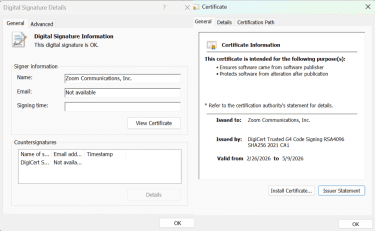
For signed files, Windows shows the signer and certificate chain there. A valid signature is one trust signal. An invalid, expired, or missing signature is a reason for greater caution, especially if the app requests administrator access.
Scan the file with Windows Security
Before you allow anything, scan the file. In Windows, you can right-click a file or folder in File Explorer and choose Scan with Microsoft Defender. On Windows 11, you may need to click Show more options first. This is a quick way to see whether the file triggers a local scan before you try to run it again.
If Windows Security has already blocked or quarantined the file, check Protection History. That page records blocked events, including app blocks tied to reputation-based protection and potentially unwanted apps (PUAs). If you rely on the pop-up alone, you can miss the real reason the file was stopped.
Confirm whether your PC is managed
Before you spend time looking for a workaround, check whether your PC is managed by work or school.
- Go to Settings > Accounts > Your Accounts.
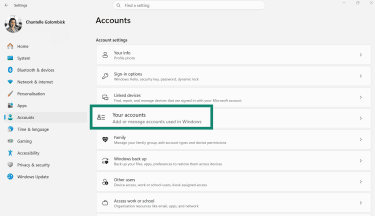
- Click Access work or school.
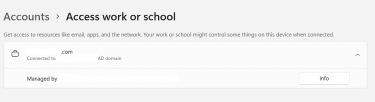
If you see an organization listed there, the device may be enrolled in device management. On managed Windows devices, this page can also show an Info button with details about policies and apps pushed by the organization. In that case, you may not be able to override the block without admin approval. That’s not a glitch. It’s the policy doing its job.
How to safely unblock applications
Not every blocked app should be unblocked. Sometimes the warning can be benign; other times it points to a real problem. The methods below are for apps you’ve already checked and decided to trust.
Start with the least invasive option. If one method works, don’t keep lowering other protections just to see what happens. That’s how a small troubleshooting step turns into a whole-machine security downgrade.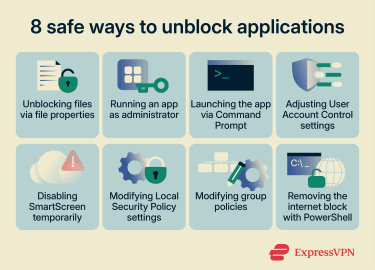
Method 1: Unblocking files via file properties
If the file originated on the internet or as an email attachment, Windows may attach zone information to it. That marker is called Mark of the Web (MOTW). It tells Windows the file came from an untrusted zone, which can trigger warnings or blocks when you try to open it.
For a file you trust, the simplest fix is to remove that block in File Explorer:
- Right-click the file and choose Properties.
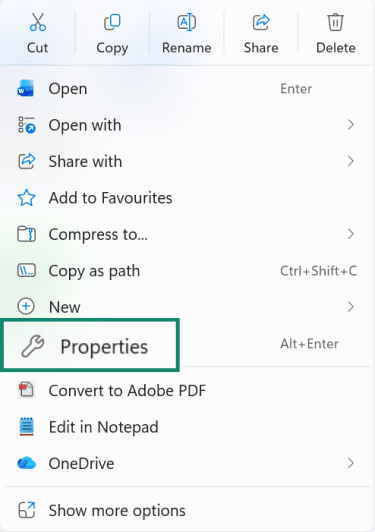
- Look on the General tab for an Unblock checkbox.
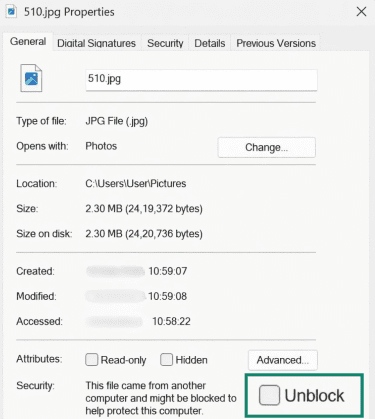
- If it’s there, select it, then click Apply and OK.
This removes the internet block from that specific file only. It doesn’t turn off Windows security across the rest of the system.
Method 2: Running an app as administrator
Some apps need elevated rights to install drivers, write to protected folders, or change system settings. In those cases, running the installer as an administrator can solve a permission problem. UAC still decides whether to allow elevation.
To try it, right-click the installer or app and choose Run as administrator. If you get a UAC prompt, read it carefully before approving it. A trusted installer from the correct publisher may need elevation. A random file asking for admin rights is what you should be careful of here.
Method 3: Launching the app via Command Prompt
Launching the file from Command Prompt can help in a narrower set of cases. It won’t strip away SmartScreen, MOTW, UAC, code-signing checks, or antivirus protection. What it can do is let you start the exact executable path yourself, which is sometimes useful when a shortcut is broken, the path is being misread, or you want a more direct error instead of a vague shell message.
Open Command Prompt. If the app itself needs elevated rights, open Command Prompt as administrator first. Then either change to the folder that contains the executable and run it, or enter the full quoted path to the executable. For example: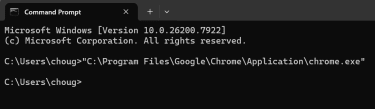
Method 4: Adjusting UAC settings
You can change how often UAC prompts appear:
- Open Control Panel > System and Security.
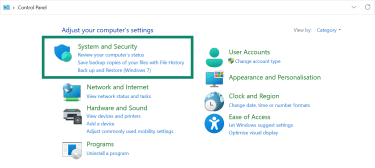
- Click Change User Account Control Settings.
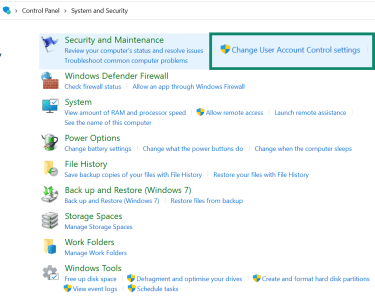
- Move the slider to the level you choose.
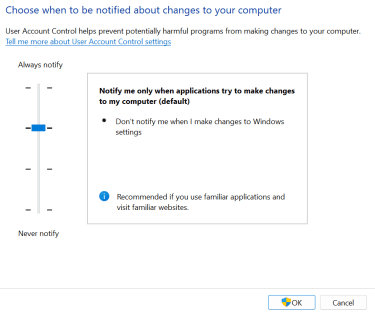
That can reduce friction if the block is tied to elevation behavior rather than file reputation.
Method 5: Disabling SmartScreen temporarily
Disabling SmartScreen removes reputation-based protection for apps and downloads, so this should only be a short test for a file you already trust. If you need to test whether SmartScreen is the thing blocking a trusted app, follow these steps:
- Open Windows Security > App & browser control.
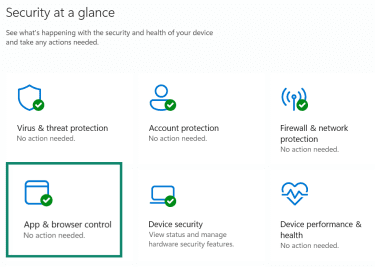
- Click Reputation-based protection settings.
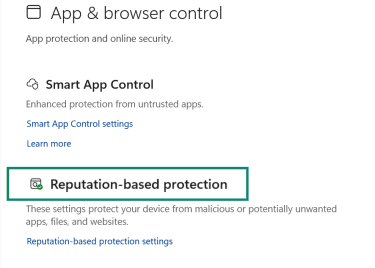
- Under Check apps and files, turn the toggle off, test the app, then turn it back on immediately.
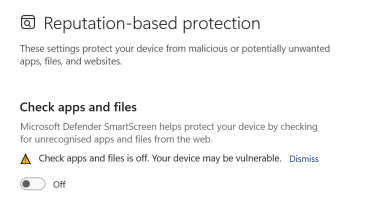
That toggle controls whether SmartScreen evaluates the reputation of apps and files you download from the web.
Note: Don’t confuse this with Smart App Control, which is a separate and stricter feature.
Method 6: Modifying Local Security Policy settings
Some blocks come from a security policy rather than the app file itself. On Windows Pro, Enterprise, and Education editions, advanced users can review Local Security Policy settings that affect app elevation, SmartScreen, and bypass rules. These tools aren’t available on the Home edition, and they’re best left alone unless you know exactly what you’re changing.
You can inspect security options through secpol.msc and review the relevant UAC policies under Local Policies > Security Options. This is where Windows exposes several deeper elevation and signing rules, such as whether only signed and validated executables can be elevated.
Method 7: Modifying group policies
Group Policy is the broader policy layer that can enforce app restrictions across a device or an entire organization. Local Group Policy Editor opens with gpedit.msc, and it’s not available on Windows Home edition. It’s intended for administrators, and changes there can override normal user choices.
This matters for SmartScreen in particular. Group Policy can be configured so users can’t ignore SmartScreen warnings for risky files or downloads. It can also force SmartScreen on or off or prevent bypass entirely. If the policy is blocking, you may not be able to override it yourself.
On an unmanaged Pro, Enterprise, or Education PC, you can review relevant policies under the Windows and Edge SmartScreen policy paths. On a managed work or school device, talk to IT instead.
Method 8: Removing the internet block with PowerShell
PowerShell can be used to remove MOTW from a trusted file. MOTW is stored as an alternate data stream (Zone.Identifier) attached to the file, which Windows uses to determine whether the file originated from the internet.
Removing this stream effectively unblocks the file. PowerShell’s Remove-Item -Force -Stream Zone.Identifier "C:pathtoyourfile.exe" command does this by removing the Zone.Identifier stream associated with the file, but it should only be used if you trust the file’s source.
It’s useful when the Properties checkbox isn’t convenient, when you’re handling multiple files, or when you prefer a scripted approach. It only removes the internet-zone marker. It does not make an unsafe file safe.
Troubleshooting common issues
Sometimes the file is no longer blocked, yet the app still won’t run. That usually means the problem has shifted. You may now be dealing with a user permissions issue, a compatibility problem, a managed-device policy, or a protection feature that’s stopping the app for a different reason. Working through that in the right order saves time and keeps you from switching off protections that were never the cause.
Windows 11: Known issues and solutions
On current Windows 11 builds, the path for SmartScreen-related settings is Windows Security > App & browser control > Reputation-based protection. You can see these steps under Method 5 above.
Smart App Control sits in a different place:
- Windows Security > App & browser control.
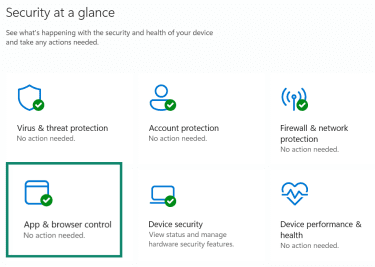
- Then Smart App Control settings.
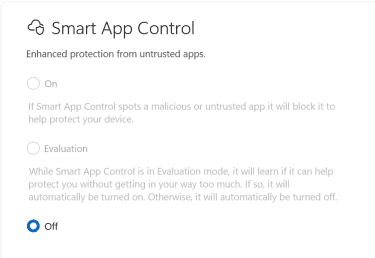
That split is important because SmartScreen and Smart App Control are separate controls, and the wrong menu path can send you in circles.
There’s another wrinkle here. Recent Windows 11 updates have changed how Smart App Control behaves. Some devices can now turn Smart App Control on or off without a clean install, yet with the older behavior, turning it back on can require a reset or reinstall. If the steps on your screen don’t match an article or screenshot, your device may be on a different build or app version.
Windows Security itself is updated separately on Windows 11, so even the app labels can shift over time. If something looks different after an update, check App & browser control, verify the status of Reputation-based protection and Smart App Control, and confirm your Windows build and Windows Security app version before assuming a setting was reset.
An administrator has blocked you from running this app
This message often points to a trust problem, not just a permissions problem. A common cause is a signature that’s no longer valid, which can make the publisher appear as Unknown and stop the app from opening. In other words, the file may not be blocked because you clicked the wrong button. It may be blocked because Windows no longer trusts the signature attached to it.
If you see this warning, check the file’s signature and publisher again, then look for a newer installer from the developer. Old setup files are frequent offenders here. If you see it on a work or school device, policy may be part of the story too. Managed devices can be configured so users cannot ignore certain SmartScreen warnings or change their settings.
Access denied error: What to do?
“Access denied” usually means the app is being blocked from performing an action, not that the file itself is unsafe. Common causes include missing admin rights, protected folders, or a broken installer.
First, make sure you’re signed in to an account with the right access level. Then try running the installer as an administrator if it needs to write to protected parts of the system. If the app is trying to save files to Documents, Desktop, or other protected folders, Controlled folder access may be blocking it.
Controlled folder access is part of Microsoft Defender’s ransomware protection and blocks unauthorized apps from modifying protected folders such as Documents and Desktop. If install or uninstall errors continue, the Program Install and Uninstall troubleshooter may help fix them.
The app still won’t open after unblocking
If you removed the internet block and the app still won’t open, go straight to Protection History in Windows Security. It often gives a more useful answer than the pop-up alone. It also shows when a file was removed and needs to be downloaded again before it can run.
If Protection History shows the file was flagged as malware or a potentially unwanted app, don’t keep forcing it through. Get a fresh copy from the developer. If you’re confident it was a false positive, allow it to remain there, and then download the file again. If nothing in the Protection History explains the failure, scan the file again and proceed to compatibility checks.
Compatibility concerns: Old apps and new systems
Some apps fail on modern Windows for reasons unrelated to SmartScreen. Older installers may rely on outdated components, old driver models, or signing methods that current versions of Windows no longer approve. That can look like a block when the real problem is compatibility.
When that happens, try the Program Compatibility Troubleshooter:
- Navigate to Start > Settings.
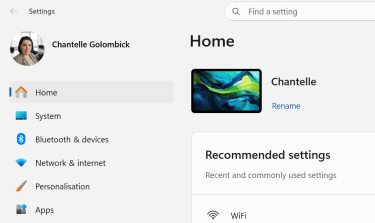
- Then under System > Troubleshoot.
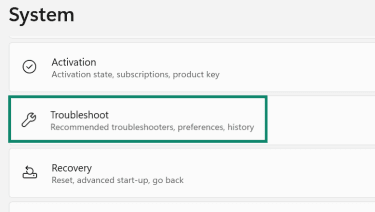
- Go to Other troubleshooters > Program Compatibility Troubleshooter > Run.
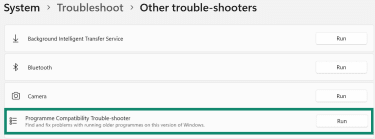
If the app is old and there is no updated build from the developer, compatibility mode can sometimes get it moving again.
There is one catch. Compatibility mode won’t fix a broken or untrusted signature, and it won’t rescue an app that depends on old drivers Windows now blocks. So if an old setup file shows “Publisher: Unknown” or fails signature checks, the better fix is usually an updated installer, not another round of checkbox archaeology in Properties.
Windows updates resetting security settings
After a Windows update, it can look like security settings were reset when the real change is a moved menu, a renamed feature, or an updated Windows Security app. On Windows 11, Windows Security can update separately, and recent builds have changed Smart App Control behavior and some options under App & browser control.
If something looks different after an update, don’t assume Windows broke your settings. Check the following: Open Windows Security > App & browser control, check the status of Reputation-based protection and Smart App Control, and confirm your Windows build and Windows Security app version. That usually shows whether the settings changed or the interface did. You can see these steps under Method 5 above.
FAQ
What is Microsoft Defender SmartScreen?
Why is Windows blocking my app?
What is the difference between a UAC block and a SmartScreen block?
How to unblock an app that is blocked by the administrator?
How do I allow an app blocked by Windows Security?
What are the risks of disabling SmartScreen?
How do I know if an app is safe to unblock?
Why is my antivirus blocking certain apps?
What if the app still won’t run after bypassing?