Can I change my Gmail address without creating a new account?



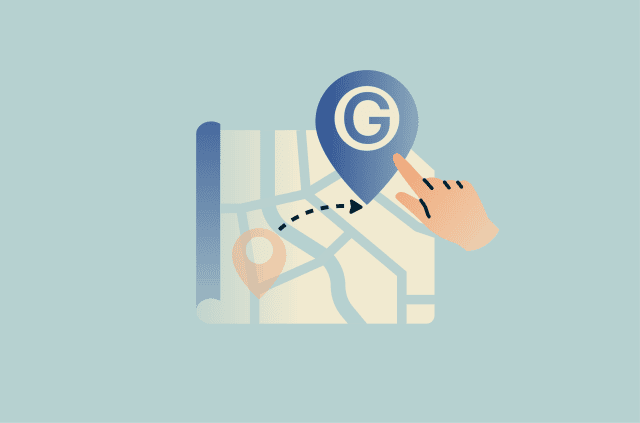
Changing a Gmail address usually meant starting over with a new account. Google has now started rolling out a cleaner option: changing the Gmail address associated with a Google Account while keeping the same account, inbox, files, photos, and other saved data.
In this article, we’ll explain who can change their Gmail address, how the process works, what happens to the old address, and what to check before making the change.
Can you change your Gmail address without creating a new account?
Yes, if the option is available for your account. When you change your Gmail address, your previous address becomes an alternate address. Messages sent to either the old or new address will appear in the same inbox.
You can switch back to your previous address at any time, but you can create only a new @gmail.com Google Account email every 12 months, up to three new addresses in total. This means one Google Account can have up to four @gmail.com email addresses.
Should you change your Gmail address or use another option?
There are many reasons someone might want to change their email address. But changing the Gmail address linked to a Google Account isn’t always necessary, or available. Depending on the goal, it may be enough to change the display name, create a new Google Account, set up forwarding, or use Gmail features such as filters and labels to manage messages.
Here’s a quick overview of common mailbox-related goals and the options that can help:
| Your goal | Best option |
| You want a different address while keeping the same inbox and Google Account | Change your Gmail address if the option is available |
| People see the wrong name when receiving emails | Change your Gmail display name |
| You want a cleaner inbox | Use filters, labels, plus addressing, and dots |
| You want separate personal and work identities | Create a new Gmail account |
| You want to move gradually to a new inbox | Set up forwarding and update accounts over time |
| You want to remove Gmail from your Google Account | Delete Gmail from your Google Account |
| You want to delete the account and associated Google data | Delete your Google Account |
How changing your Gmail address works
By changing your Gmail address, you’re changing the @gmail.com email associated with your Google Account. This won’t create a new Google Account or move your Gmail data into a new inbox. Google says the data saved in your account won’t be affected, including photos, messages, and emails sent to your previous address. You can also sign into Google services with either your new or previous address.
Check if your account is eligible
To find out if it’s possible to change your Gmail address, go to your Google Account settings. This is also where you can start the change if the feature is available.
- Go to https://myaccount.google.com/. Alternatively, click your profile photo in a Google app, such as Gmail or Chrome, and select Manage your Google Account.
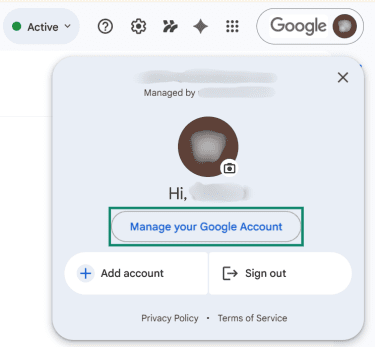
- Select Personal info.
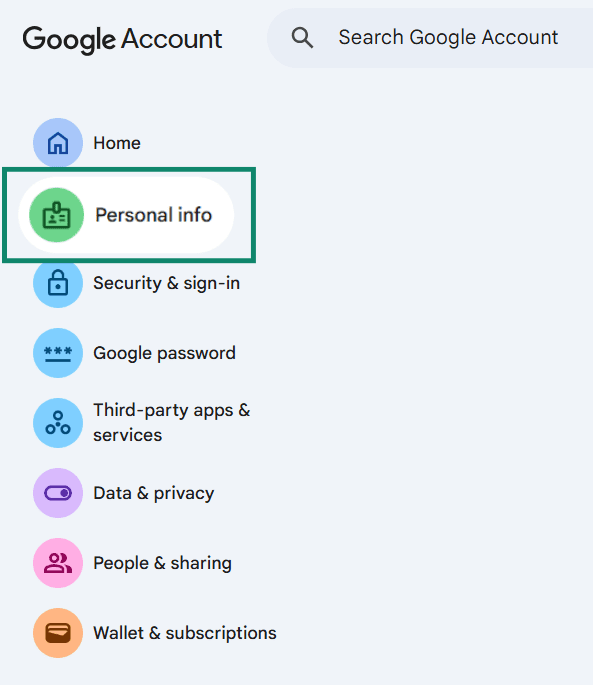
- Select Email.
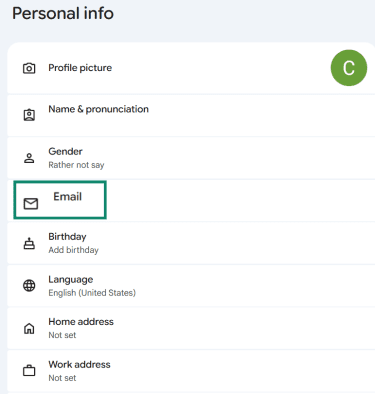
- The page will display your current Gmail address(es) and a recovery email if you’ve set one up. Select Google Account email. You may need to enter your password.
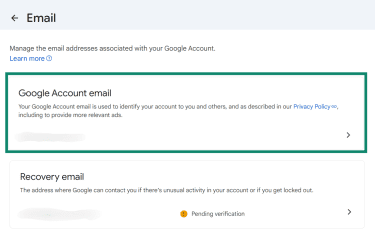
- If the option is available, select Change Google Account email. If the option does not appear, the feature may not be available for your account yet.
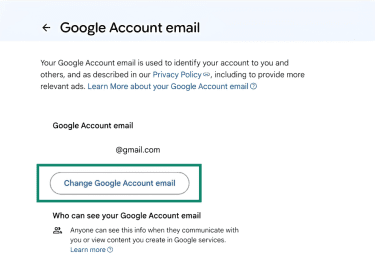
Choose a new available Gmail address
If your account is eligible, Google will ask you to enter the new address you want to use. The new address must be available. It can’t match an existing Gmail address, an address that was previously used and then deleted, or a username Google has reserved to reduce spam and abuse.
Confirm the change and review your account
After choosing an available address, confirm the change and follow the prompts. Before relying on the new address everywhere, take a few minutes to review the places where your Google Account is used. As a precaution, consider backing up your data, as some app settings may be reset.
Non-Google sites or apps that use Sign in with Google may behave differently, so be prepared to try either your new or previous email address when logging in.
What happens when you change your Gmail address?
Apart from changing the @gmail.com address associated with your Google Account, much of the account stays the same.
Your old address becomes an alternate email
Your old @gmail.com address becomes an alternate email on the same account. You’ll still receive messages sent to both the old and new Gmail addresses. No one else can claim your old Gmail address, even if you later delete the account. This helps prevent someone else from using it and receiving messages meant for you.
Your saved account data stays in your account
Your existing emails, photos, contacts, files, and other saved account data aren’t deleted when you change the address. That said, some connected devices may need attention after the change, and certain app preferences may be reset.
Also read: Why removing your data from Google is only half the battle.
You can still sign into Google services
You can sign into Google services such as Gmail, Maps, YouTube, Google Play, and Drive with either your old or new email address. This helps reduce disruption, but it doesn’t mean every third-party service will treat the change the same way. Apps outside Google may store your old address in their own account systems, so you may need to update it separately.
Note: Changing your Gmail address doesn’t remove your old address from places where it already appears, such as public profiles, mailing lists, old accounts, or breach records. It also won’t stop spam sent to the old address, since messages to both addresses still arrive in the same inbox.
Limitations and rules for changing your Gmail address
Beyond what happens after a change, Google also limits when and how Gmail address changes can be made.
The feature may not be available for every account
Some users can’t change their Gmail address yet. The feature is gradually rolling out and may not be available to everyone. The best test is to check your own Google Account email page.
New Gmail address changes are limited
Google limits how often you can create a new @gmail.com Google Account email. You can create one new address every 12 months, for up to three new addresses in total. In practice, that means your original Gmail address plus up to three replacement addresses. You also can’t delete the new address during the 12-month period, so don’t treat the change as a quick test or temporary mailbox.
You can switch back to a previous address at any time, but each new replacement address counts toward the lifetime limit. Choose carefully, because a temporary name change will use up one of your limited changes.
Work or school accounts may need admin help
If your Google Account is managed through a school, employer, or another organization, the option may not appear. Users with such accounts should ask their administrator for help.
For Google Workspace accounts, the admin may control naming, aliases, and account-level email changes.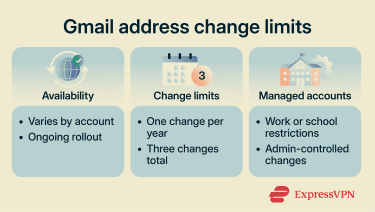
Possible issues around changing your Gmail address
Google lists several possible issues after changing a Gmail address. Some may clear after a few hours, while others will need manual fixes or workarounds.
If you use a Chromebook
Chromebook users should back up local data before changing their address. After the change, Google recommends removing the account from the Chromebook and adding it again with the new email address. If this step is skipped, the home directory may sometimes appear empty once the change takes effect.
This doesn’t mean your cloud data has been deleted. Google recommends this step so the Chromebook updates to use the new Google Account email. Without removing and re-adding the account, the Chromebook may not properly associate the local profile with the renamed account.
If you use Sign in with Google
Some third-party apps and websites may not recognize your new email address, or may not recognize that it’s tied to the same Google Account. Before changing your address, review where you use Sign in with Google, the platform’s single sign-on (SSO) option for non-Google sites and apps.
Afterward, check the account or profile settings inside key apps. If an app has an email field, update it there. If there’s no such setting, don’t assume disconnecting and reconnecting will work safely.
If you use Chrome Remote Desktop
Chrome Remote Desktop connections may stop working after you change the primary email address. To fix this, go to the remote host machine, disable remote connections, then turn them on again and reconnect using the new email address.
It’s a good idea to plan this before you change your address. If you rely on remote access to reach another computer, you’ll need access to that host device to rebuild the connection.
If apps or services use your old address
Even if you don’t directly use Sign in with Google, you have many accounts where your Gmail address serves as your username or contact email. Changing your Gmail address may not affect these accounts, but it depends on how each service stores and verifies email addresses.
Check banking portals, school portals, work tools, cloud storage, password managers, streaming accounts, and any service where account access depends on email. Updating important accounts can also reduce confusion later, especially if a service still shows the old address.
Other smaller issues you may encounter
There are a few additional issues that can follow a Gmail address change:
- Payment methods may be unlinked from Google Pay as a security measure. You can re-add cards after the change.
- Some app settings, such as your Gmail background, chat tab, Photos backup preferences, YouTube music downloads, or Calendar sync, may reset and need to be reapplied.
- Contacts looking for documents you created under the old address may not find them by searching your new email. They can try searching by name instead.
- Some payment, contact, or shortcut issues on iOS or Android may only resolve after the data syncs to the device with the new address.
Most of these are temporary or easy to fix, but it's worth knowing they can appear.
What to do if you can’t change your Gmail address yet
If you’re unable to change your address, there are other options. These won’t fully rename your Gmail address, but they can solve related problems.
Use Gmail plus addressing
Gmail lets users create email addresses to receive mail in the same inbox. For example, if you own namework@gmail.com, messages sent to name.work@gmail.com or namework+newsletters@gmail.com will still go to you.
For a more organized inbox, use these variations with filters to label, archive, or manage messages. For example, newsletter or receipt emails can be automatically labeled for easier sorting.
Use email aliases or masked email addresses
Email aliasing works differently. An alias or masked email address gives you a separate address that forwards messages to your real inbox. If that alias starts receiving spam, or if you no longer trust the site you gave it to, you can disable or delete the alias without changing your real Gmail address.
This is usually a better choice when your goal is privacy, spam control, or limiting exposure. ExpressVPN subscribers can use ExpressMailGuard to create masked aliases that forward to their inbox, with available alias types and domains depending on the plan.
Change your Gmail display name
If your issue is the name people see when you send messages, change the display name instead of the address. This changes the name linked to your Gmail address, not the address itself. In Gmail on desktop:
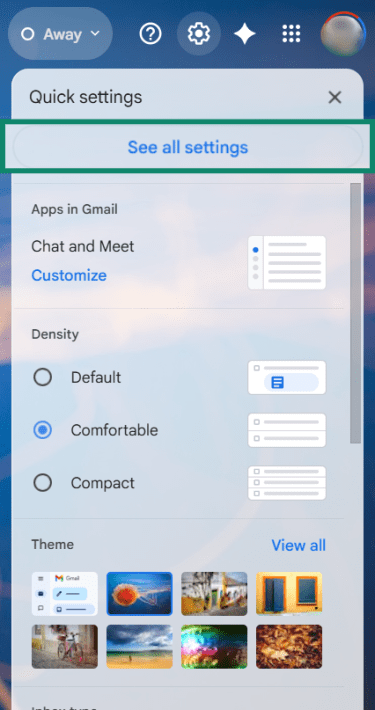
- Open Gmail and click Settings (gear icon), then select See all settings.
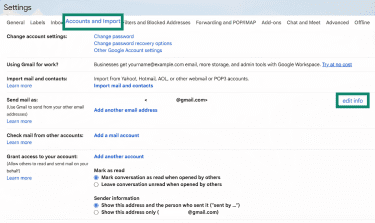
- Open Accounts and Import or Accounts. Under Send mail as, select edit info.
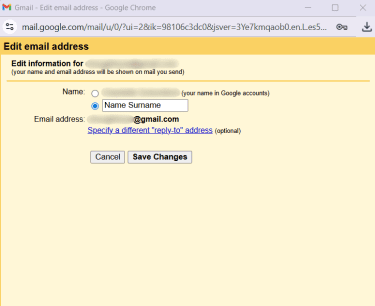
- Enter the name you want people to see, then click Save Changes.
Create a new Gmail account and migrate
If you need a clean break from the old address and your account can’t be renamed, creating a new Gmail account may be the most practical option. It takes more work because you’ll need to move, copy, or reconnect what matters.
A careful migration plan should include:
- Exporting or copying key emails.
- Copying, sharing, or transferring ownership of important Drive files where possible.
- Updating online accounts that use the old address, including third-party sign-ins.
- Exporting contacts and updating recovery options.
- Telling key contacts about the new address.
This is more involved than a Google profile update, but it may be the best option if you want a separate account rather than a renamed version of the old one.
Set up forwarding from your old inbox
Forwarding can help you move gradually. Gmail lets you forward incoming mail to another account after verifying the forwarding address. Consider setting up forwarding, then keeping your old account active for a while. As emails come in, you can update the addresses of important services with your new address.
When you’re confident that you’ve migrated to the new mailbox, you may or may not want to delete the old account; it all depends on your objectives. Just keep in mind that forwarding will end if the account is deleted.
How to protect your Gmail account during changes
Switching your Gmail address is a good time to review your overall email security.
Update your recovery email and phone number
Make sure your recovery email and phone number are up to date before you make changes. Google uses recovery details to help you regain access and to notify you about suspicious activity. This can make account recovery easier if you’re locked out or suspicious activity is detected. Use a recovery email you can access without relying on the Gmail account you’re changing.
Note: Recovery emails, contact emails, and alternate email addresses serve different purposes. Adding an alternate email address can give you another sign-in and recovery option, but it won’t rename your Gmail address. Google also doesn’t allow using a different Gmail address as an alternative email.
Review signed-in devices and security alerts
Open your Google Account security settings and review recent security events and signed-in devices. Google’s account security guidance tells users to check devices and investigate or remove anything they don’t recognize.
This kind of basic account maintenance is especially useful before major actions, such as changing your Gmail address.
Check forwarding, filters, and send aliases
Review Gmail settings and linked services to ensure everything is in order after the change. Check:
- Forwarding addresses.
- Filters and blocked addresses.
- Send mail as aliases.
- Reply-to addresses.
- Recovery and contact emails.
- Third-party app access.
If you send from another address or alias, Gmail lets you choose the From address and set default From and Reply-to addresses. If you only change the default From address, replies may still go to the original Gmail address unless you also set the Reply-to address.
This is a small step, but it can help prevent confusion after the address change.
FAQ: Common questions about changing your Gmail address
Will changing my Gmail address delete my emails?
Can I switch back to my previous Gmail address?
Does my old Gmail address stop receiving messages?
Can another person claim my old Gmail address?
Will YouTube, Drive, and Google Photos still work?
What is the safest alternative if I can’t change my address?
Explore the web with greater privacy
Get ExpressVPNSign up today for a chance to win FIFA World Cup 2026™ tickets.