How to delete saved passwords across all browsers


Saving passwords in a browser can help maintain strong, unique credentials without having to memorize dozens of logins. But there are times when deleting them makes sense, such as if a device or browser account may have been compromised or when switching to a dedicated password manager.
This guide explains the risks of storing passwords in your browser, when it makes sense to keep or remove them, and how to delete them step by step.
Where browsers save passwords
Browsers store saved usernames and passwords using encrypted storage or built-in password managers, depending on the browser and operating system. Access to those saved credentials may be protected by the device account or by additional authentication, such as a PIN, password, or biometrics, before passwords can be viewed or autofilled.
Here’s how major browsers store passwords:
- Google Chrome: Uses Google Password Manager to save passwords. When used with a signed-in Google Account and sync features, those passwords can be available across signed-in devices.
- Safari: Stores usernames and passwords in Apple’s Passwords system and Keychain, including iCloud Keychain when syncing is enabled across Apple devices. They can be managed in the Passwords app or, on some versions of macOS, in System Settings.
- Mozilla Firefox: Saves passwords in the browser profile using files such as logins.json and key4.db, which Firefox uses to store and protect login data.
- Microsoft Edge: Uses Microsoft Password Manager to save passwords. When signed in with a Microsoft account, those passwords can sync across signed-in devices.
Security risks of saved passwords
Browser password saving can be convenient and help defend against attacks such as password cracking and credential stuffing, where attackers try stolen login details across multiple accounts. However, it also creates risks, especially if someone gains access to the device, the browser account, or synced data.
- Physical access: If someone gains access to an unlocked device, they may be able to view or export saved passwords via the browser or password settings, though some browsers and operating systems require additional authentication before revealing or autofilling them.
- Malware targeting browser storage: Saved browser passwords are a known target for infostealer malware, and the market for credential-stealing tools has expanded rapidly in recent years.
- Sync and centralization risks: If passwords are stored in a single browser account and synced across devices, a compromise affecting that account, its password store, or a signed-in device could expose multiple credentials across connected devices.
- Autofill on malicious sites: Autofill can reduce phishing risk because password managers often refuse to fill credentials on lookalike or mismatched domains. However, it's not foolproof: fake sites can still succeed if credentials are entered manually or if another device or account compromise is involved.
- Browser security flaws: Vulnerabilities in browsers or browser extensions can put sensitive stored data at risk, especially if attackers exploit unpatched flaws. Keeping the browser updated helps reduce this risk.
Also read: The best ways to store your passwords securely.
When to delete vs. keep saved passwords
Keeping saved passwords can make sense on a personal, well-secured device, especially for lower-risk accounts where convenience helps support unique passwords. However, deleting them may be the better choice if the device is shared, a browser or synced account may have been compromised, or the goal is to switch to a dedicated password manager.
Before you start
Before deleting saved passwords, it can help to create a backup first. It's also worth checking whether the browser is syncing passwords across devices, as deletion may affect multiple devices depending on the browser, platform, and sync settings. To find where your passwords are stored, read our guide on how to find saved passwords.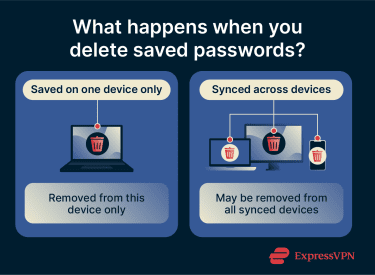
To find out which applies, open the browser’s password manager or sync settings and check whether it's signed in to a Google, Microsoft, Apple, or Mozilla account with password sync enabled. If it is, saved passwords may be available across other signed-in devices, and deleting them could affect those devices too.
Exporting passwords before deletion can help prevent accidental lockouts during cleanup or migration. Chrome and Firefox let users export saved passwords to a CSV file, and Apple also provides password export options on supported devices. These exports typically include website URLs, usernames, and passwords, so the file should be stored securely and deleted when no longer needed.
How to delete saved passwords
How to delete saved passwords on Chrome
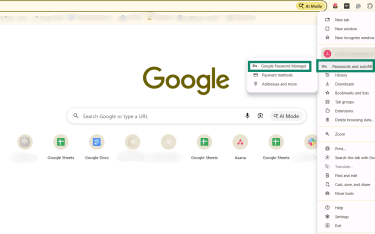
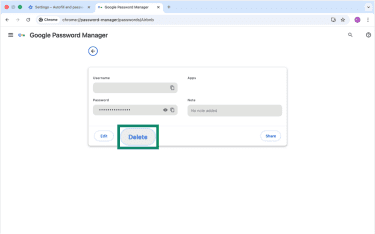
- Open Chrome, click the three-dot icon in the top-right corner, and select Passwords and Autofill > Google Password Manager.
- Find the saved password you want to remove.
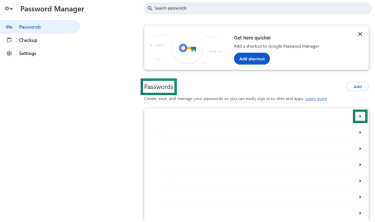
- Enter your login user password if prompted, then click Delete.
Learn more: How to change your Google password.
How to delete saved passwords on Firefox
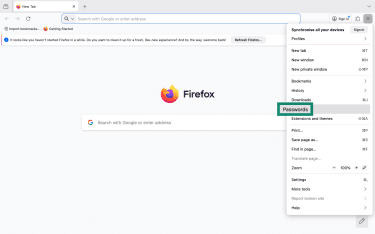
- Open Firefox, click the three-line icon in the top-right corner, and select Passwords or Logins and Passwords.
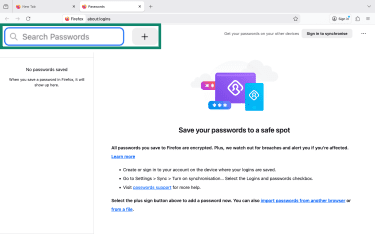
- Search for the saved password you want to remove.
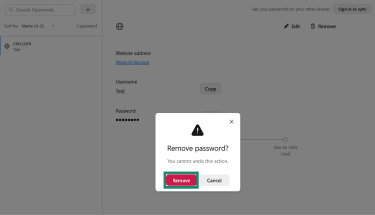
- Select Remove.
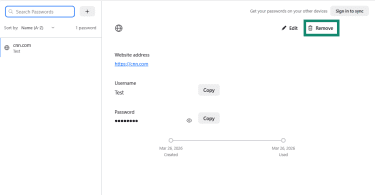
- Click Remove again to confirm.
How to delete saved passwords on Safari
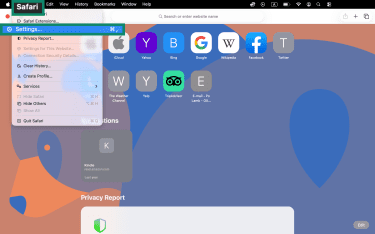
- Open Safari, and in the menu bar, choose Safari > Settings.
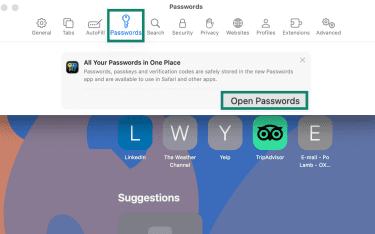
- Go to the Passwords tab, then Open Passwords. You might need to sign in with Touch ID or enter the Mac user account password.
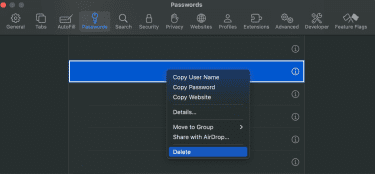
- Press Control on your keyboard, click the saved password you want to delete, then select Delete.
How to delete saved passwords on Microsoft Edge
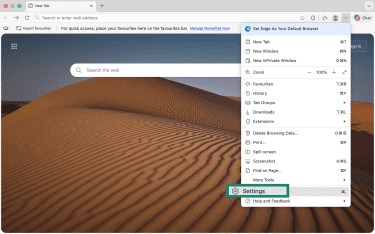
- Open Edge, click the three-dot icon in the top-right corner, and select Settings.
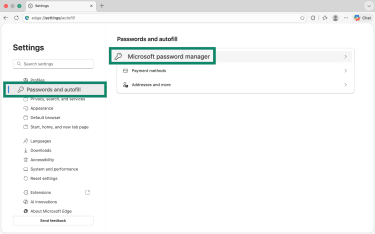
- Click Passwords and autofill, select Microsoft password manager.
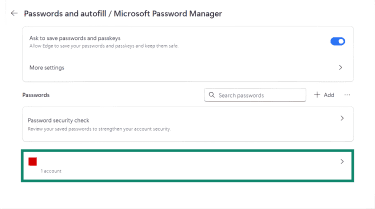
- Find the saved password you want to remove.
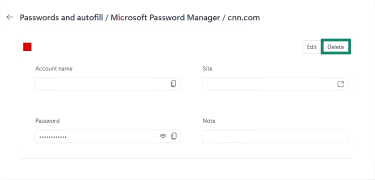
- Click Delete.
How to manage password sync across accounts
Controlling sync settings lets you decide whether password changes apply only on the current device or across other signed-in devices.
Manage password sync in Google Password Manager
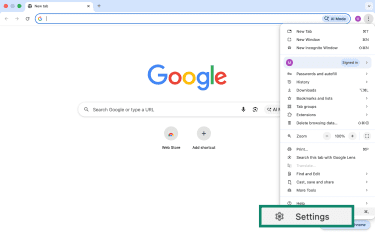
- Open Chrome, click the three-dot icon, and select Settings.
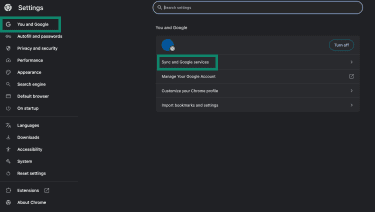
- Click You and Google > Sync and Google services.
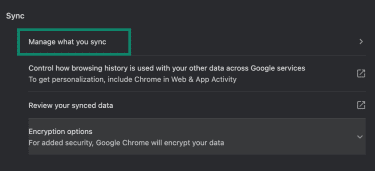
- Select Manage what you sync.
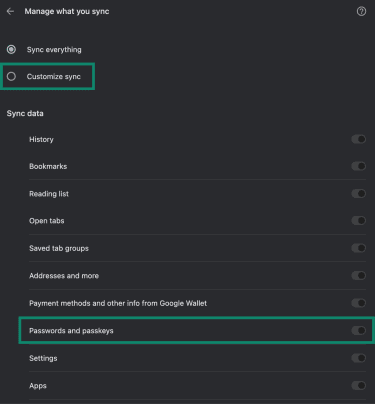
- Select Customize sync, then toggle Passwords and passkeys on or off.
Manage password sync in iCloud Keychain
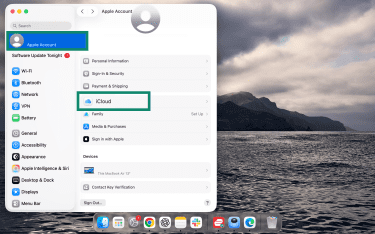
- On Mac, open Settings, click your Apple ID at the top of the sidebar (or your name), and select iCloud.
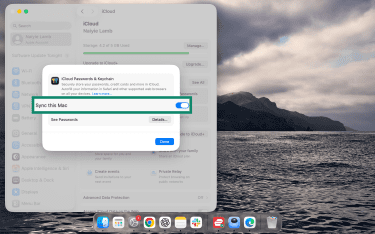
- Click Passwords and toggle Sync this Mac on or off. On macOS Sonoma or earlier, this option may appear as Passwords & Keychain.
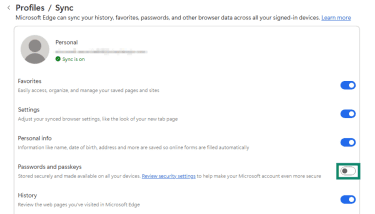
Manage password sync in your Microsoft account
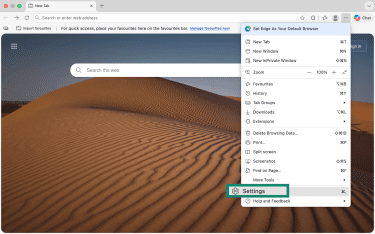
- Open Edge, click the three-dot icon, and select Settings.
- Click Profiles > Sync.
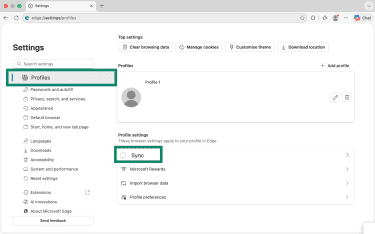
- Toggle Passwords on or off.
How to manage passwords securely
The key to keeping your accounts safe is using strong, unique passwords and the right tools to manage them.
Use a password manager
Password managers store passwords in an encrypted vault or password store. They can generate strong, unique passwords for each account and autofill them, so there is less need to memorize every login. Some password managers, like ExpressKeys, also include tools that help improve password hygiene over time.
Audit your saved passwords regularly
It can help to review saved passwords from time to time to spot weak, reused, or outdated entries. Delete credentials for accounts that are no longer used, and update any that are weak or reused.
Check for breached passwords
It is also worth checking whether credentials have appeared in known data breaches. Services such as ExpressVPN’s Identity Defender can alert users when personal details appear in data breaches or on the dark web. Identity Defender is available to eligible U.S. users on the Advanced and Pro ExpressVPN plans.
FAQ: Common questions about deleting saved passwords
How do I clear saved passwords on my phone?
How to turn off password saving
Can I retrieve deleted passwords if needed?
What are the risks of not deleting saved passwords?
Take the first step to protect yourself online. Try ExpressVPN risk-free.
Get ExpressVPN