How to protect Wi-Fi from neighbors and keep it secure


Your Wi-Fi signal can extend well beyond your home walls. That reach helps maintain connection when you step out to your porch, balcony, or the street.
However, if your network uses weak credentials or insecure settings, that wider reach can make it easier for nearby people to attempt to connect, potentially affecting your Wi-Fi performance, privacy, and security.
In this guide, we’ll cover the risks of unsecured Wi-Fi, how to tell if someone may be connected to your network, the most effective ways to secure your router, and what to do if you discover unfamiliar devices on your connection.
Risks of unprotected Wi-Fi
The risks of someone joining your Wi-Fi network without your knowledge include:
- Exposure to snooping: Devices on the same network may discover one another or probe for weak points, especially if file sharing is enabled or devices are poorly secured.
- Liability for others’ activity: If someone uses your internet connection to send spam, engage in piracy, harass others, or otherwise misuse it, the activity may appear to originate from your IP address.
- Troubleshooting difficulties: Unfamiliar devices, unexpected connection drops, or unexplained changes in settings can make network problems harder to diagnose.
The good news is that most of these risks are preventable with a few router-level changes and security habits.
How unauthorized Wi-Fi access happens
Unauthorized access usually occurs for the following reasons:
- Weak credentials: If a Wi-Fi password is short, predictable, reused elsewhere, or widely shared, someone nearby may guess it or obtain it from a saved device, a visitor, or an old note. Weak or unchanged router admin credentials can also put your settings at risk.
- Outdated or misconfigured settings: Older security modes, exposed network settings, and convenience features left enabled can make it easier for someone to connect.
Proximity matters because Wi-Fi signals can be detected from nearby locations, but signal visibility alone doesn't grant access. Unauthorized use happens when that visibility is combined with one of the weaknesses above.
How to tell if someone is using your Wi-Fi
It’s not always obvious when someone else is on your Wi-Fi. Some changes in speed or network behavior can be warning signs, but they're not proof on their own.
One of the most reliable ways to check is to open your router or mesh app and review the list of connected devices.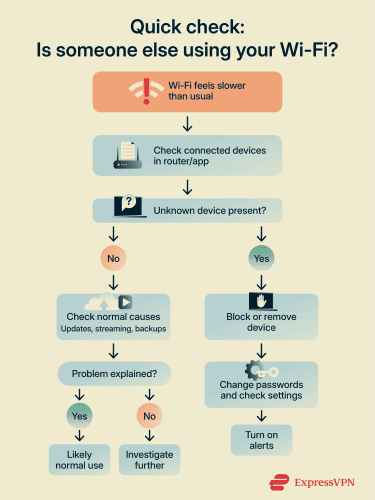
Common warning signs
Changes in network behavior can suggest unauthorized use, but don't confirm it. If you notice any of the following, check your list of connected devices.
- Slower speeds or unstable connections: If your internet suddenly feels slower, pages hang or fail to load, or you experience buffering and lag for no clear reason, extra devices on the network could be sharing the available bandwidth. Internet service provider (ISP) issues or router settings can also cause this.
- Router activity when your devices are idle: If your router lights blink steadily when no one in your household appears to be using the internet, that may indicate ongoing traffic. However, this can also be caused by background updates, smart-home devices, and cloud services.
- Data usage spikes: If your ISP tracks usage and it climbs even though your habits haven't changed, another device could be using the connection. Still, automatic backups, software updates, and streaming on household devices can also raise usage.
Check your router’s connected-device list
Open your router’s admin panel or companion app and check the list of connected devices. This is the most reliable way to confirm whether an unfamiliar device is currently on your network.
As you review the list:
- Identify every phone, laptop, tablet, smart TV, speaker, camera, printer, and smart home device in your household.
- Check device names, manufacturers, and, if available, Media Access Control (MAC) addresses.
- Note details for any device you don't recognize, such as its MAC address, IP address, and last activity time.
- Keep in mind that some devices appear under generic or unfamiliar names.
If the list matches what you own, the issue is likely normal congestion, a background update, or another high-bandwidth task in your home. If you see a device you don’t recognize, investigate further before assuming it is unauthorized.
If your router keeps a history of previously connected devices, check that too. On some systems, it may appear as Known devices, Device history, or Recently connected, and it can help you spot brief connections from devices that aren’t currently online.
How to prevent others from connecting to your Wi-Fi
Unauthorized Wi-Fi access often results from poorly configured router settings, weak credentials, or convenience features that undermine security.
Secure your credentials
Before adjusting advanced settings, make sure the basic access controls on your network are strong. Most Wi-Fi security settings require access to the router's admin panel. Many modern routers offer a companion app for this.
Otherwise, open a browser on a connected device and enter the router's local address (often printed on the router label or listed in the documentation) to sign in.
Use a strong Wi-Fi password
A short, reused, or predictable Wi-Fi password makes it easier for someone nearby to gain access. Consider following these best practices:
- Use a long passphrase: Choose several random words (like "purple-lamp-bicycle-cloud"). Length is more important than complexity, but if the router requires mixed-case characters, include uppercase letters, numbers, and symbols.
- Use unique passwords: Don’t reuse passwords from email, banking, or streaming accounts. If one reused password is exposed, other accounts can be at risk too.
- Avoid guessable details: Don't use names, apartment numbers, birthdays, or anything that people nearby could easily guess. Predictable passwords are also easier to crack with brute-force attacks.
Change the default router admin password
The router has two separate credentials: the Wi-Fi password (for joining the network) and the admin password (for controlling router settings). If someone gains access to the admin panel, they can change settings such as Domain Name System (DNS) records, passwords, or remote management options.
Follow these steps to change the default password:
- Log into your router’s settings page or mesh app.
- Find the admin or router login settings.
- Replace the default password with a strong, unique one.
Don’t use the same password for your router's admin panel and your Wi-Fi. Treat them as separate security layers.
Configure security settings
Disable WPS
Wi-Fi Protected Setup (WPS) allows devices to connect using a PIN or a push-button method instead of manually entering the Wi-Fi network security key.
However, WPS, especially the PIN method, has known security weaknesses. If your devices can connect without it, disabling WPS is the safer option.
To disable it:
- Open your router settings.
- Look under Wireless, Security, or Advanced settings.
- Turn WPS off.
If a device requires WPS to connect, temporarily enable it, connect the device, then disable it again if your router allows that.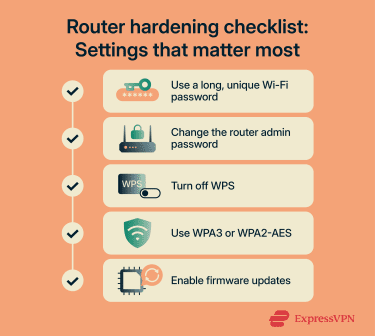
Enable WPA3 (or WPA2 if unavailable)
Wi-Fi Protected Access 3 (WPA3) is the most secure Wi-Fi security option commonly available on modern routers. It improves authentication and offers better protection against offline password-guessing attacks.
To enable WPA3:
- Open your router’s wireless security settings. On most routers, this is under Wireless or Wi-Fi settings, then Security.
- Set the security mode to WPA3 or WPA2-Personal if WPA3 is unavailable. If your router lets you choose an encryption type for WPA2, use Advanced Encryption Standard (AES).
After changing encryption settings, you may need to reconnect some devices.
Some routers offer a compatibility mode that supports older security standards alongside WPA2 or WPA3. Avoid this unless older devices cannot connect otherwise, as legacy compatibility can reduce overall network security.
Some routers still allow older options such as Wired Equivalent Privacy (WEP), original WPA, or WPA/WPA2 mixed mode. WEP and original WPA are outdated and insecure. If older devices require legacy modes, consider upgrading those devices rather than weakening the network.
Control access
Set up a guest network
A guest network creates a separate Wi-Fi network on the same router. Devices connected to it typically can’t access other devices on your primary network, such as laptops, storage drives, or smart home hubs. Depending on the router, guest devices may also be blocked from the router’s admin panel. This is useful for visitors, contractors, and some smart home devices.
To set it up:
- Open your router settings.
- Find the Guest network or Guest Wi-Fi section.
- Enable it and create different credentials from your main network.
- Keep your main network password private and share the guest one instead.
Some routers also allow restricting guest devices to internet access only, setting automatic expiration times, or limiting bandwidth usage.
If available, enable the isolate guests from local network option to prevent guest devices from communicating with devices on the main network. Routers might label this Guest isolation, AP isolation, or Block access to local network, or something similar.
Rename the network
Many routers ship with default network names that reveal the brand or model, which can help someone nearby identify the router type and look up model-specific weaknesses.
To rename your network:
- Open your router’s wireless settings.
- Change the network name, or Service Set Identifier (SSID), to something that doesn’t identify the owner, the location, or the router model.
Hide your SSID (optional)
Disabling SSID broadcast prevents the network from appearing in the standard Wi-Fi list. However, this doesn't make the network fully invisible or secure. Anyone using basic network scanning tools can still detect it.
To do so:
- Go to your router’s wireless settings.
- Find a label like SSID broadcast or Network visibility.
- Disable it.
After disabling broadcast, new devices will need the network name entered manually to connect. If convenience matters more than a minor reduction in visibility, leave SSID broadcasting enabled and focus on stronger protections, such as encryption and passwords.
Use MAC filtering (optional)
Every network-enabled device has a MAC address, a unique hardware identifier.
Some routers allow creating an allowlist so that only specific MAC addresses can connect. MAC filtering is not foolproof because MAC addresses can be spoofed, and maintaining a long allowlist can be cumbersome. It works best in small households with a stable set of devices.
What to do:
- Find Access control or MAC filtering in your router settings.
- Choose allowlist mode so that only listed devices can connect.
- Add the MAC addresses of trusted devices.
For most users, strong encryption, unique passwords, firmware updates, and a guest network provide sufficient protection without the overhead of MAC filtering.
Keep your router firmware updated
Router firmware updates often include security patches that fix known vulnerabilities. Outdated firmware may leave the router exposed to flaws that do not depend on guessing the Wi-Fi password.
What to do:
- Log into your router’s admin page or open the mesh app.
- Look for a section labeled Firmware, System, Administration, or Updates.
- Check for available updates and install them.
- Enable automatic updates if the router supports them.
After updating, your router may reboot. This is normal.
If automatic updates are unavailable, check the manufacturer’s website regularly for updates. Always check after setting up a new router or moving to a new home. If the router no longer receives updates from the manufacturer, it may be time to replace it.
What to do if someone is on your Wi-Fi
If you’ve confirmed that an unfamiliar device is connected to your Wi-Fi, take the following steps to remove it and reduce the chance of it reconnecting.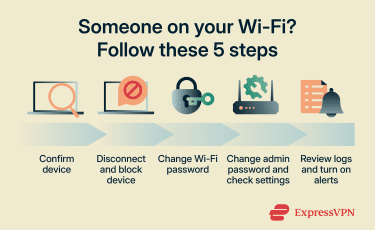
Kick the device off and block it
Note any identifying details the router shows, such as the device’s MAC address, IP address, manufacturer, or recent activity, so you can recognize it if it tries to reconnect. Then remove it from the network.
In most router or mesh apps, you can do this from the Devices or Connected devices page:
- Select the unknown device.
- Choose Disconnect, Pause, or Remove.
- If there's a separate option to block the device or add it to a deny list, use that too.
Different brands label these options differently, but the goal is the same: disconnect the device, then secure the network so it cannot reconnect easily.
Reset network credentials
If someone connected without permission, they may have obtained the password through sharing, guessing, or a security weakness, and others may have it too.
Change your Wi-Fi password first. This forces devices to reconnect with the new password. All trusted devices, including phones, computers, TVs, and smart-home devices, will need to reconnect.
Then, change your router admin password. If someone had access to it, they could change settings or reopen access even after a Wi-Fi password change.
Check for suspicious router changes
This step helps confirm whether the unauthorized user only joined the network or also changed router settings.
In your router settings, look for:
- DNS settings pointing to an unfamiliar provider.
- Remote management being enabled.
- Unfamiliar port forwarding rules.
- New access rules, device profiles, or allow/deny entries.
- Changes to guest network names, schedules, or settings.
If anything looks unfamiliar, undo it. If there's no confidence that everything has been reverted, a factory reset followed by a clean setup is safer than patching over unknown modifications.
Review logs and enable alerts
If your router provides logs, check them for:
- Repeated connection attempts.
- New device connections around the time you noticed slowdowns.
- Admin logins or settings changes, if the router records them.
Not all consumer routers keep detailed logs, but when available, they can help confirm whether the connection was a one-off event or something persistent.
Where possible, enable:
- Alerts for new device connections.
- Alerts for admin logins or settings changes.
- Any available device or activity summaries.
If the device keeps reconnecting
If an unfamiliar device repeatedly reconnects, the password may still be circulating, or someone may have access to the router's admin panel.
At that point:
- Recheck the admin panel for changes.
- Consider a factory reset and clean setup.
- If your router is old or no longer receives security patches, consider replacing it with a newer model.
FAQ: Common questions about Wi-Fi protection
How do I block devices connected to my Wi-Fi?
How do I make my home Wi-Fi private?
Can I hide my Wi-Fi from neighbors?
Can you tell if a neighbor is using your Wi-Fi?
What is WPA3, and why is it important?
What devices can be used to monitor my Wi-Fi usage?
How often should I change my Wi-Fi password?
Should I turn off WPS?
Should I change my router admin password?
Take the first step to protect yourself online. Try ExpressVPN risk-free.
Get ExpressVPN