How to stop remarketing ads from following you everywhere


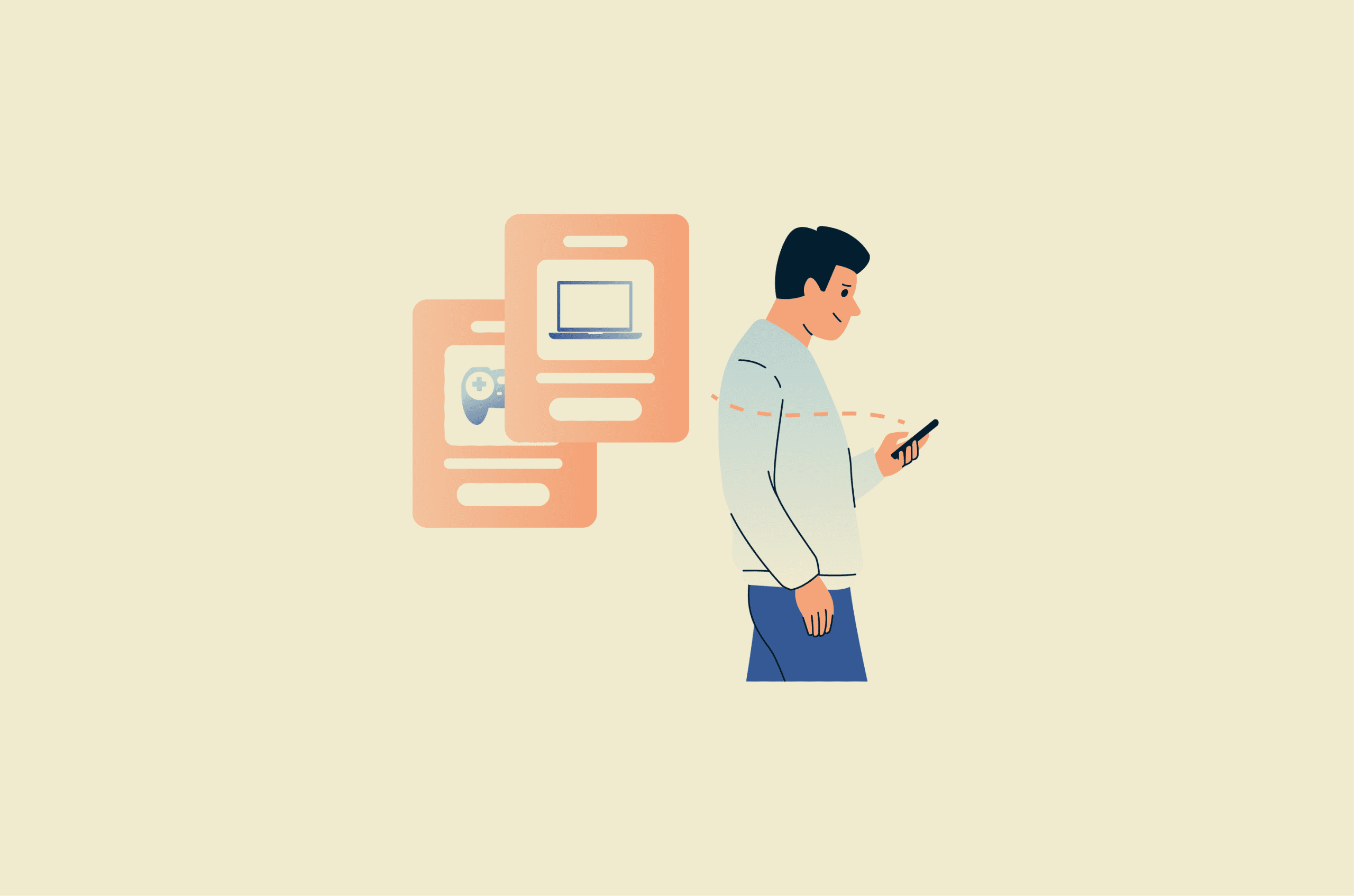
You bought a laptop from an online store last month, and now you’re seeing ads from that retailer promoting accessories or new laptop models. This is likely the result of an advertising technique called remarketing.
This phenomenon can be frustrating or even unsettling, as you realize just how much information is being collected about you. The good news is that there are practical steps you can take to stop personalized advertising and regain control over your online experience.
In this article, we go over all of your options, including adjusting your ad preferences and privacy settings across major platforms, removing your personal information from data broker sites, using various ad-blocking tools, and more.
Understanding remarketing ads
Remarketing ads are a form of digital advertising that’s aimed at people who already have a relationship with a brand, such as past customers or newsletter subscribers. The goal is re-engagement. For example, a retailer might show remarketing ads to past buyers to promote related products or highlight new offerings.
The term is often used interchangeably with retargeting, but there are marketers that distinguish between them. When this distinction is made, retargeting refers specifically to ads shown to people who have previously shown interest in the brand but haven’t yet made a purchase. For example, after you visit a retailer’s website, you might see ads from that retailer elsewhere on the web.
Remarketing also shouldn't be confused with interest-based ads. Those are based on general browsing behavior, demographics, or inferred interests rather than a user’s previous interaction with a specific brand. For example, if you read articles about hiking, you might see ads for outdoor gear even if you’ve never visited a particular retailer’s website.
In practice, these different types of ads often blur together, as platforms frequently combine remarketing, retargeting, and interest-based techniques.
How they track you
Websites, apps, and advertising networks can use a variety of trackers to collect information about your activity. Below are some of the most common tracking methods.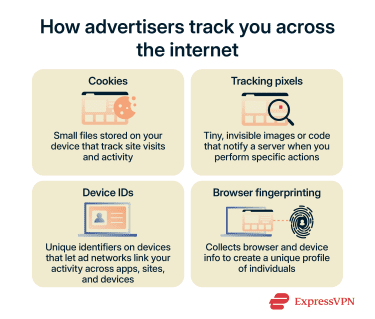
Cookies
Cookies are small files placed on your device by a website that store information about your visits and activity over time. Advertising cookies are used to deliver targeted ads, while other types of cookies may be used to remember your site preferences or keep you logged in.
Tracking pixels
Tiny 1x1 images or snippets of code embedded in a webpage or email. When your browser loads the pixel, it contacts a tracking server, sending information such as which page or email you opened and when.
Device IDs
Devices such as phones and tablets have unique advertising identifiers. By combining these IDs with other signals, like login information or browsing patterns, ad networks can link your activity across websites, apps, and devices.
Browser fingerprinting
Browser fingerprinting is a technique that collects information about your browser and device, such as your operating system, browser version, screen resolution, installed fonts, language settings, and plugins. By combining these details, advertisers can create a unique “fingerprint” that helps them track your activity across websites, even if cookies are blocked or deleted.
Pros and cons of remarketing
Remarketing ads can be a powerful tool for brands because they:
- Re-engage past customers to encourage repeat purchases.
- Promote related products or new offerings efficiently.
- Maximize marketing return on investment (ROI) by targeting users already familiar with the brand.
- Increase brand awareness and reinforce messaging over time.
For consumers, however, being followed across the web by ads from the same companies can raise privacy concerns, and seeing the same few ads over and over again can lead to “ad fatigue.”
That said, remarketing ads aren’t all bad for consumers. As with all personalized advertisements, they increase the likelihood that someone will see a product, deal, or other content that genuinely matches their interests.
Quick steps to reduce remarketing today
Below are several easy things you can do to limit how many remarketing ads you’re shown.
Clear your browser data
Your browser data includes tracking files that may be used for remarketing. You can get rid of these files by clearing your cookies and cached data. Note that this may also log you out of websites and reset saved preferences, such as your language settings, dark mode, or items in your shopping cart.
Block third-party cookies
Third-party cookies are cookies placed on your device by companies other than the website you’re currently visiting, often for advertising or analytics purposes. For example, if you visit an online store, an advertising network working with that store may place third-party cookies on your browser.
Note that this doesn’t block first-party cookies (cookies set by the website you’re on), nor does it prevent advertisers from using cookieless tracking methods, like browser fingerprinting. Also note that blocking third-party cookies may break some websites' functionality.
Chrome
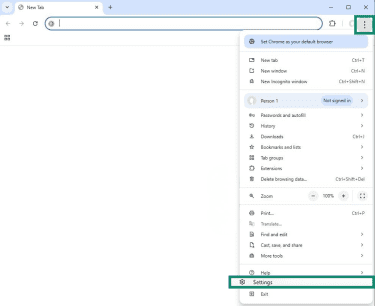
- Click the menu icon (3 vertical dots) in the top right corner of the browser and select Settings.
- Select Privacy and security on the left, then choose Third-party cookies.
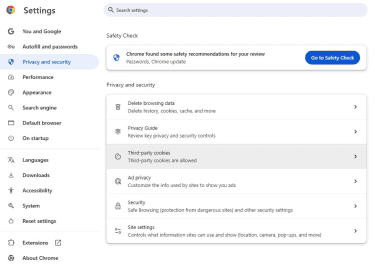
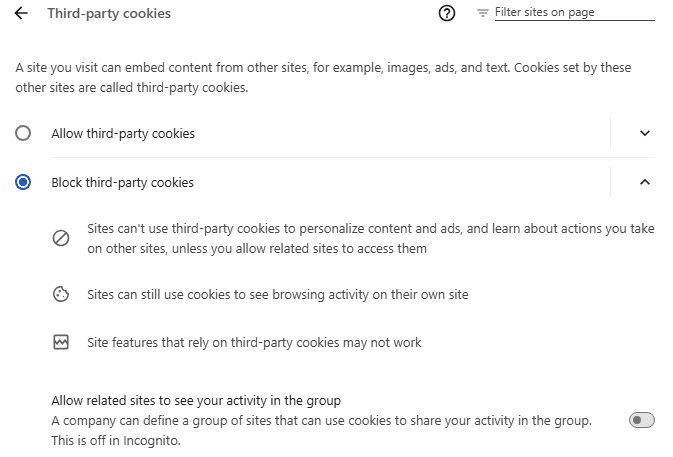
- Select Block third-party cookies and toggle off Allow related sites to see your activity in the group.
Firefox
- Open the menu (3 horizontal lines) in the top-right corner of the browser and select Settings.
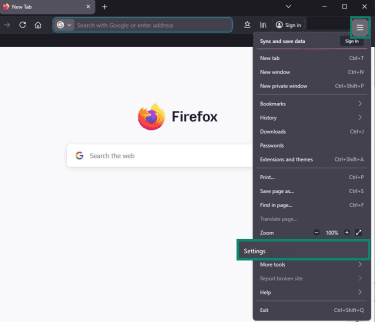
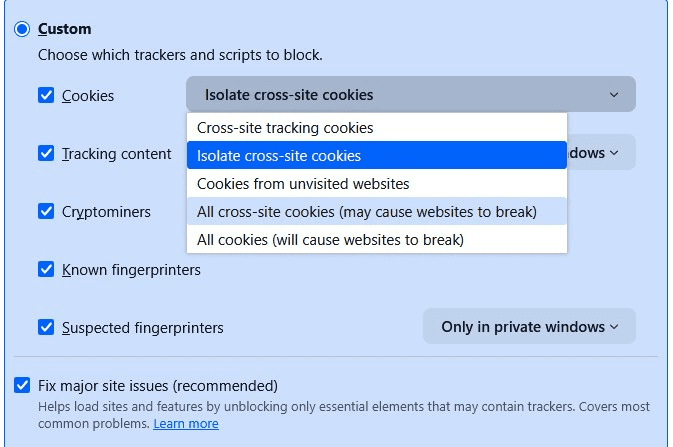
- Select Privacy & Security on the left, then under Enhanced Tracking Protection, select Custom.
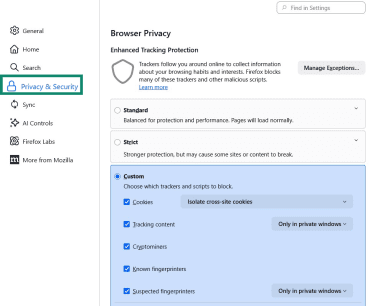
- Open the dropdown menu next to Cookies and select All cross-site cookies (may cause websites to break).
Edge
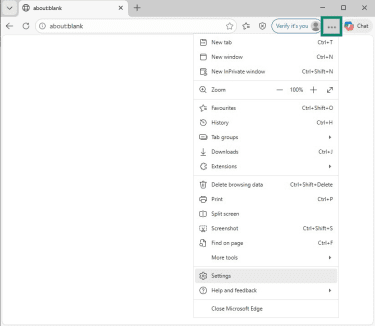
- Open the menu (3 horizontal dots) in the top right corner of the browser, and select Settings.
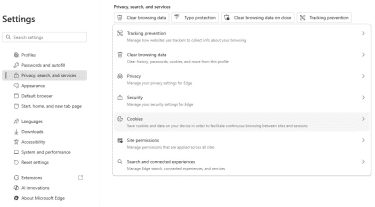
- Select Privacy, search, and services on the left and select Cookies.
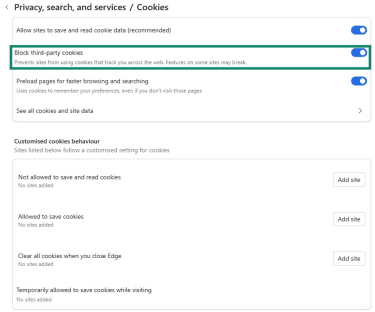
- Toggle on Block third-party cookies.
Use private browsing and tracking protection
Use private browsing mode (also known as incognito mode) when visiting websites or content you’d like to keep private. Any data created in private browsing mode, like your browsing history or cookies, is deleted when the session ends (i.e., when you close the browser window). This makes it harder for websites and advertisers to identify you.
Keep in mind, though, that websites and advertisers can still see your activity during the session and may have other ways of identifying you. In other words, private browsing mode doesn’t make you invisible online.
You can also reduce remarketing by switching to a browser with built-in tracking protection, such as Firefox or Edge. Tracking protection actively blocks known trackers, third-party cookies, and certain scripts that follow your activity across websites.
How to stop remarketing ads on Google and YouTube
You can’t stop companies from serving you remarketing ads on Google or YouTube. However, you can stop Google from collecting certain information, including your demographics, interests, and activity across Google services, to personalize the ads you see.
To turn off personalized ads on Google and YouTube:
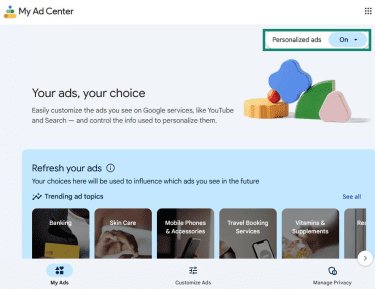
- Visit My Ad Center and click On in the top-right corner next to Personalized ads.
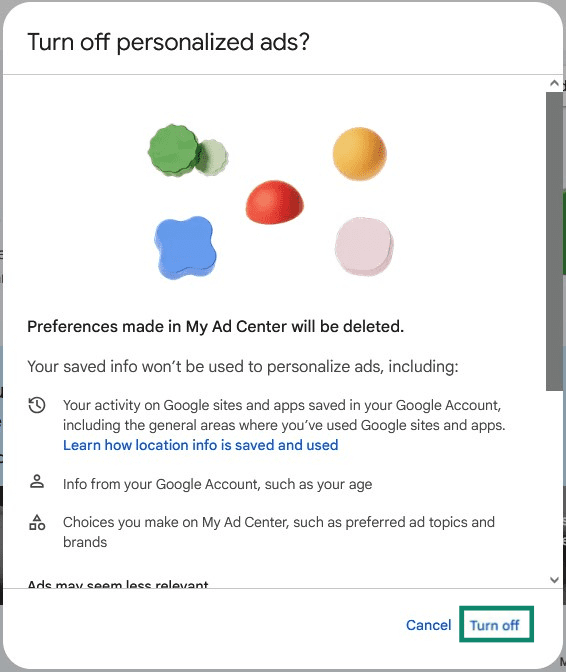
- Select Turn off.
How to stop remarketing ads on social media
Many social media platforms give you some control over the ads you see. Note that these settings won’t remove all ads on Facebook or disable targeted ads, but they can reduce ad personalization.
Control ad preferences on Facebook and Instagram
The following changes affect all of your Meta accounts, including Facebook and Instagram.
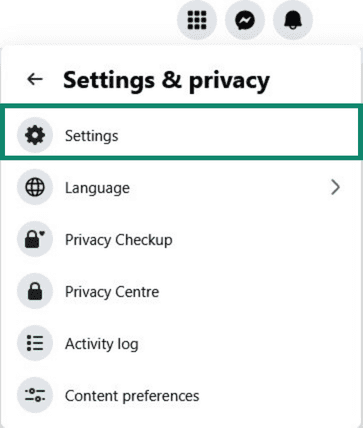
- On Facebook, click your profile picture in the top-right corner, then select Settings & privacy > Settings.
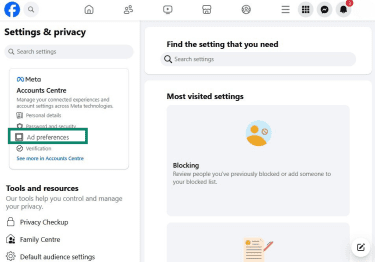
- Click Ad preferences under Accounts Centre.
- Click Ad preferences under Account settings, then click the Manage info tab.
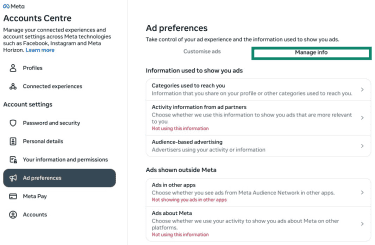
- Click Activity information from ad partners > Review setting > No, don't make my ads more relevant by using this information.
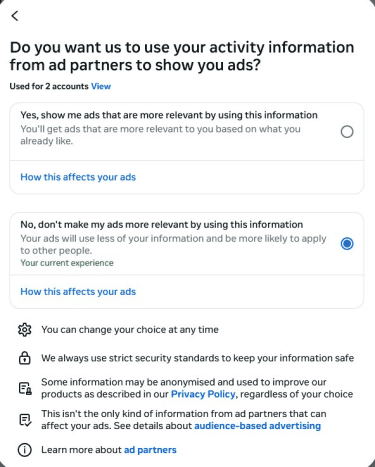
- Go back to the Manage info tab.
- Click Audience-based advertising, select an advertiser, and click They uploaded or used a list to reach you > Don't allow. Do this for each advertiser on the list.
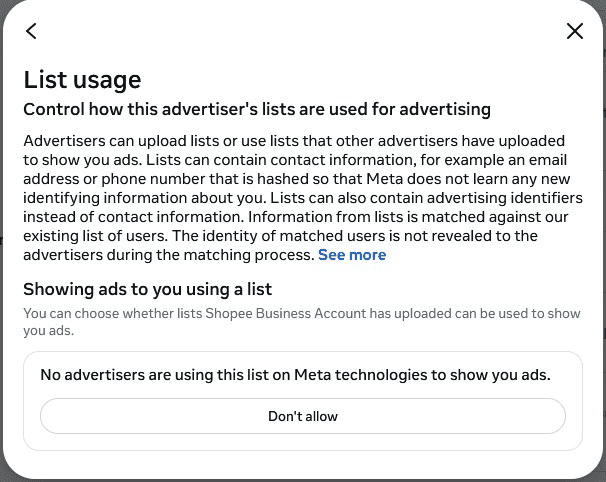
- You may also want to disable off-Facebook activity to stop Meta from using information about your activity on other websites and apps to personalize the ads you see.
Manage ad settings on LinkedIn
- Click Me at the top of your homepage and select Settings & Privacy from the dropdown menu.
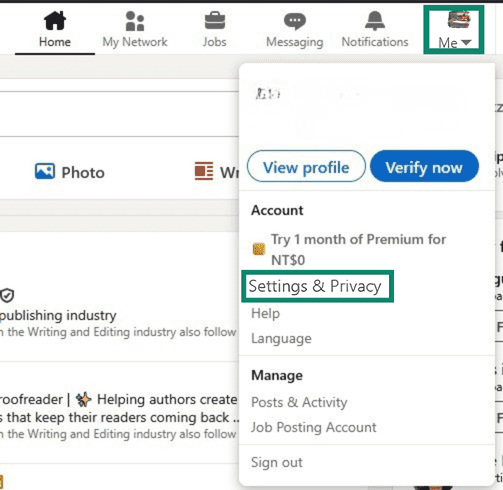
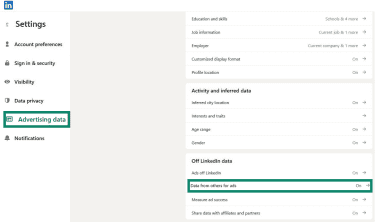
- Click Advertising data on the sidebar, then scroll down and click Data from others for ads under Off LinkedIn data. Toggle it off.
Managing your privacy settings
Below are additional steps you can take to limit the number of targeted remarketing ads you see.
Adjusting cookie preferences
Many websites display a cookie banner when you visit them for the first time. These banners let you choose which types of cookies the site can place on your device. To limit the amount of remarketing ads you see, reject or disable non-essential cookies.
Reset advertising IDs on your devices
Advertising IDs are unique identifiers attached to devices that allow advertisers to track activity across apps and websites, deliver personalized ads, and measure ad performance.
You can’t turn off advertising IDs. However, they aren’t permanent device IDs; you can reset your advertising ID at any time to reduce tracking and limit remarketing ads targeted at you on your devices.
Reset advertising ID on iPhone and iPad
Since iOS 14.5, apps must ask for your permission through the AppTrackingTransparency (ATT) framework before they can access your device's advertising ID.
What this means is that “resetting” your advertising ID is now an outdated concept for most iOS users. Instead, you can adjust your ATT settings to control which apps are allowed to access your advertising ID and track your activity across apps and websites.
To manage activity tracking permissions on your device:
- Open the Settings app.

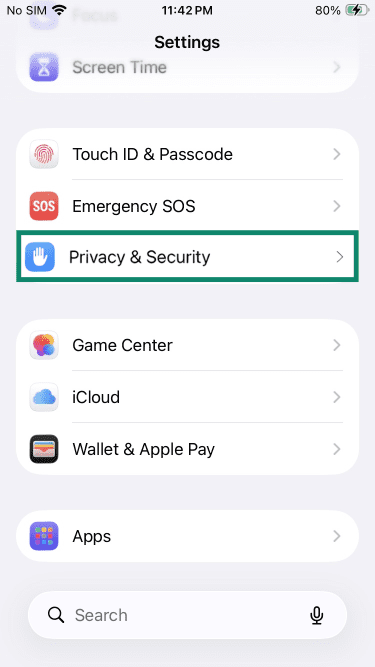
- Tap Privacy & Security.
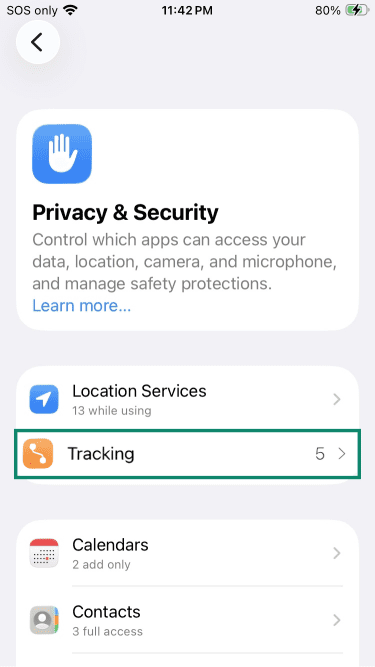
- Tap Tracking.
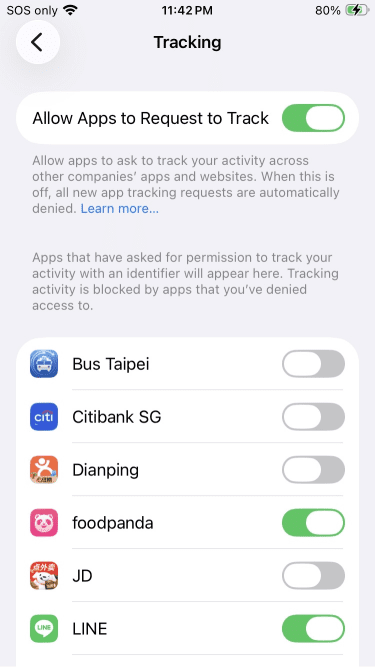
- Toggle off Allow Apps to Request to Track if you want to reject all tracking requests. Otherwise, scroll down the list of apps and choose which ones you want to allow individually.
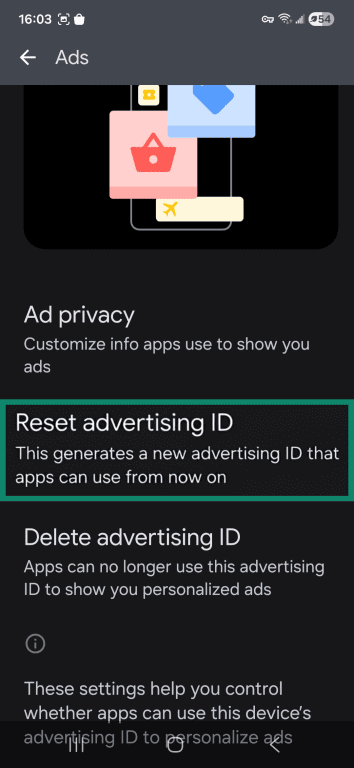
Reset advertising ID on Android
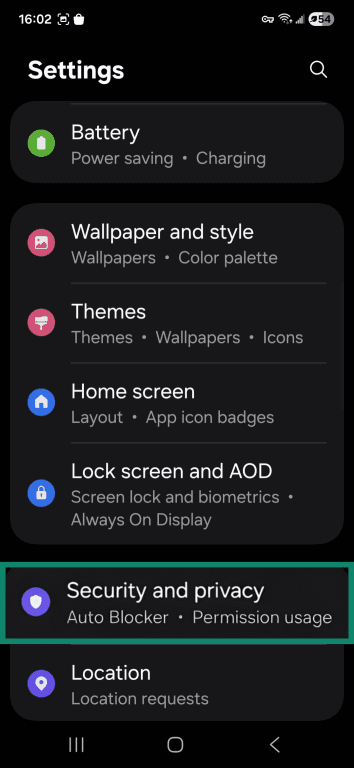
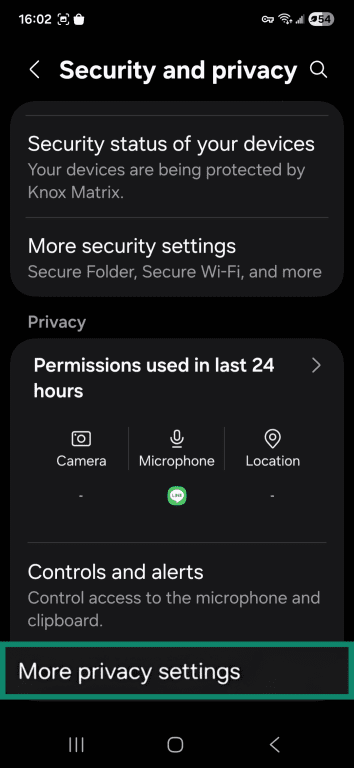
Here’s a guide to resetting your advertising ID on Android devices. Note that the exact steps may vary depending on your device model and Android version.
- Open the Settings app.
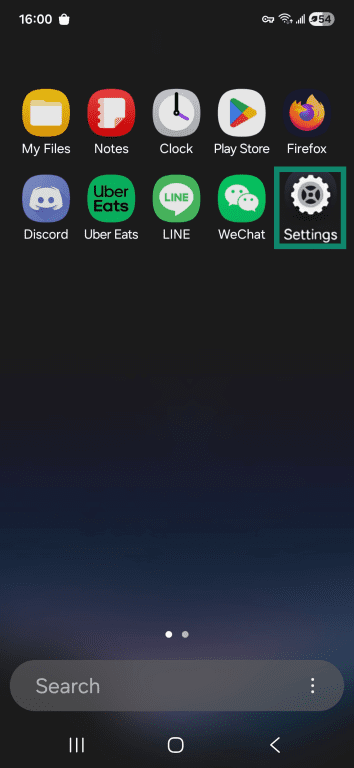
- Tap Security and privacy.
- Tap More privacy settings.
- Tap Ads.
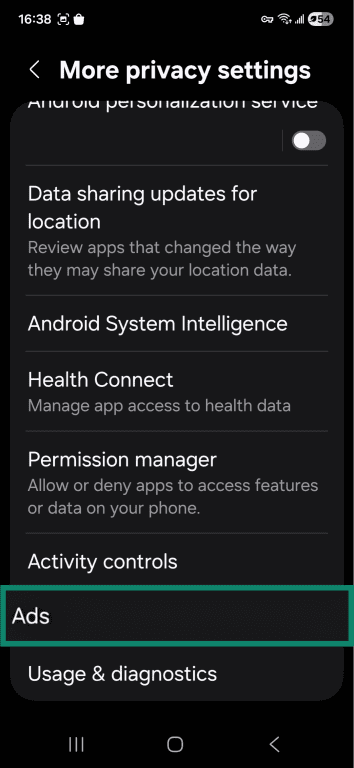
- Tap Reset advertising ID and confirm.
Review app permissions that share data
Apps can collect a lot of data about you, including your location, contacts, browsing history, and more, which advertisers may use to personalize remarketing ads. That’s why periodically reviewing app permissions and revoking unnecessary ones is a critical part of mobile security.
Tools for ad blocking
Some privacy tools can reduce the number of ads you see online, including those from remarketing. They can also limit the data used to personalize ads. It’s important to understand, though, that none of these tools can eliminate ads entirely.
Popular ad blockers
Ad blockers are browser extensions or apps that block advertising scripts and trackers before they load on a webpage. Some popular ad blockers include:
- uBlock Origin: It’s a free, lightweight, open-source extension that’s great for blocking ads and includes extra features for advanced users, such as the ability to create custom filters and block specific scripts or page elements. The main downside is that the full version doesn’t work on Chrome. A “Lite” version is available for Chrome users, though it offers significantly fewer features.
- Adblock Plus: It’s open source, free, and available on most browsers, including Chrome, Firefox, and Edge. It also works on Android and iOS devices. It allows some ads through its “Acceptable Ads” program by default, but you can opt out of this feature.
- AdGuard: Offers both browser extensions and standalone apps that can block ads and trackers across websites and even some mobile apps. This makes it more flexible than many browser-only blockers. However, unlike uBlock Origin and Adblock Plus, it's a paid service.
Privacy-focused browsers to consider
Most mainstream browsers, such as Google Chrome, are designed for speed, compatibility, and integration with online services. While they include some privacy controls, their default settings often allow various forms of tracking that support advertising and data collection.
Privacy-focused browsers take a different approach. Browsers like Brave, Firefox, and Tor Browser include stronger privacy protections by default. They can block third-party trackers, limit cross-site cookies, and reduce the effectiveness of fingerprinting techniques that advertisers use to identify users across websites.
Using VPNs for privacy
Your IP address is a unique identifier that websites and advertisers can use to approximate your location. A virtual private network (VPN) routes your traffic through a different server, hiding your real IP address, which can help reduce location-based tracking and limit ad personalization.
Note that a VPN won’t stop tracking by websites you’re logged into. Additionally, while some VPNs have ad-blocking features built in (like ExpressVPN’s ad blocker), a VPN isn’t the same as an ad blocker.
DNS and network-level ad blocking
DNS-level ad blocking works by preventing your device from connecting to known advertising and tracking domains. This can reduce the number of third-party ads you see and limit some forms of data collection across websites. ExpressVPN’s Threat Manager is one example that blocks known ad and tracking domains based on a regularly updated blocklist.
Note that blocking certain domains may break website functionality if they’re required for site features. These tools also won’t stop first-party tracking scripts that run on the same domain as the website you’re visiting.
Remove your data from places advertisers use
Advertisers often rely on information collected by data brokers, marketing lists, and other third-party sources to target you with ads. Taking steps to remove your personal data from these sources can reduce the amount of personalized advertising you receive.
Remove your info from data broker sites
Data brokers collect and sell information about you to advertisers and other companies. In regions covered by privacy laws such as the General Data Protection Regulation (GDPR) or the California Consumer Privacy Act (CCPA), you have legal rights to request the removal of your personal data from these sites.
To do so, visit each data broker’s website and fill in the opt-out form or submit a removal request. You can also use a data removal service, such as the one included with ExpressVPN’s Identity Defender app (available to U.S. customers on select subscriptions), to automate or guide you through the process.
Opt out of marketing lists where available
Many companies maintain marketing or mailing lists to send promotional content. Opting out or unsubscribing from these lists may reduce the number of marketing emails, calls, and other direct communications you receive.
Troubleshooting when ads still follow you
If you’re still seeing remarketing ads after clearing cookies, using ad blockers, or adjusting your privacy settings, first remember that it’s impossible to completely eliminate targeted ads online.
But here are some more things you can try:
- Log out of your accounts: Being signed into accounts like Google, Facebook, or Amazon allows advertisers to track your activity across devices. Logging out or using separate accounts for different purposes can reduce this cross-device tracking.
- Test with a fresh browser profile: Create a new profile or use a separate browser for sensitive browsing to establish a baseline for how ads behave with no prior cookies, history, or trackers. This can help you see what tracking persists and identify additional steps to reduce it.
FAQ: Common questions about remarketing ads
Is there a way to turn off targeted ads?
Can I stop personalized ads on social media?
How do I reset my advertising ID on iPhone or Android?
On Android, you can reset your advertising ID by opening the Settings app, tapping Security and privacy > More privacy settings > Ads > Reset advertising ID.
How do I stop weird ads from popping up?
What browser settings can I adjust to block ads?
What are the most effective tools for ad blocking?
How do I manage ad preferences on Google?
Do VPNs stop remarketing ads?
Take the first step to protect yourself online. Try ExpressVPN risk-free.
Get ExpressVPN