 Celebrate with up to 80% off
IMAP vs. POP3: What you need to know before choosing an email protocol


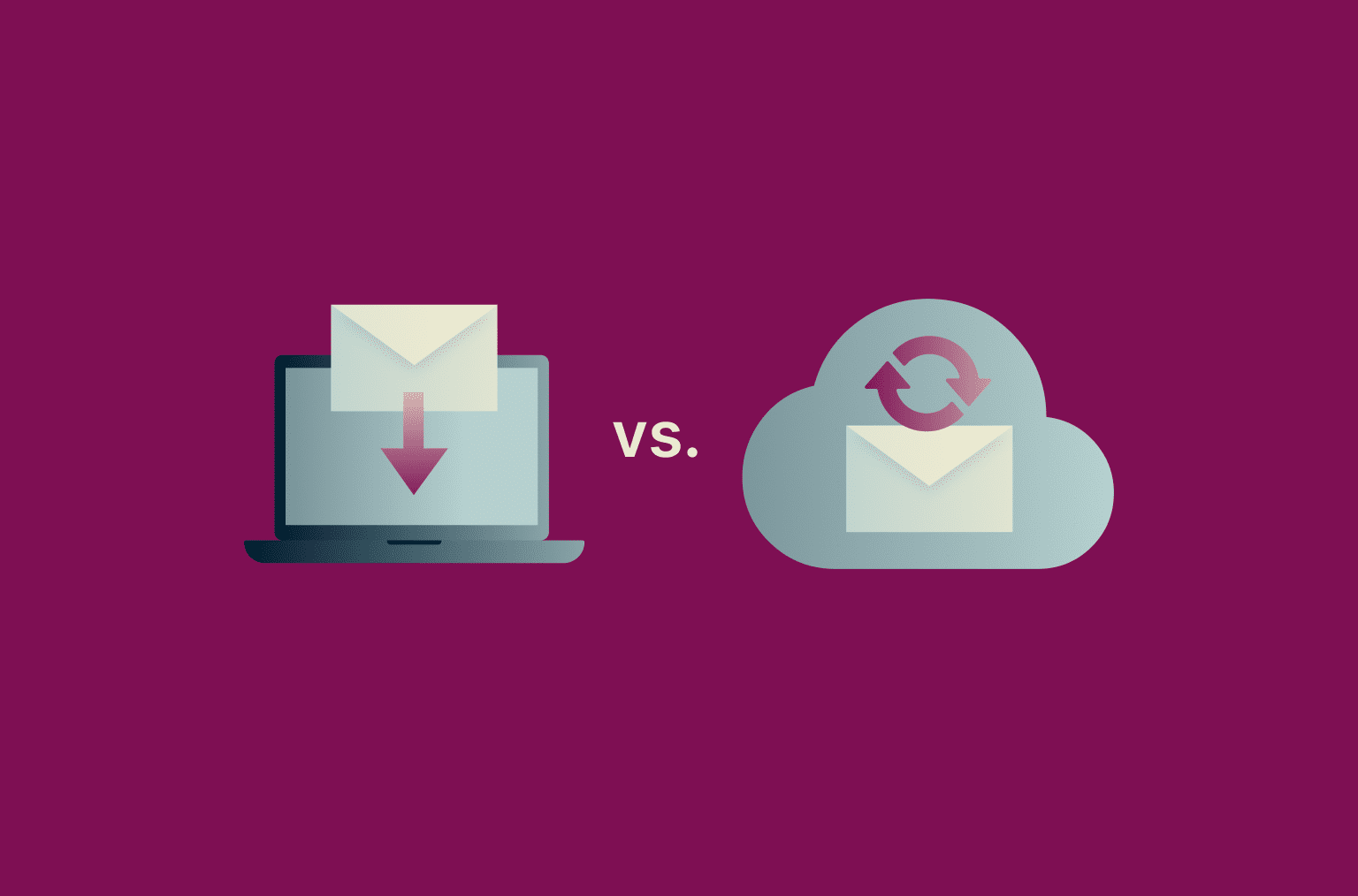
Internet Message Access Protocol (IMAP) and Post Office Protocol version 3 (POP3) are two common ways for email apps to access messages from a mail server. However, they take very different approaches to storage, syncing, and offline access.
The right choice largely depends on how you use your email: across multiple devices, through a single desktop client, or mainly offline.
What is POP3?
POP3 is an older email retrieval protocol designed for a simpler era of email, when people usually checked messages on one computer. It works on a download-first model: the email app connects to the server, retrieves new messages, and stores them on the device.
POP3 is often configured to delete messages from the server after retrieval, though many email clients let you leave copies on the server instead. The exact behavior depends on the account settings.
What is IMAP?
IMAP was designed for remote mailbox access. As internet access and multi-device email use became more common, IMAP became better suited to how many people access email today.
When an IMAP account is added to an email client, the app connects to the server and displays the mailbox stored there. Changes made in one app can then synchronize across other connected devices and email clients. Many IMAP email clients also support offline access by caching messages.
IMAP is still widely supported, but many users don't configure it directly. Webmail users typically access their mail through a browser over HTTPS, while provider apps may use IMAP, proprietary APIs, or other internal sync systems, depending on the provider.
Native apps from companies like Gmail and Outlook often use their own sync systems, and many workplaces and schools use protocols such as Exchange ActiveSync or JSON Metadata Exchange Protocol (JMAP) instead.
IMAP vs. POP3: Key differences
Differences between the IMAP and POP3 architectures affect mailbox management, sync, responsiveness, and security.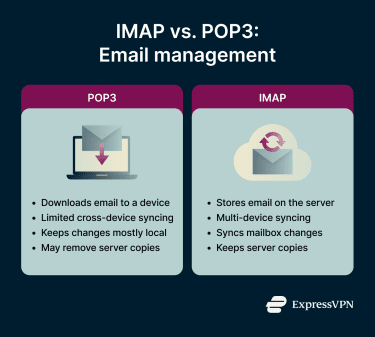
Storage and syncing
POP3 and IMAP manage mailbox state differently. POP3 downloads messages to the email client, so each device keeps its own copy. IMAP treats the server as the main mailbox, and connected apps sync changes back to it, including read status, sent items, drafts, deletions, and folder structure.
This is why IMAP keeps your phone, laptop, tablet, and webmail in sync, while POP3 setups can leave each device with a different version of your inbox.
Offline access
POP3 downloads messages to the device by default, so those messages are usually available offline. Unlike IMAP, POP3 doesn't generally synchronize the full server-side mailbox structure, such as folders, drafts, sent items, or read state.
IMAP only caches what the email client decides to keep locally, often just recent messages or selected folders. Older messages or untouched folders may not load without a connection, and any changes made offline won't sync to other devices until the app reconnects.
Speed and performance
POP3 can feel faster after messages are downloaded because the email client reads from local copies rather than contacting the server.
IMAP can feel slower in some setups because the client communicates with the server to fetch messages, check for updates, and sync changes. Speed depends on mailbox size, connection quality, and how much content is cached locally. Large inboxes and heavy attachments can make this more noticeable.
On mobile, native apps from Gmail, Outlook, and similar providers may feel faster than a third-party IMAP client. These apps use the provider's own sync system rather than standard IMAP, which can support faster notifications and more efficient handling of large mailboxes.
Security and privacy
Neither IMAP nor POP3 is inherently secure. Security depends on how the connection is configured, how authentication is handled, and how well the account and device are protected.
Older or poorly configured email setups could transmit usernames, passwords, and email content in plain text. Modern email services reduce this risk through Transport Layer Security (TLS), often shown in email apps as Secure Sockets Layer (SSL)/TLS, along with secure authentication methods.
For stronger privacy protections, you may look into providers that offer end-to-end encryption (E2EE) or zero-access encryption, depending on the level of protection needed.
Which email protocol is right for you?
If you don't have a specific reason to prefer local storage, IMAP will likely serve you better, and most modern consumer email services support server-based syncing by default.
POP3 may be a solid choice if you:
- Mainly check email from one device.
- Prefer keeping email archives under your own control rather than on a provider's servers.
- Need reliable offline access without depending on a synced cache.
- Have limited mailbox storage from your email service and want to clear the server regularly.
That said, if you use POP3, backups are your responsibility. Some emails may live on a single device, so losing or damaging that device can wipe out local-only messages.
Setting up and switching protocols
Many email apps support both IMAP and POP3, but setup varies by provider, device, and security settings.
Most providers list the exact values you need in their help center or webmail settings. You'll usually need:
- Incoming mail server: The IMAP or POP3 server used to receive email (for example, imap.gmail.com).
- Outgoing mail server: The Simple Mail Transfer Protocol (SMTP) server used to send email.
- Port number: The port used for the selected protocol and encryption method. IMAP commonly uses port 143 with Start TLS (STARTTLS) or port 993 with implicit TLS, while POP3 commonly uses port 110 (STARTTLS) or port 995 with implicit TLS. For SMTP submission, port 465 uses implicit TLS from the start, while port 587 commonly uses STARTTLS to upgrade the connection to TLS.
- Encryption setting: Usually TLS, STARTTLS, or an SSL/TLS-labeled option in the email app.
- Username format: Often your full email address, though this can vary by provider.
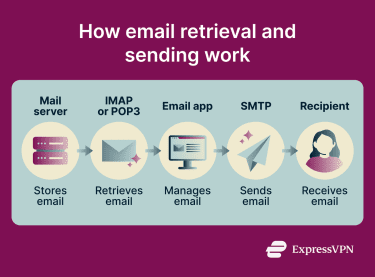 A typical manual setup process looks like this:
- Open your email app's account settings and add a new account.
- If the automatic setup fails, or if you want to choose the protocol yourself, select manual or advanced setup.
- Choose IMAP or POP3 for incoming mail.
- Enter the server details, port, encryption, username, and authentication method from your provider.
- Send and receive a test email.
- Check that folders, sent mail, and deleted messages behave as expected.
For provider-specific instructions, use the provider's official help page. Gmail and Outlook both provide current guidance on IMAP, POP3, and SMTP setup.
Authentication often trips people up. Some providers require IMAP or POP access to be enabled first and may not let older email apps sign in with a regular account password. Depending on the provider and app, you may need Open Authorization (OAuth), an app password, or another provider-approved sign-in method.
Configuring POP3
If you check the same POP3 account from multiple devices, enable the setting that leaves a copy of messages on the server if your provider or email app supports it. Without it, one device may download messages and clear them before your other devices or webmail can see them.
Configuring IMAP
When configuring IMAP, check that the email app syncs the folders you actually use, not just the inbox. This can include sent mail, drafts, archived messages, trash, and any custom folders.
If sent emails don't appear across devices, the app may be saving them to a local Sent folder instead of the server-side one. Adjust the folder settings and send a test email to confirm it shows up elsewhere.
Migrating between protocols
Migrating between POP3 and IMAP isn't a one-click switch. Most email apps require you to add the account again from scratch with the new protocol's settings, rather than converting an existing account.
Switching from IMAP to POP3 is often simpler because server-side messages usually remain available during the transition. Still, check for local-only folders, drafts, or sent mail before removing the old setup.
If you're switching from POP3 to IMAP, the process usually looks like this:
- Back up any local POP3 messages you want to keep.
- Add the same email account again using IMAP settings, but don't delete the old POP3 account yet.
- Check that your folders and messages appear correctly.
- Move any local-only POP3 messages into the IMAP account if you want them available from the server, then remove the POP3 account.
Note: You can run POP3 and IMAP on the same account, but they may fall out of sync. Messages can show as read on one device and unread on another or disappear from IMAP if a POP3 client or provider setting deletes or moves the server copy after download.
Troubleshooting common issues
If you encounter an issue with IMAP or POP3, the tips below might help you resolve it.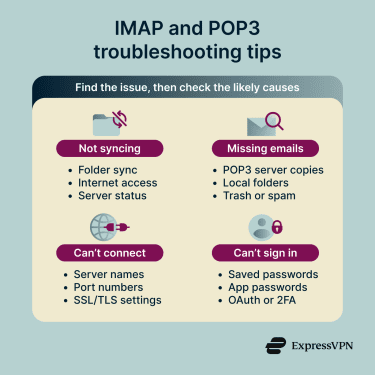
Emails not syncing across devices
First, check whether the account was added as POP3 or IMAP. If it's using POP3, consider setting up the account with IMAP instead to sync changes across devices.
If the account is already using IMAP, check whether:
- The device is connected to the mail server.
- Folder sync is turned on or limited to the inbox.
- The email app has refreshed properly.
- The app is saving sent mail or drafts to local folders instead of server folders.
- The provider is limiting simultaneous connections or frequent mailbox checks.
Missing or deleted emails
Start by checking the trash, archive, spam, and local folders. Emails that seem deleted may have been moved, archived, filtered, or stored locally.
If you use POP3, check whether the app is set to delete messages from the server after they are downloaded. Also, check any other devices that access the same account, since one device may have downloaded the messages before the others saw them.
If you recently removed an old POP3 account, look for a local mail archive or backup. Some messages may have existed only in the old client and not on the server.
Server settings and connection errors
If the app can't connect, check its settings against your provider's latest setup instructions. Older configurations may no longer work if the provider has updated its security requirements.
Even a small mistake in the incoming server name, outgoing server name, port number, encryption setting, or username format can prevent the email app from connecting properly.
Check for:
- Typos in the incoming or outgoing server name.
- The wrong protocol was selected during setup.
- A port number that doesn't match the encryption setting.
- Incorrect TLS or STARTTLS settings.
- A username format that the provider doesn't accept.
- Outgoing SMTP settings, if you can receive mail but can't send it.
If everything looks correct and the issue started suddenly, check whether the provider is experiencing an outage or whether a firewall, antivirus tool, or network setting is blocking the connection.
Authentication failures
Authentication errors don't always mean your password is wrong. They often occur because the email app uses an outdated sign-in method or saved credentials.
Check whether:
- The saved password is old or incorrect.
- Your provider requires an app password.
- Two-factor authentication (2FA) is enabled.
- The email app requires OAuth or modern authentication.
- POP3 or IMAP access is disabled in your account settings.
- A security alert is blocking sign-in from a new device, app, or location.
If authentication keeps failing, check your provider's setup instructions before resetting your password. You may need to update the email app, generate a new app password, reauthorize the account, or enable POP3 or IMAP access.
Using a password manager, such as ExpressKeys, can also help prevent login issues caused by outdated or reused credentials.
FAQ
Can POP3 delete emails from the server?
Does IMAP work without an internet connection?
Is POP3 faster than IMAP?
What ports do POP3 and IMAP use?
Does IMAP sync sent emails?
Can switching from POP3 to IMAP cause email loss?
Why do most modern email accounts use IMAP?
Can I change from IMAP back to POP3?